
Admin Tools
Intro
School Admins can set institution‑level policy for which AI features are available to instructors and students. When a feature is Off here, instructors cannot enable it on any assignment; when On, instructors can decide whether and how to use it in their courses.
Rumi Admin Tools are available in two scenarios, depending on how your school uses Rumi:
- LMS-integrated: Your school accesses Rumi through your LMS (e.g., Canvas, D2L, Blackboard, or Moodle). Instructor and student accounts are provisioned automatically through the LMS, so there is no user management to do in Rumi.
- Standalone app: Your school uses the Rumi standalone app. Admins see one additional page in Admin Settings, User Management, where they can invite instructors and manage user roles and permissions
All AI Policy Management and AI Promptset Management settings described in this guide apply to both scenarios. The only difference is the extra User Management page for standalone schools, covered in the User Management (Standalone App Only) section below.
Need admin access? If your school doesn’t have designated Rumi Admins yet, email support@rumidocs.com to request admin access.
Where to Find It
How you open Rumi Admin Tools depends on your scenario:
- LMS-integrated: Open any Rumi assignment (or create a new one), then go to your profile icon on the top right and select Admin Settings.
- Standalone app: Log in to the Rumi app, then go to your profile icon on the top right and select Admin Settings.
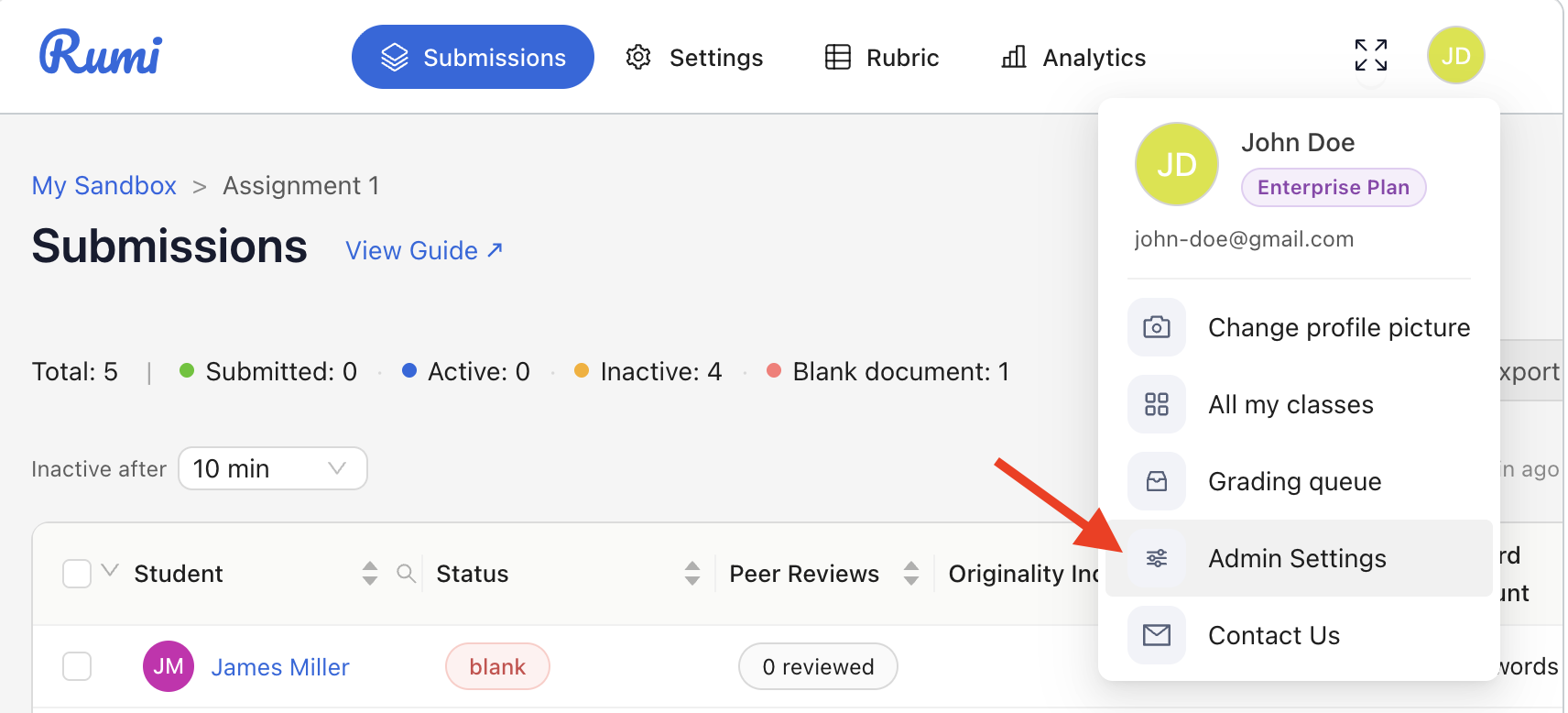
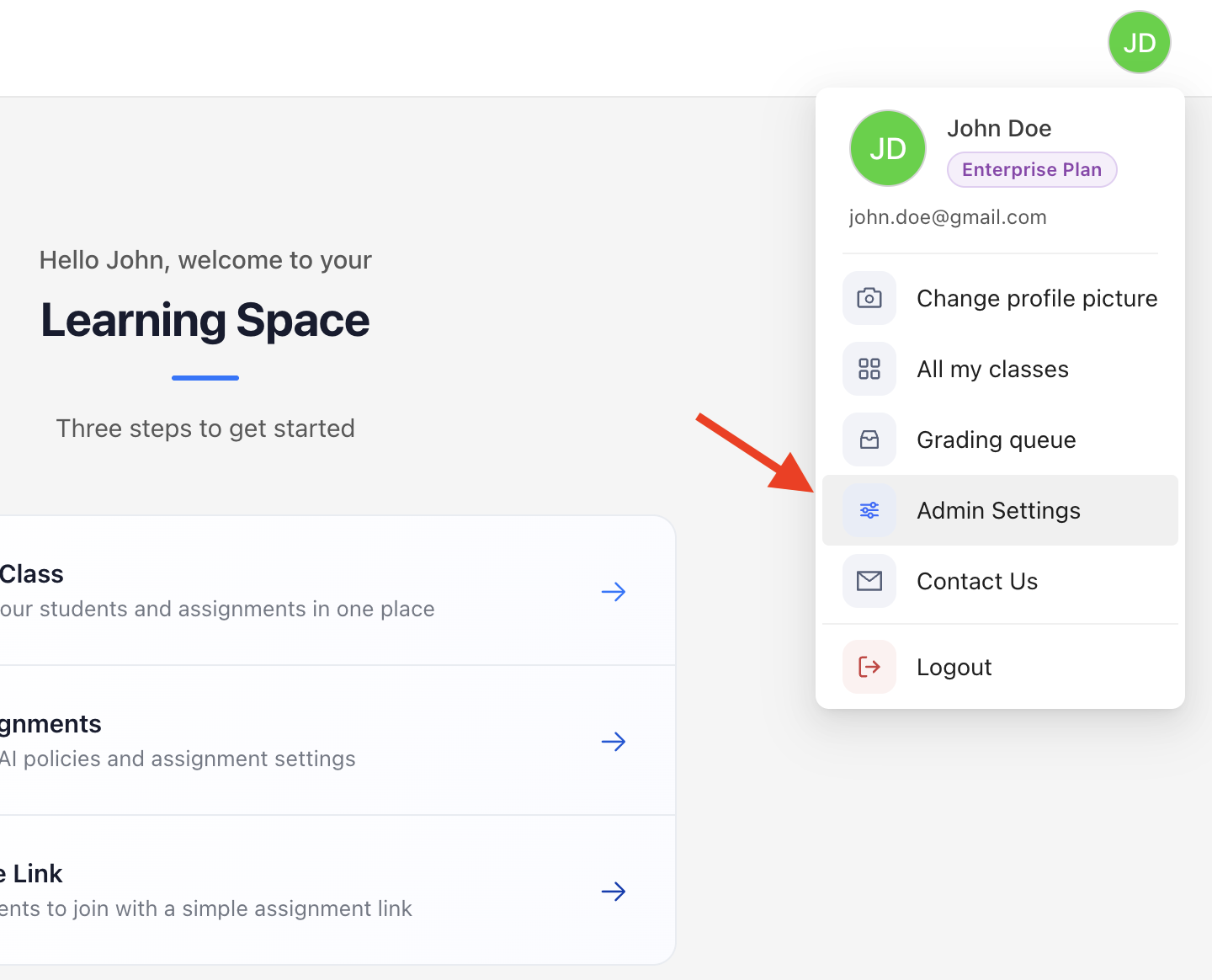
Admin Settings is organized into these areas:
- AI Policy Management
- Student Experience
- Instructor Experience
- AI Promptset Management
- Instructor Permissions
- Institution Level Promptsets
- User Management (standalone app only)
- Inviting instructors
- User roles and permissions
AI Policy Management
Use this page to control which AI capabilities are available across your institution. The settings are grouped by who they affect.
- Features that Impact Student Experience (first card): Features that impact what students can do inside documents—e.g., preset prompts, chats, inline edits, available AI engines, and RumiAssist for rubric‑based feedback/leveling.
- Features that Impact Instructor Experience (second card): Features that affect instructor workflows—e.g., AI rubric generation and RumiAssist for instructor‑facing rubric feedback/leveling.
Student Experience
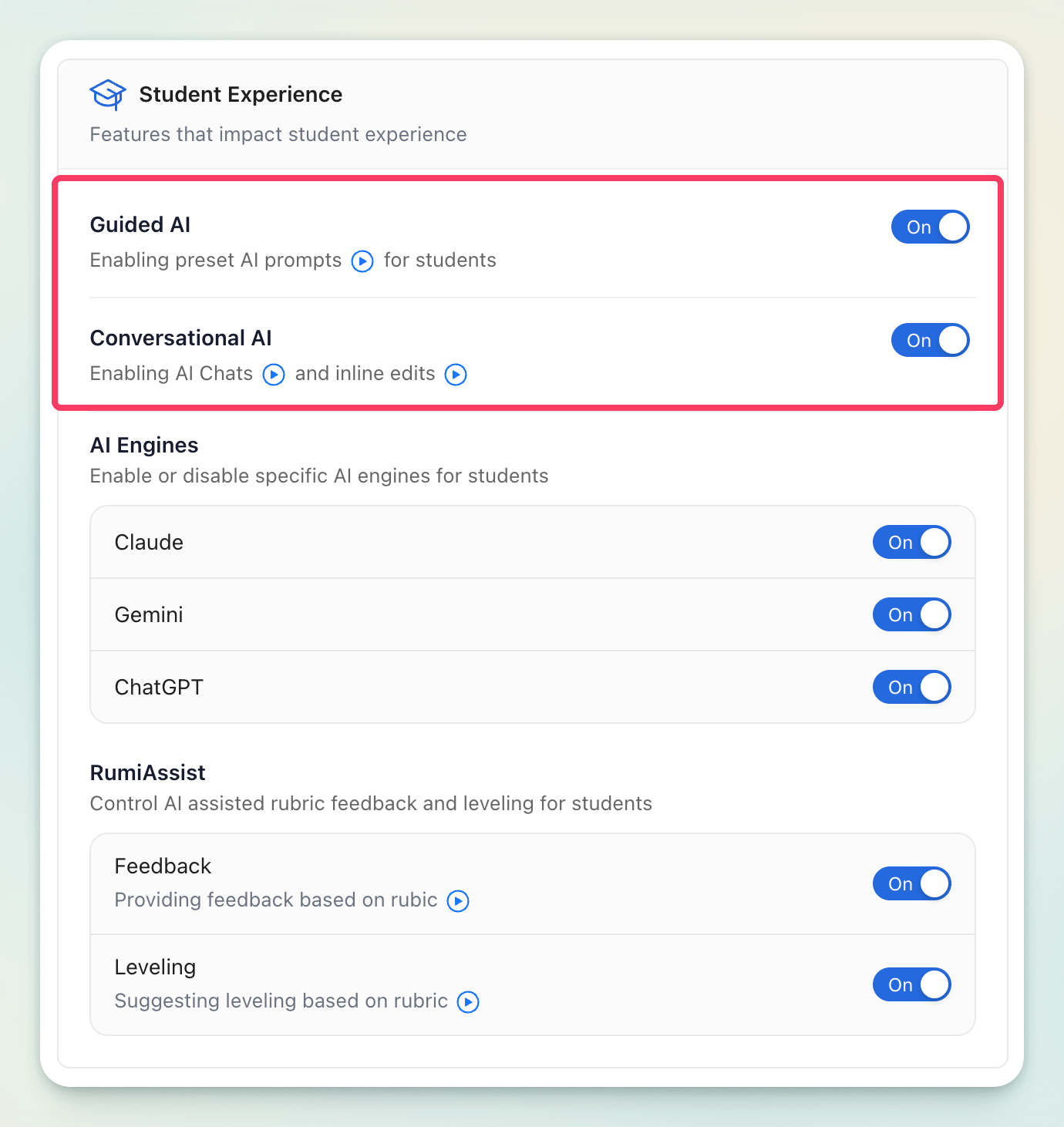
In this section, admins choose which student-facing AI features instructors can turn on or off, and which AI engines students can use. All controls appear in the Student Experience card. To learn more about these AI features and how instructors can enable/disable them please visit this guide.
Guided AI & Conversational AI
- Guided AI — Enable or restrict instructors from providing students with curated sets of prompts (Promptsets) aligned to the assignment.
- Conversational AI — Enable or restrict instructors from giving students access to open-ended AI chats and inline AI edits directly within the document.
Note: Please keep in mind that changing this will only impact new assignment creation not prior assignments created.
For example, if Guided AI & Conversational AI policies are disabled by the school administrator, these settings will be disabled for instructors, see screenshot below.
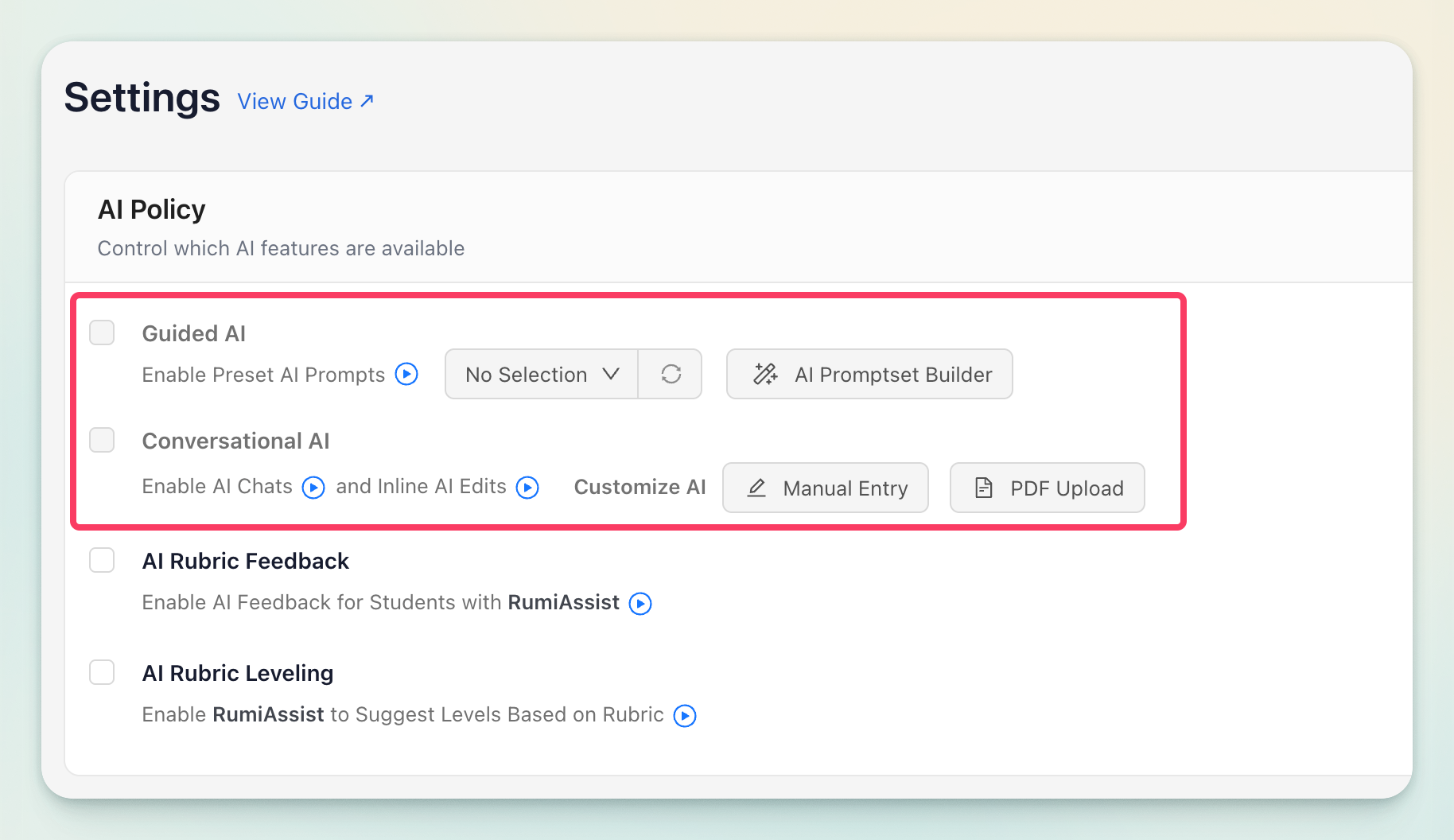
Admin tip: If your school’s AI policy is to allow only structured AI support and block open-ended AI generation across all assignments, set Guided AI = On and Conversational AI = Off. This keeps AI help focused through instructor‑chosen prompts.
AI Engines
Control which engines students can use when student‑facing AI is allowed. The AI Engines group includes separate toggles for: Claude, Gemini, and ChatGPT. Turn engines On to make them selectable; turn Off to remove them from student access. If Guided/Conversational AI are enabled at least one AI Engine must be ON.
Note 1: Please keep in mind that changing this will impact BOTH new assignments and existing assignments in Rumi.
Note 2: These settings only impact AI engine selection for RumiAI (Guided AI and Conversational AI). They don’t affect AI engines used for RumiAssist or Instructor Rubric Generation.
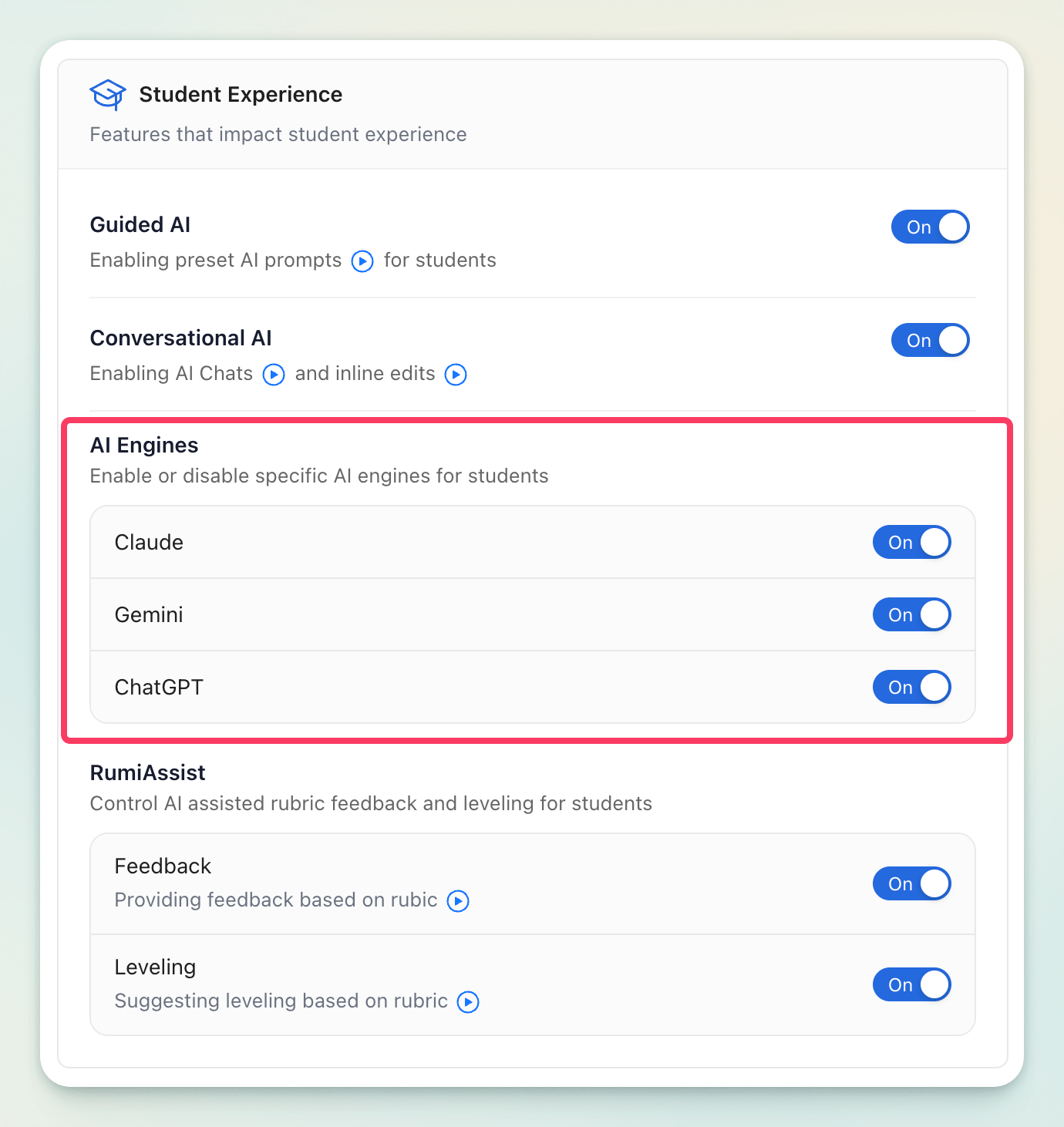
These settings only impact AI engine selection for RumiAI (Guided AI and Conversational AI). They don’t affect AI engines used for RumiAssist or Instructor Rubric Generation.
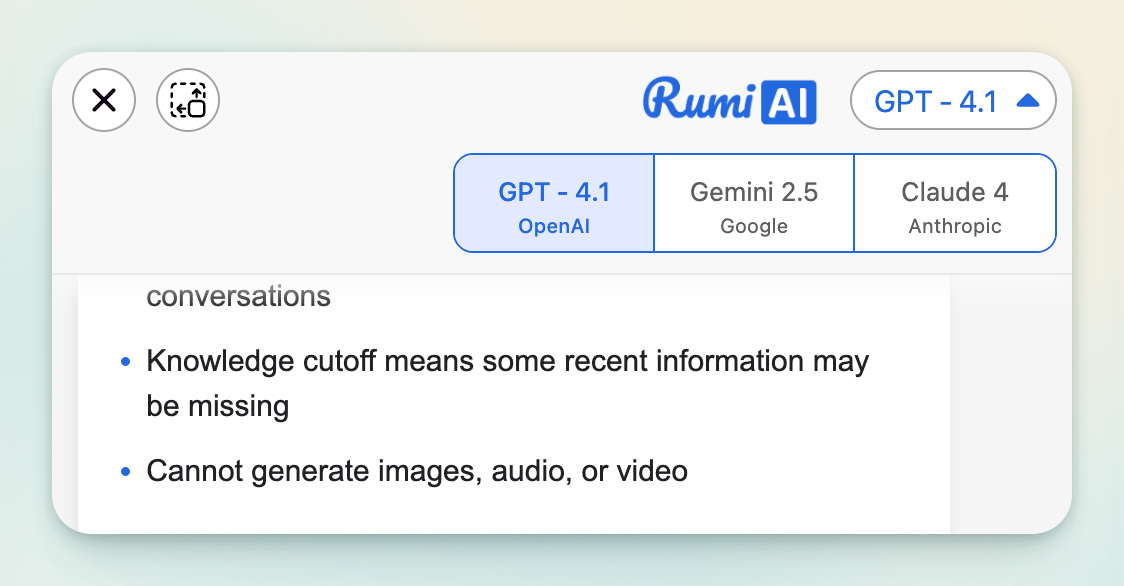
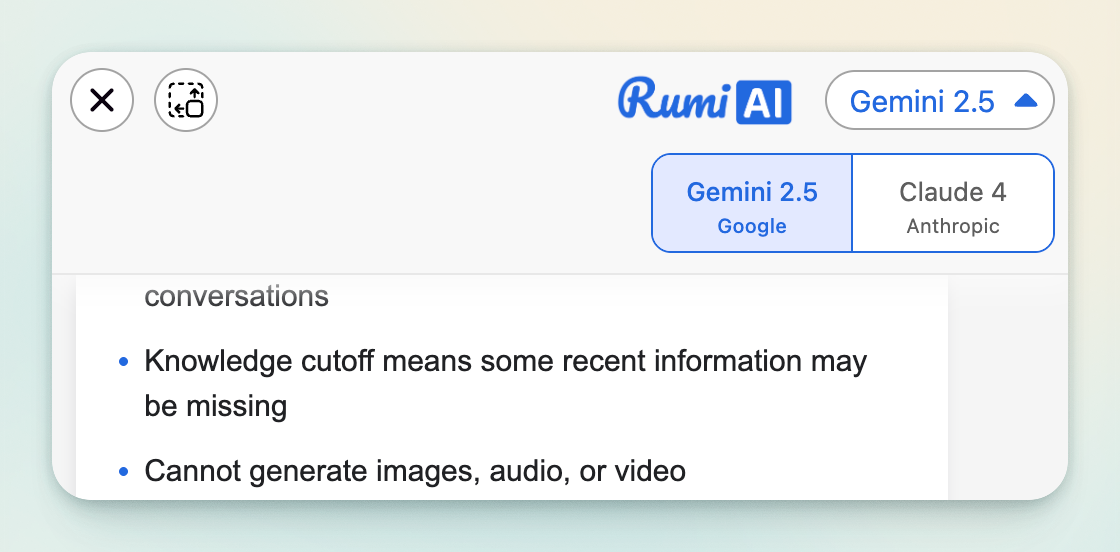
The images below show how the student experience changes depending on which AI engines are enabled or disabled.
RumiAssist (Students)
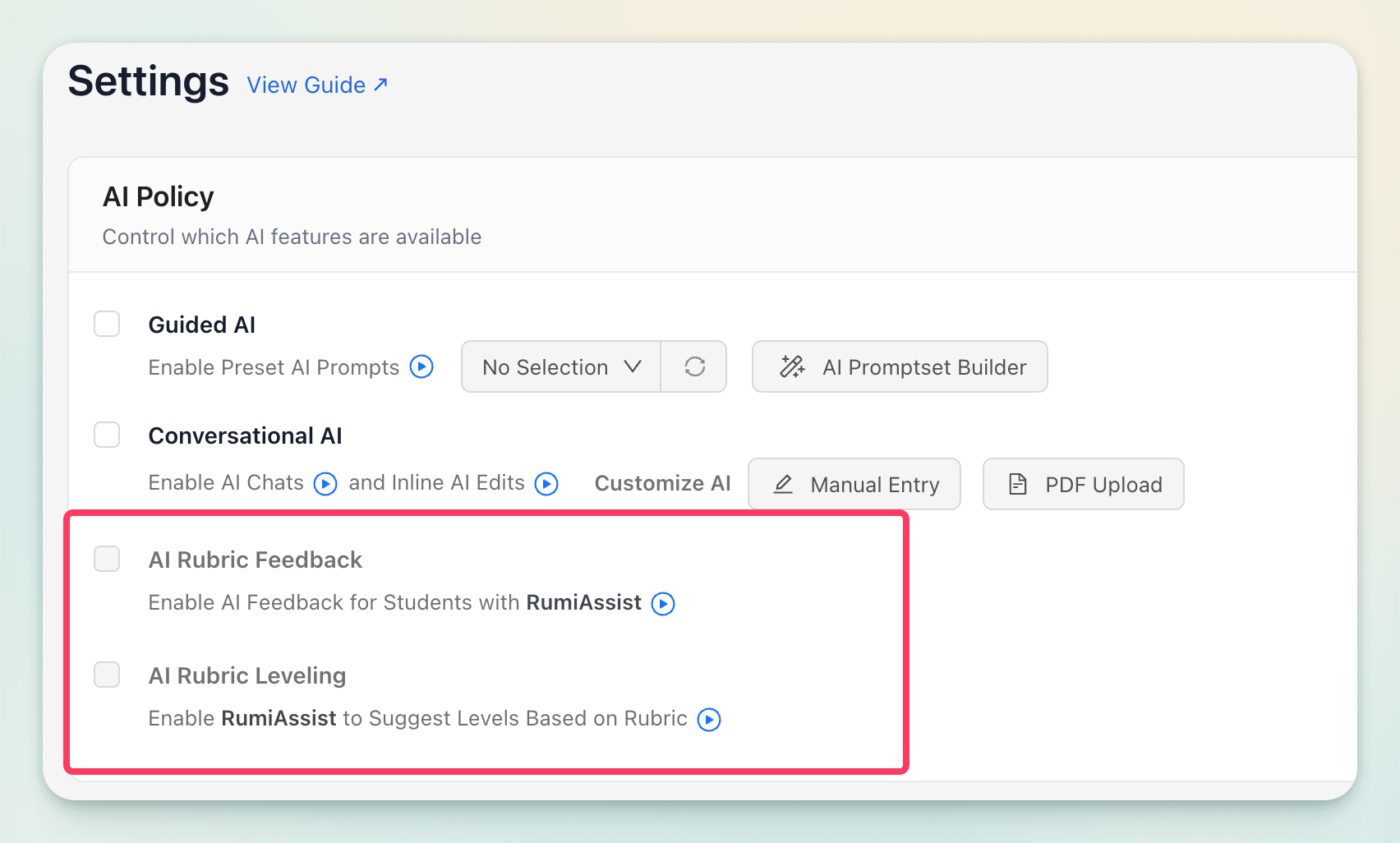
RumiAssist provides AI‑assisted, rubric‑aligned guidance to students. Two controls appear under RumiAssist in the Student Experience card:
- Feedback — Instructors can allow or prevent students from receiving strengths and areas for improvement mapped to the assignment rubric. If no rubric is attached, a generic rubric may be used.
- Leveling — Instructors can allow or prevent students from seeing AI-suggested rubric levels indicating how their text aligns with the criteria.
Note: Please keep in mind that changing this will only impact new assignment creation not prior assignments created.
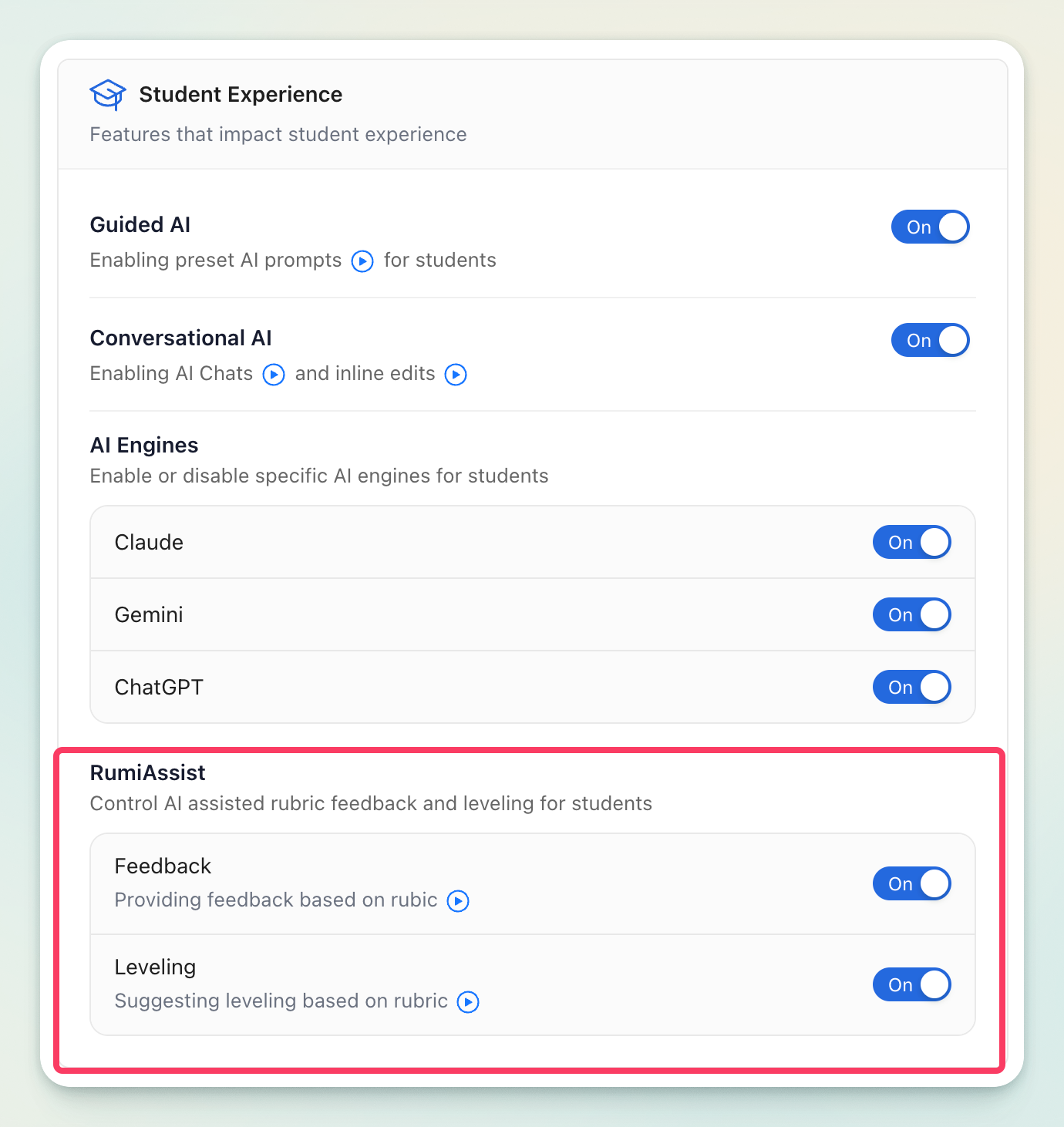
If school admins turn these features off, instructors will not be able to enable these AI features under AI Policy.
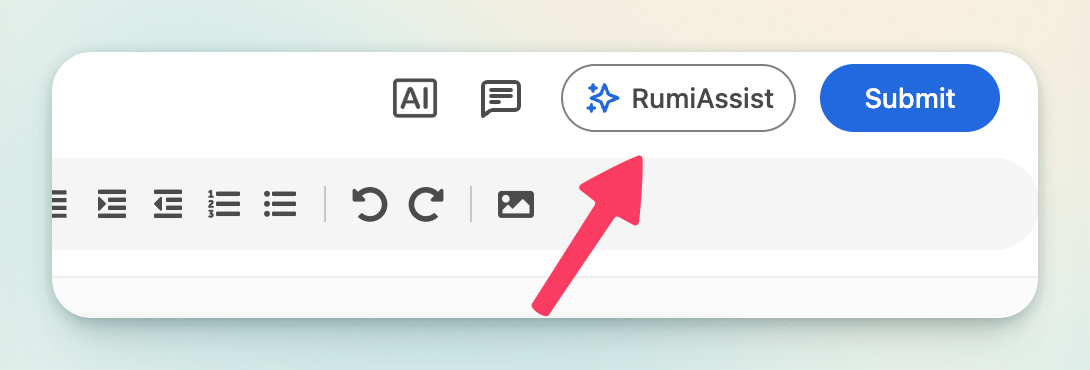
If School Admins have this setting turned on, and instructors enable RumiAssist for an assignment, students will be able to access RumiAssist on the top right of screen as shown below.
Instructor Experience
These settings control AI capabilities that streamline instructors’ own workflows. All controls appear in the Instructor Experience card on the right.
AI Rubric Generation
When On, instructors can use AI to generate rubric criteria and descriptors as a starting point, then refine them to match course expectations. Turn Off if your school policy requires rubrics to be authored without AI assistance.
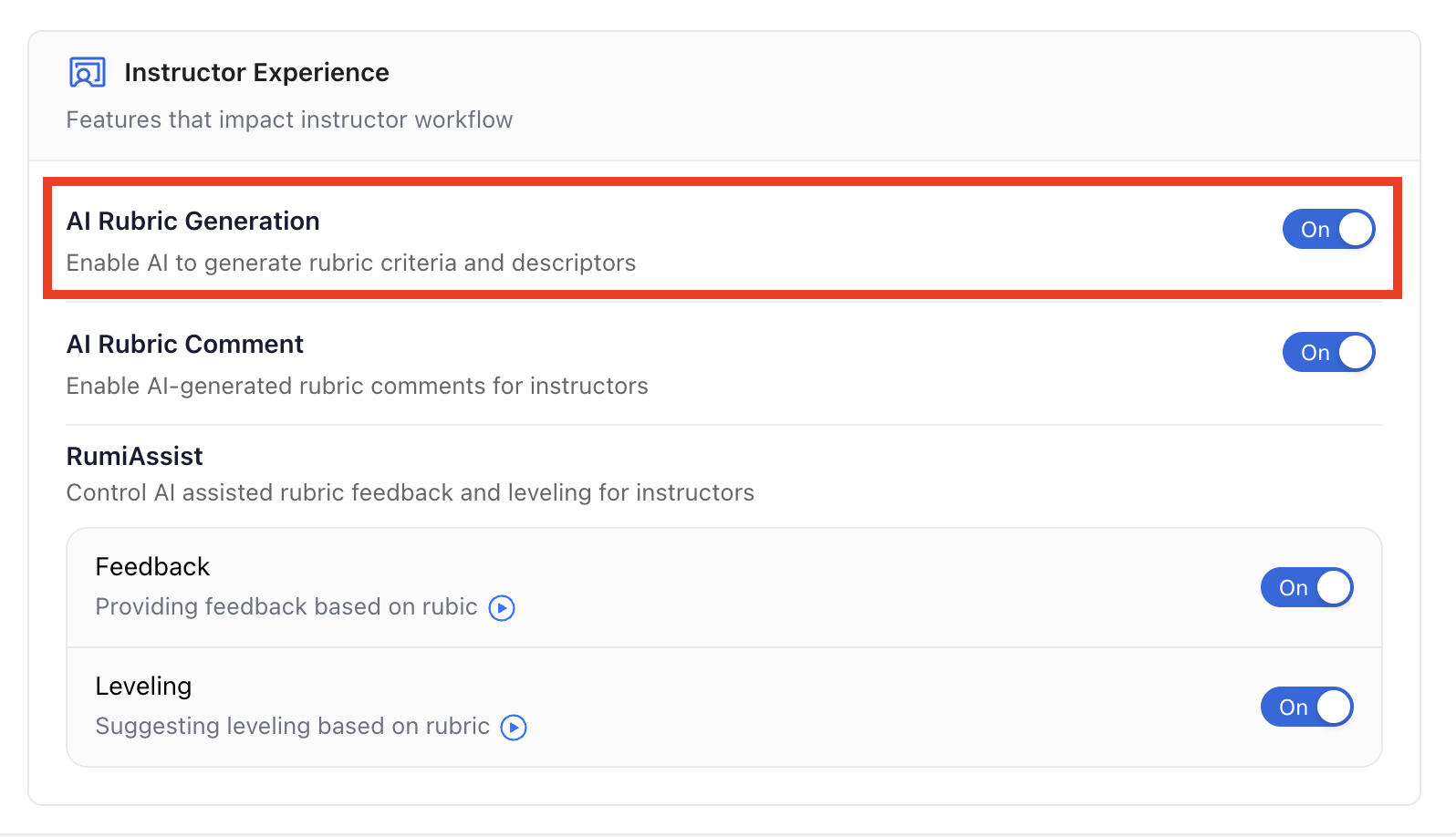
If this setting is turned off, instructors will not be able to click the ‘Generate with AI’ button in the Rubric Management Tab.

AI Rubric Comment
AI Rubric Comment is enabled by default and allows instructors to receive AI-generated comments aligned to rubric criteria. This provides instructors with a strong starting point for high-quality, criteria-based feedback.

When this setting is On, instructors will see the AI assistance button in the Rubric Table inside each student document, allowing them to generate rubric-aligned comments with AI.
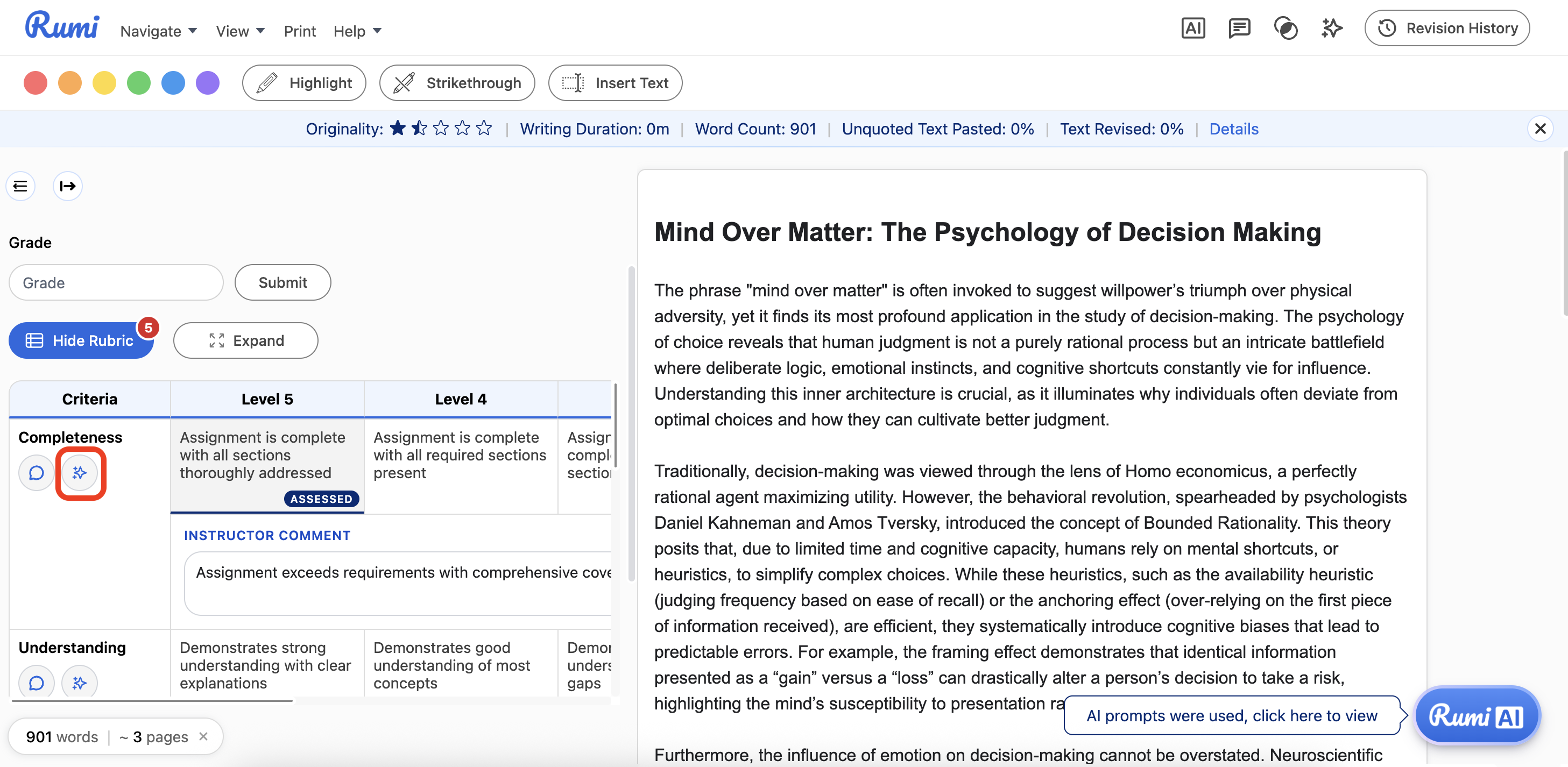
When this setting is Off, the button is removed and instructors cannot generate AI rubric comments.
RumiAssist (Instructors)
Enable RumiAssist for instructors to accelerate feedback aligned to rubrics:
- Feedback — AI‑assisted comments based on the rubric.
- Leveling — AI‑suggested rubric levels to support consistent evaluation. These toggles apply to instructor‑facing tooling; they are independent of the student‑facing RumiAssist settings above.

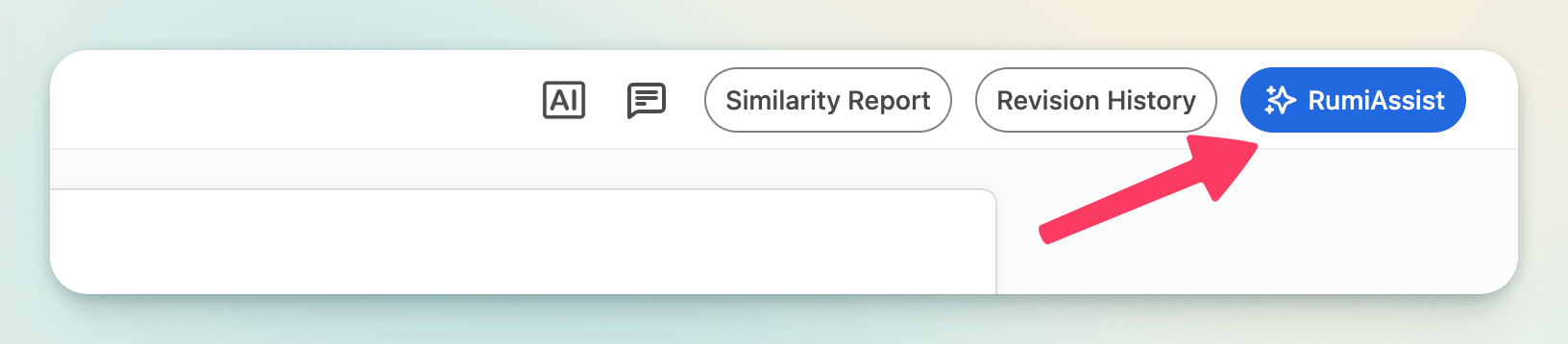
If this setting is Turned On, Instructors will be able to click on RumiAssist on the top right of each document.
AI Promptset Management
This section determines defaults and permissions for Promptsets—the curated collections of Guided AI prompts for assignment that have "Guided AI" enabled. It appears below the policy cards on the same page.
To learn more about Guided AI and the AI Promptset Builder, view this Guide.
Instructors Permissions
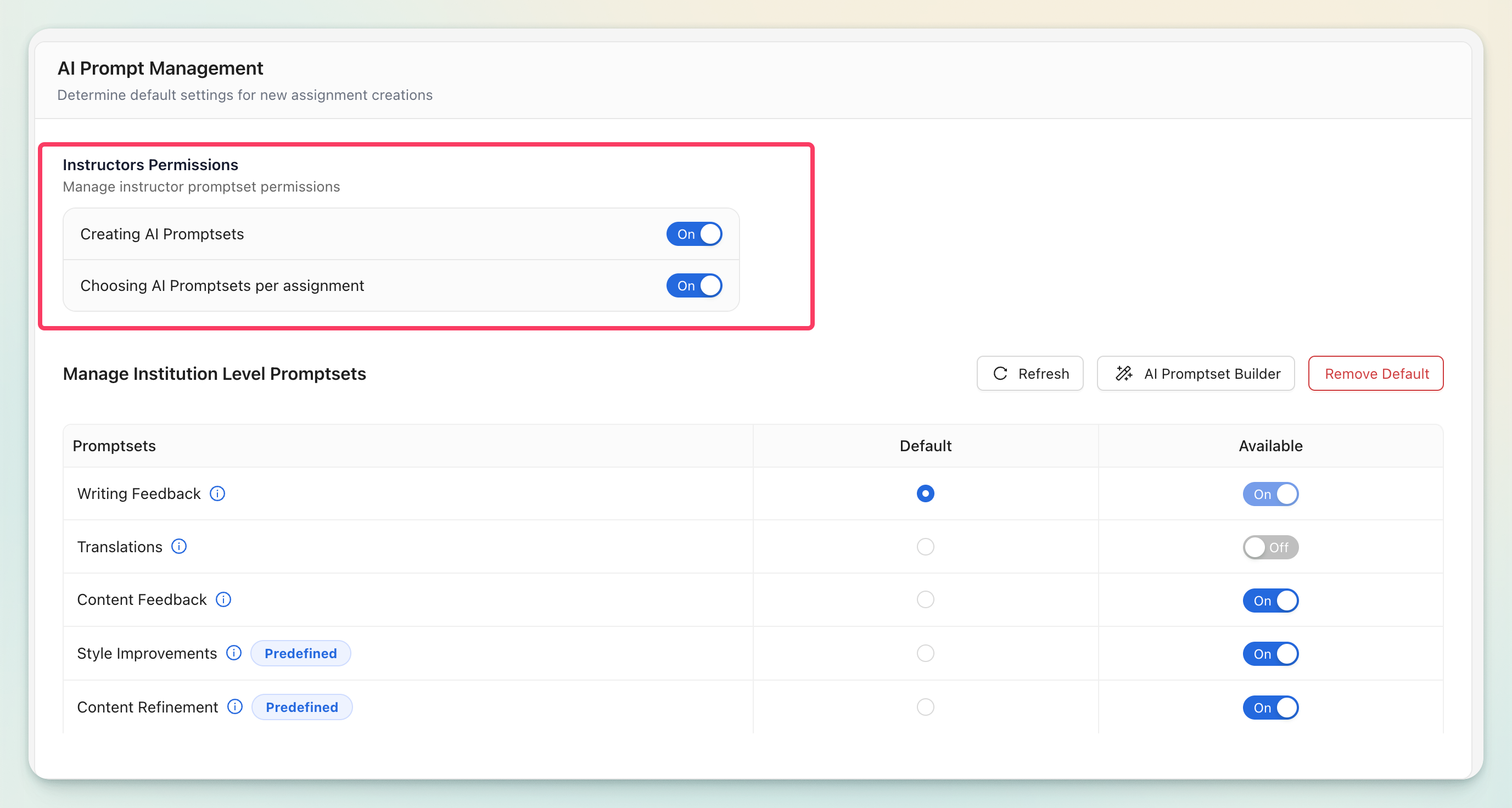
Found under AI Promptset Management → Instructors Permissions (two toggles):
- Creating AI Promptsets — When On, instructors can create their own Promptsets.
- Choosing AI Promptsets per assignment — When On, instructors can select which Promptset applies to each assignment. If this setting is turned Off, newly created assignments that have "Guided AI" enabled will only use the default AI Prompset.
Turn either Off to centralize control and prevent ad‑hoc prompt creation/selection by instructors.
Note: Please keep in mind that changing this will only impact new assignment creation not prior assignments created.
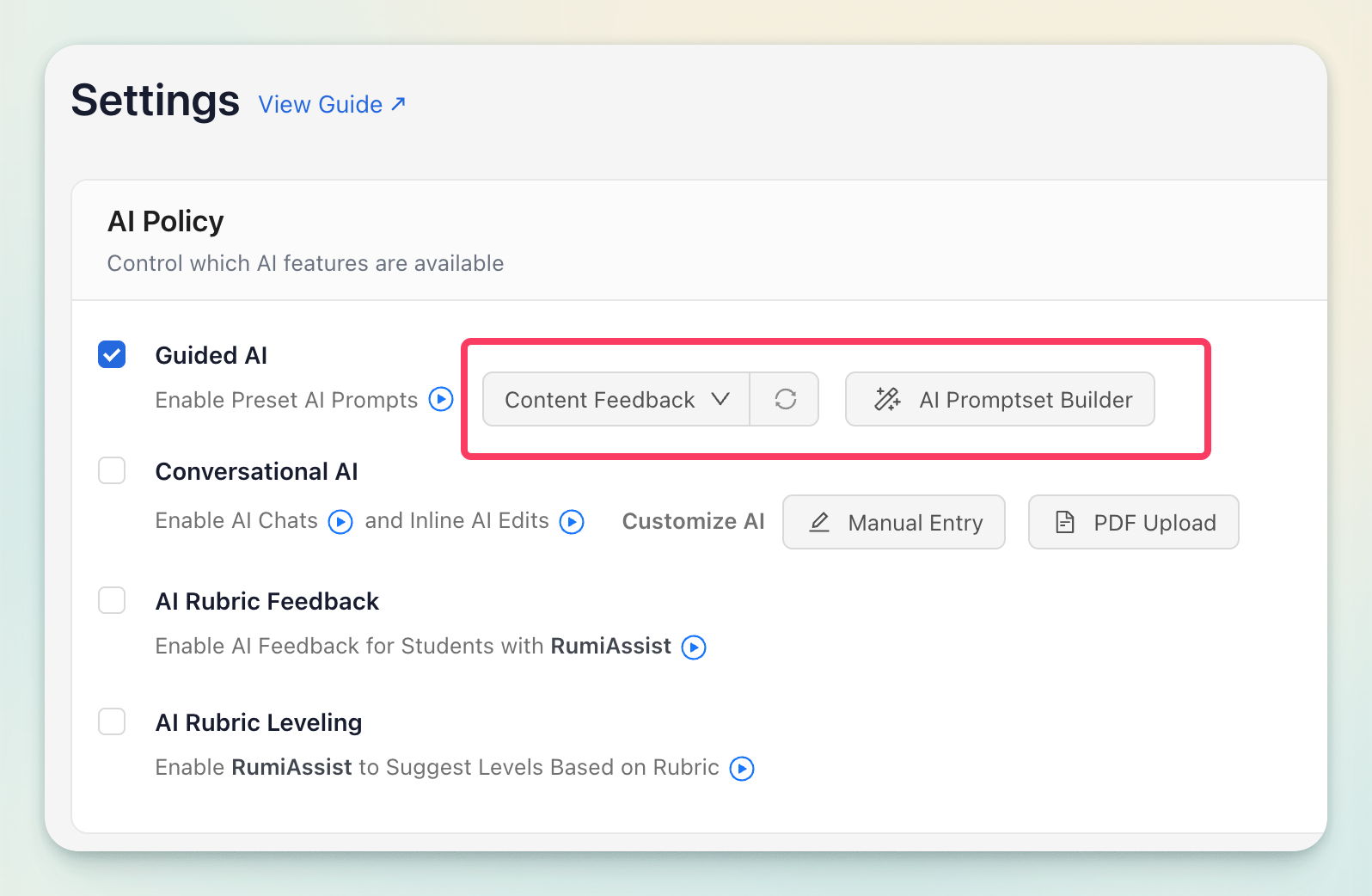
If these settings are turned Off, instructors will not be able to select a specific promptset or create their own when they have the "Guided AI" feature enabled.
Institution Level Promptsets
Below the permissions block is the Manage Institution Level Promptsets table with three key elements: Promptsets, Default, and Available. You’ll also see Refresh and AI Promptset Builder actions at the top right.
Note: Please keep in mind that changing this will only impact new assignment creation not prior assignments created.
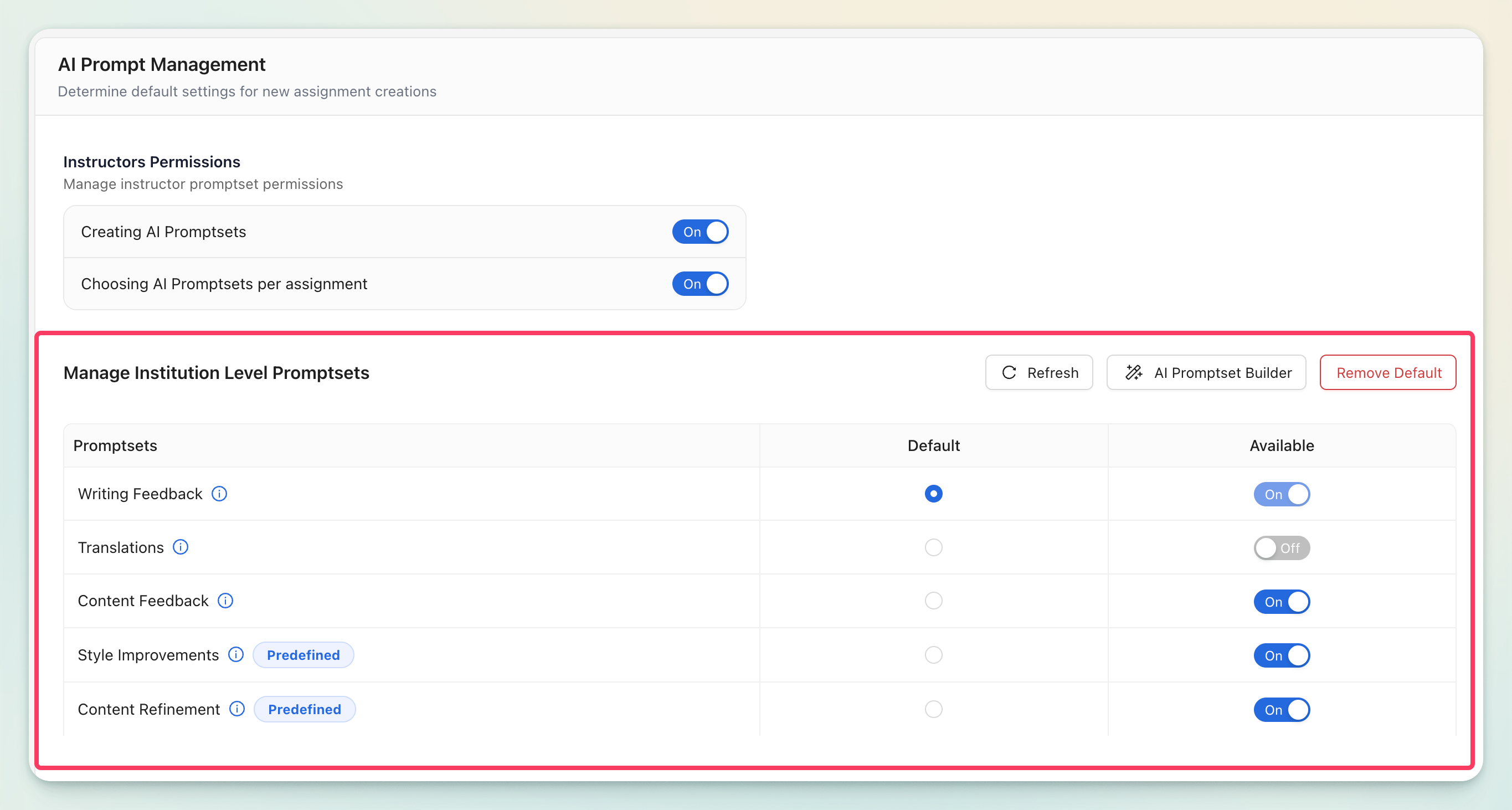
- Promptsets list Shows all institution‑level Promptsets by name. Some may be labeled Predefined (Rumi‑provided sets such as Content Refinement, Writing Feedback, or Style Improvements).
- Default (radio) Select one Promptset as the default for new assignment creation. This sets a starting point that instructors can keep or change (assuming they have permission to choose a Promptset per assignment).
- Available (toggle) Publish/unpublish each Promptset. On makes the set selectable by instructors; Off hides it from selection while preserving it in your library.
- Refresh Reloads the list to reflect recent changes (useful after editing or importing Promptsets).
- AI Promptset Builder Opens the builder to create new Promptsets or curate existing ones at the institution level. Use this to standardize high‑quality, policy‑aligned Guided AI prompts for your programs.
User Management (Standalone App Only)
Use this page to invite instructors to Rumi and manage roles and permissions across your institution. This tab only appears for schools using the Rumi standalone app. If your school accesses Rumi through your LMS, instructor accounts are provisioned automatically and this tab is not shown.
The page contains the Members table and the Invite instructors action.
Members Table
The Members table shows everyone in your institution with their name, email, role, admin status, and join date. The controls at the top of the table:
- Search — Find members by name or email.
- All roles (filter) — Filter the list by role.
- Members count — Shows the total number of members in your institution.
- Refresh — Reloads the list to reflect recent changes (useful after sending invites or updating roles).
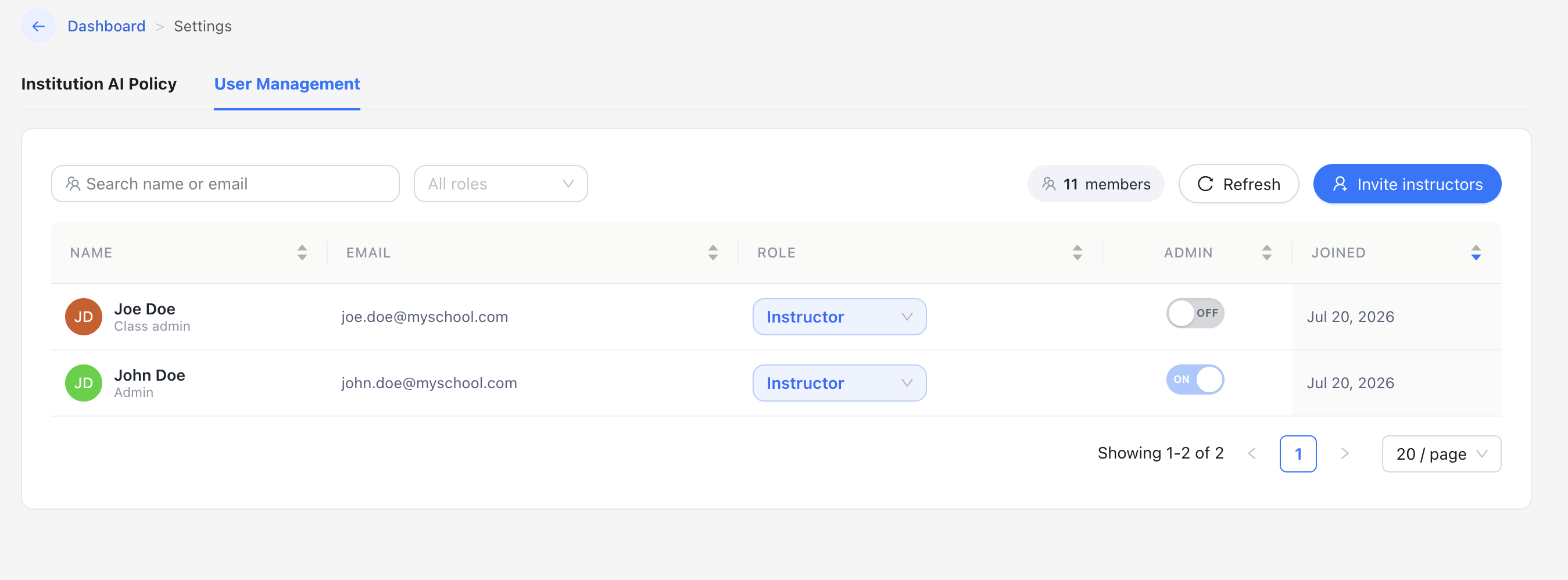
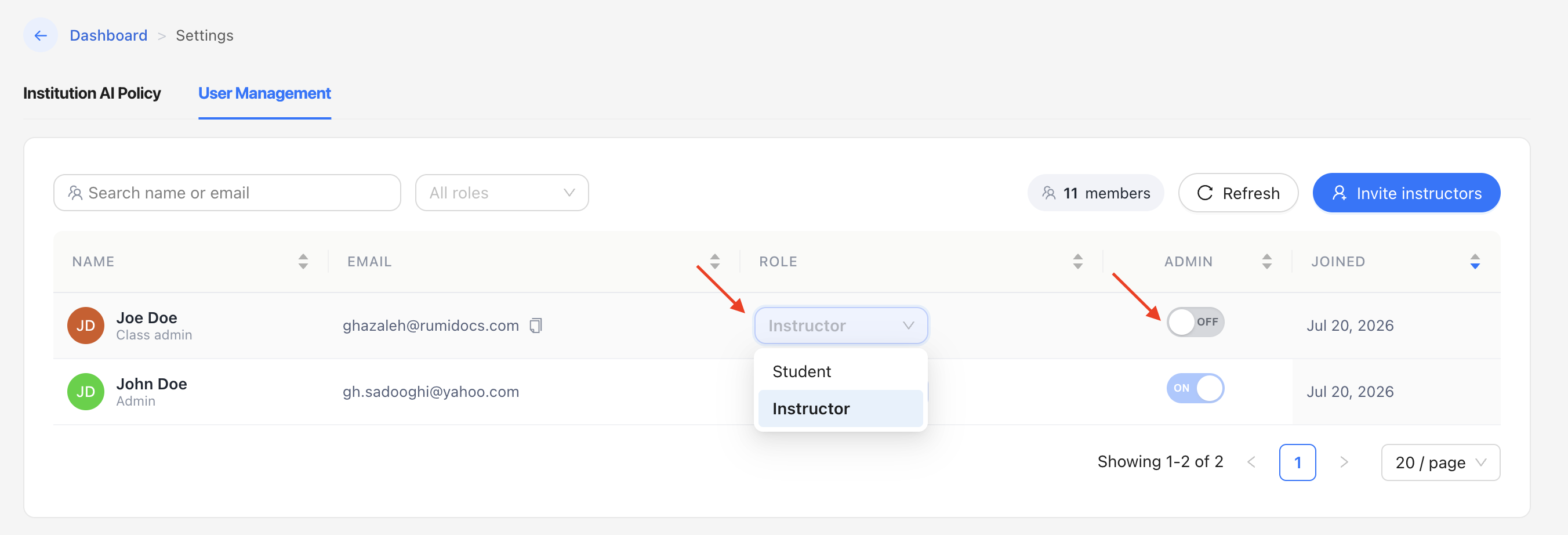
Within each row, two controls manage what that member can do:
- Role (dropdown) — Assigns the member's role in Rumi.
- Admin (toggle) — On gives the member access to Admin Settings, including all AI Policy and Promptset controls described in this guide; Off removes that access.
Inviting Instructors
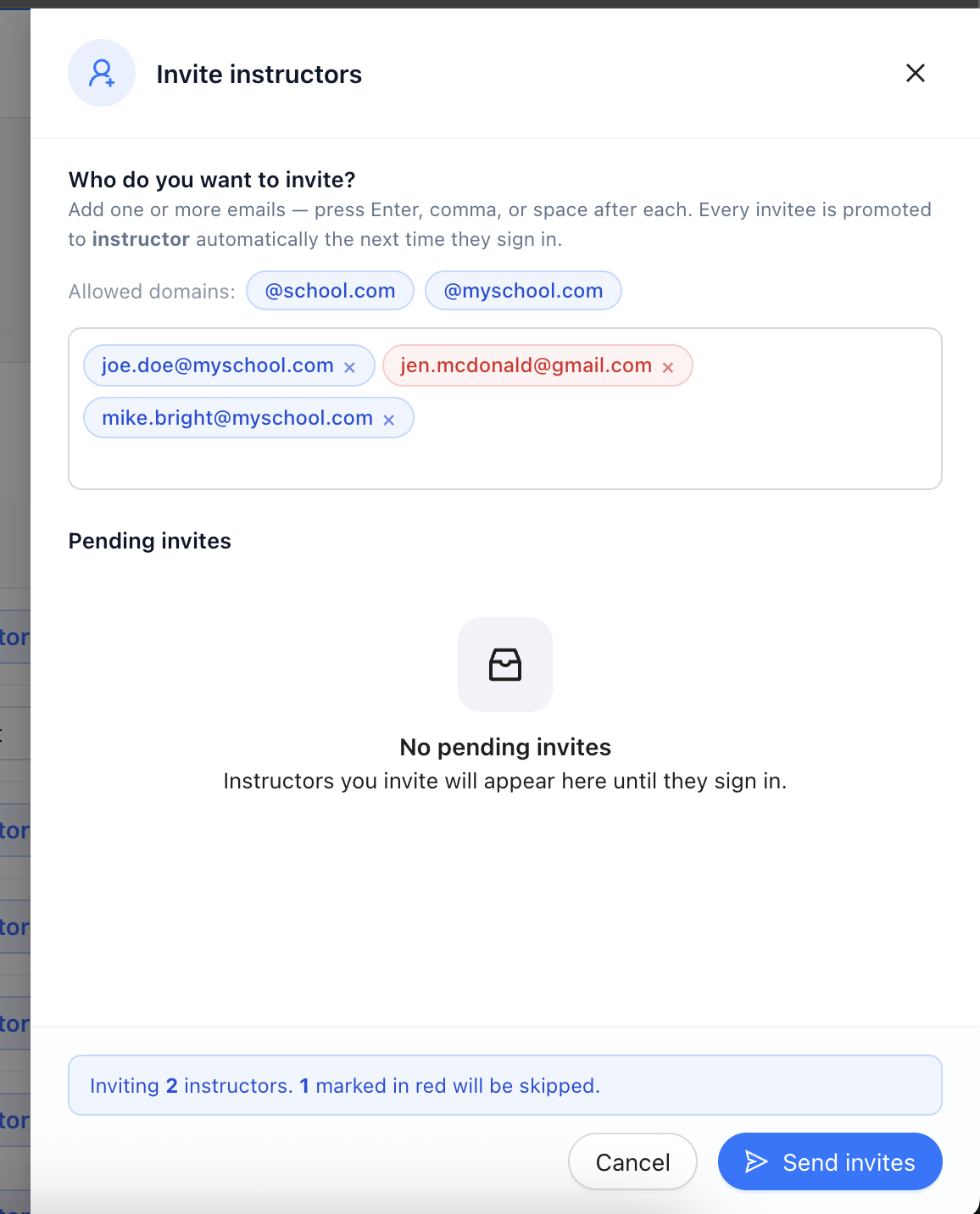
Click Invite instructors on the top right of the Members table to open the invite dialog.
- Email field — Add one or more email addresses. Press Enter, comma, or space after each address to add it.
- Allowed domains — Only emails from your institution's allowed domains (shown above the field) can be invited. Addresses outside these domains are marked in red and will be skipped when invites are sent.
- Summary bar — Confirms how many instructors will be invited and how many will be skipped before you send.
- Pending invites — Instructors you invite appear here until they sign in. Once they create their account, they move to the Members table.
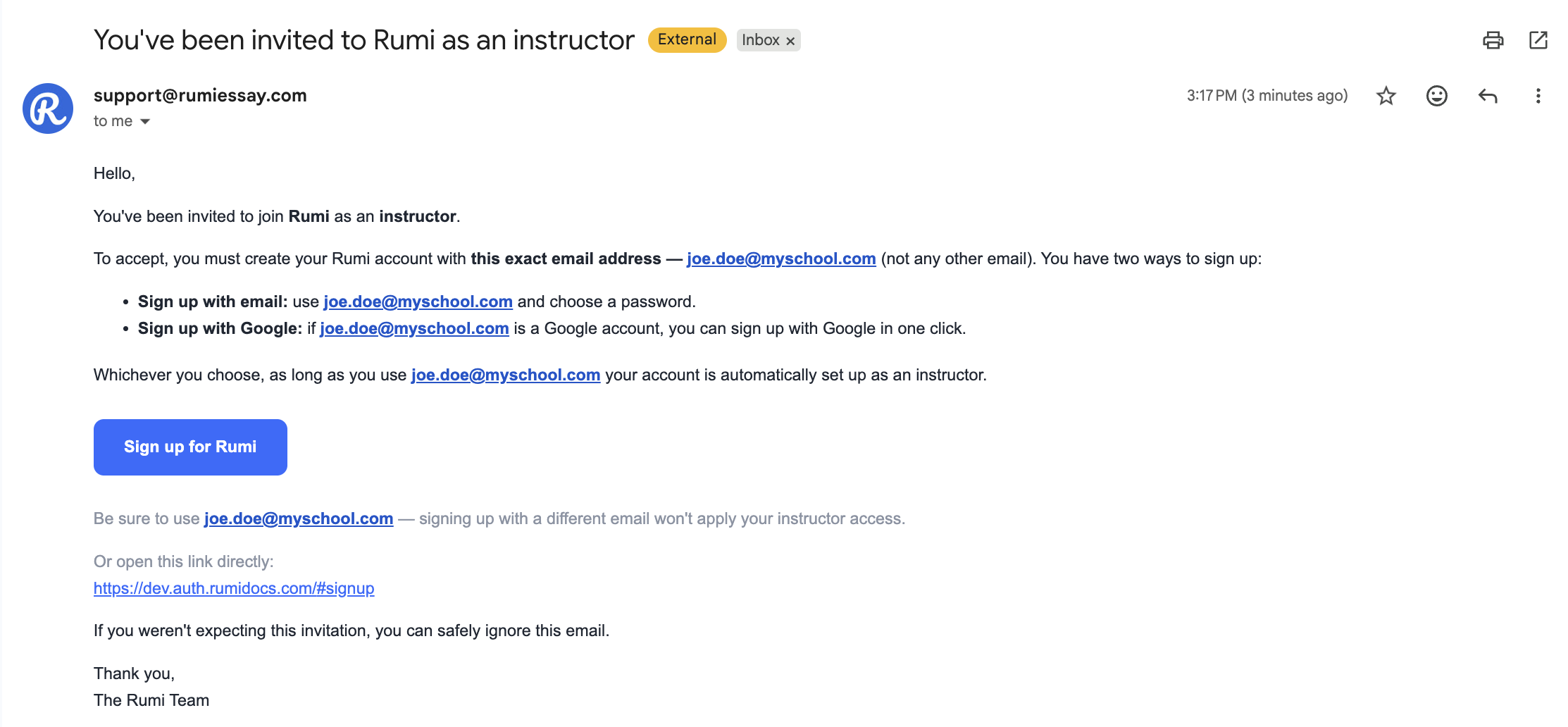
Note: Invitees must sign up with the exact email address the invite was sent to. Signing up with a different email will not apply their instructor access.

If you need an email domain added to your institution's allowed domains, email support@rumidocs.com.
Invited Instructors' Experience
Each invitee receives an email invitation explaining how to create their account. They can sign up with their invited email and a password, or with Google if that address is a Google account. Whichever they choose, their account is automatically set up as an instructor as long as they use the invited email.
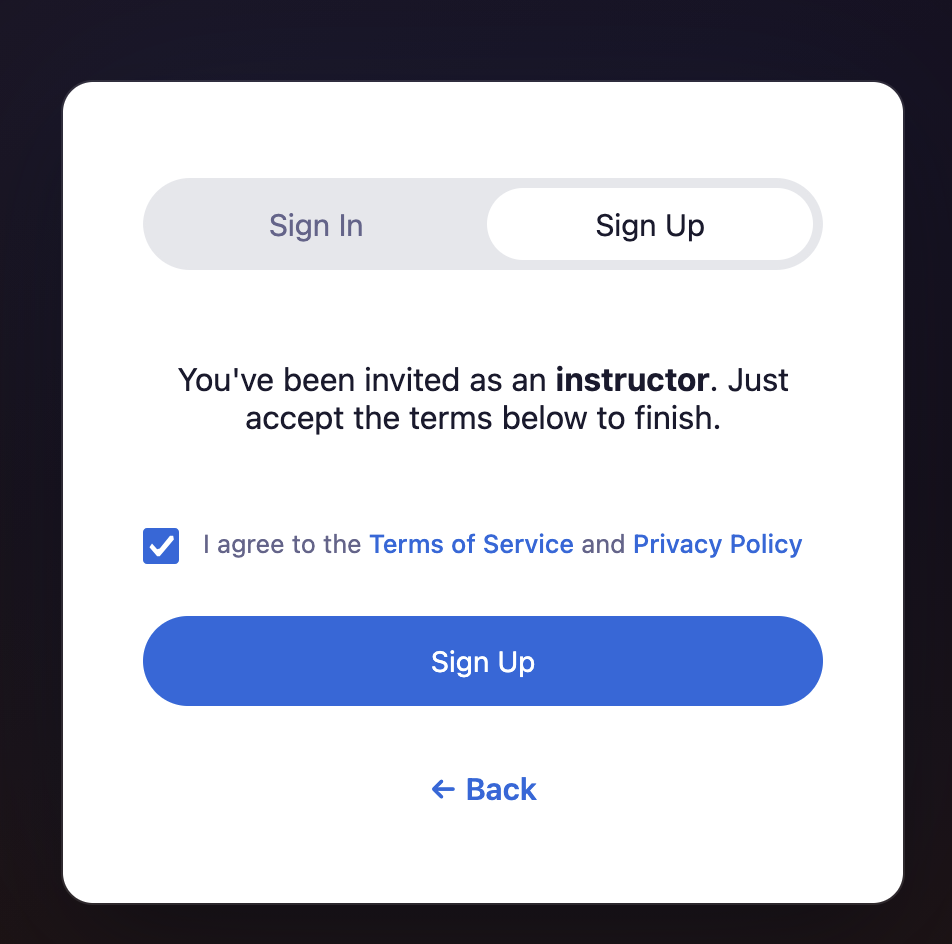
When they follow the link, the sign-up screen recognizes their invitation. They accept the Terms of Service and Privacy Policy and click Sign Up.
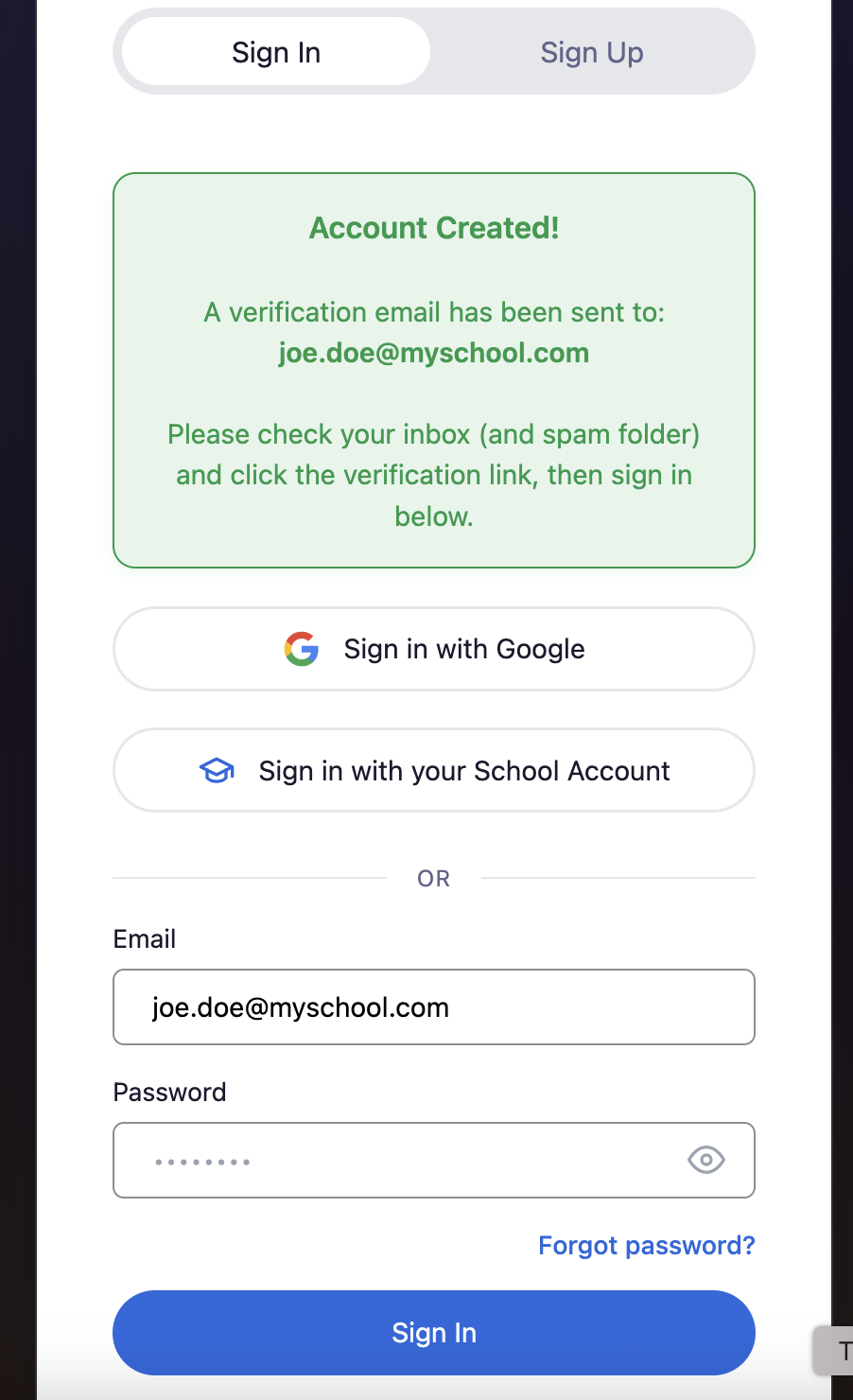
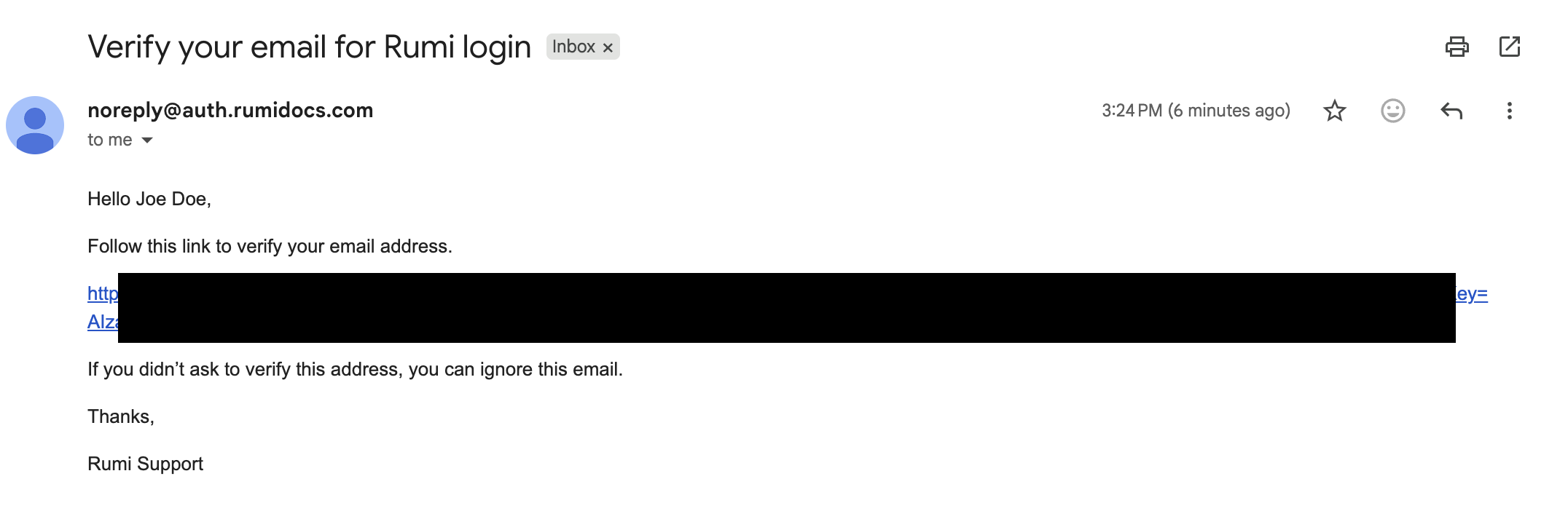
If they signed up with email and password, Rumi sends a verification email. They click the verification link, then return to the sign-in page and sign in.
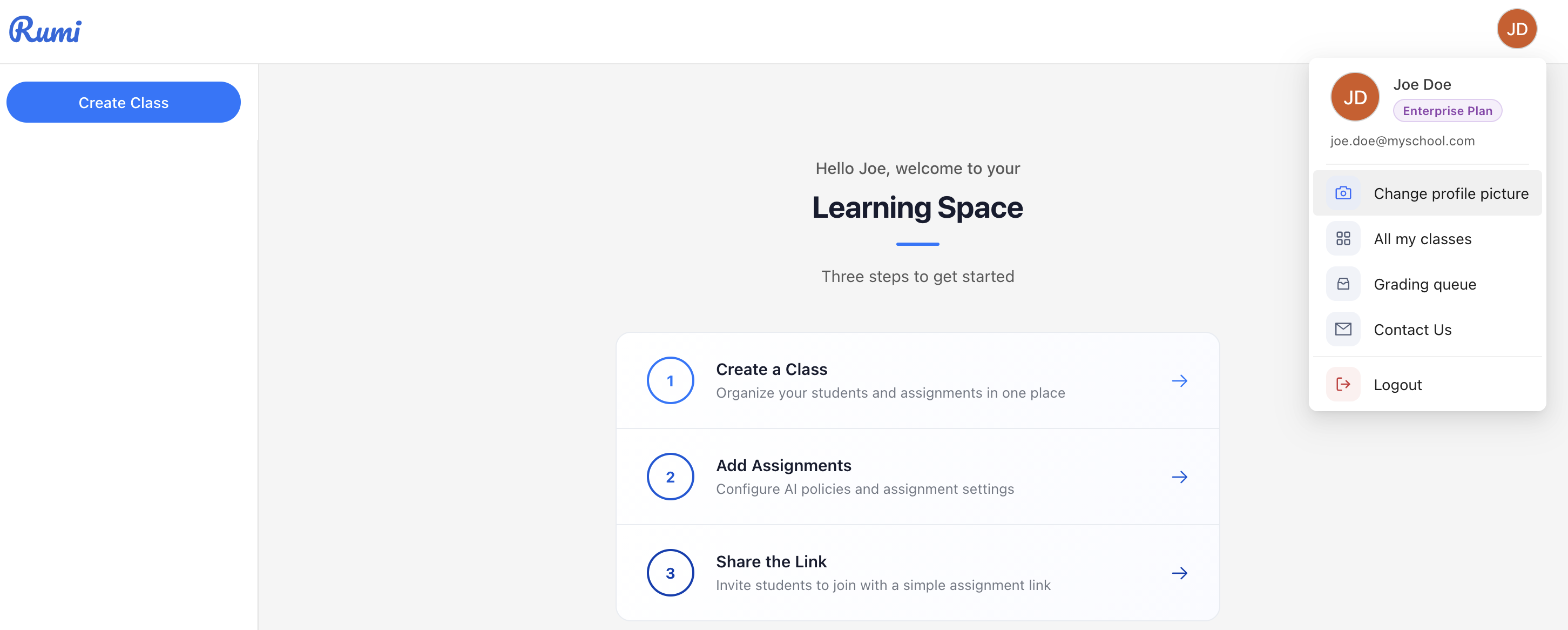
Once signed in, instructors land in their Learning Space, where they can create classes, add assignments, and share assignment links with students.
Note: Mixed Districts (LMS and Standalone)
Some districts use an LMS integration for most of their schools, while certain schools in the district are not on a supported LMS or do not use an LMS at all. In this case, Rumi supports both at once: schools on the LMS use the Rumi LMS integration, and schools without it use the Rumi standalone app.
To set this up, the district should contact Rumi support at support@rumidocs.com so the school domain can be enabled for both the LMS integration and the standalone app.
Because the district's email domain is registered with an LMS integration, instructors at the standalone schools will see a prompt during sign-in asking whether they want to sign in with their school's LMS (e.g., Canvas).
- Instructors at schools without the LMS should click Continue without it to proceed with their standalone Rumi account.
- Instructors at schools that use the LMS should click Sign in with [LMS] and access Rumi through the integration.
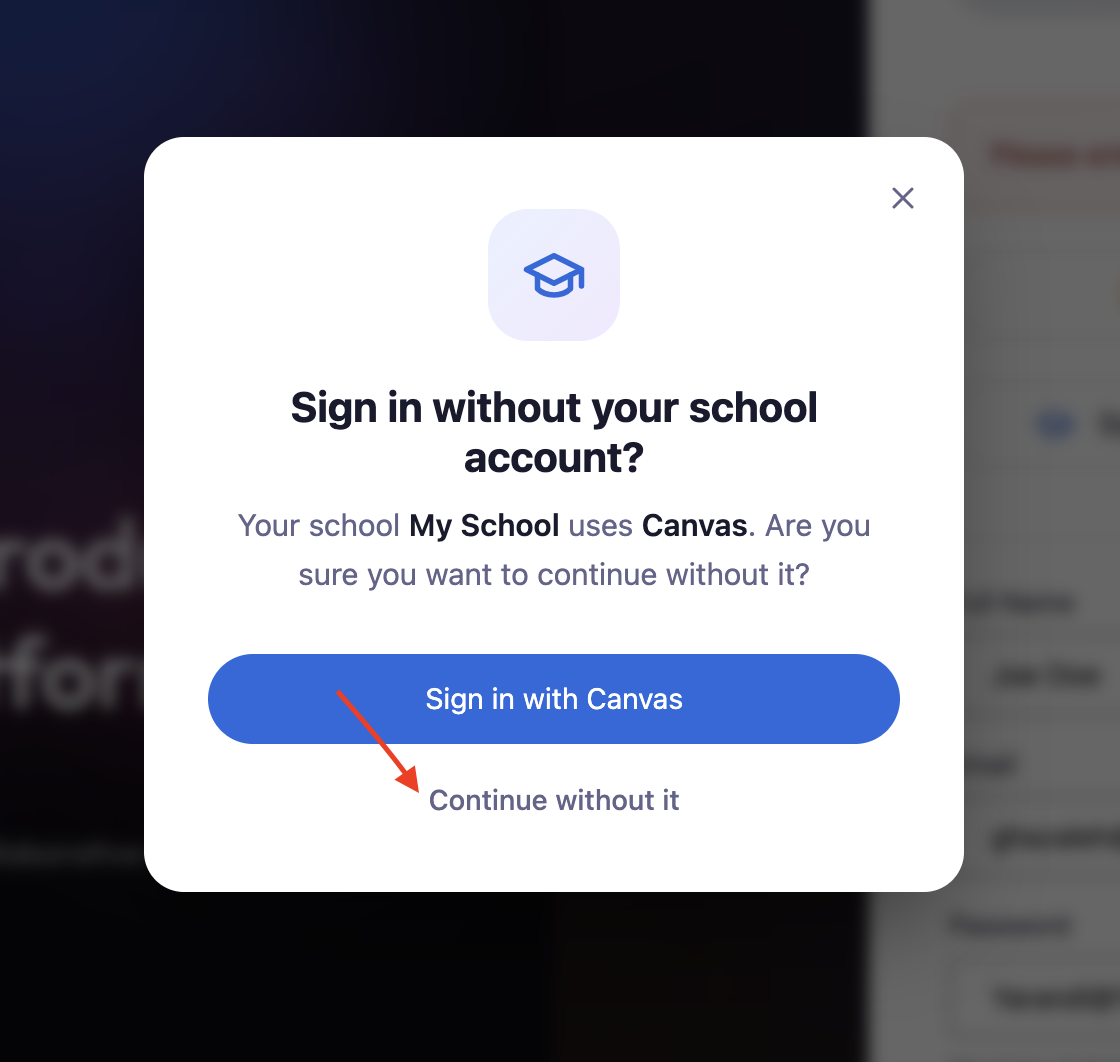
Admin tip: If your district has this mixed setup, let your standalone-school instructors know ahead of time that they will see this prompt and should choose Continue without it. This avoids confusion during first sign-in.