AI Policy Settings
Intro
Instructors can configure AI Policy settings for each assignment, determining which AI features students can access. By default, the setting is No AI, but instructors can enable specific features to support learning as needed. Please note that some AI Policy options may be restricted or disabled by your school administrator.
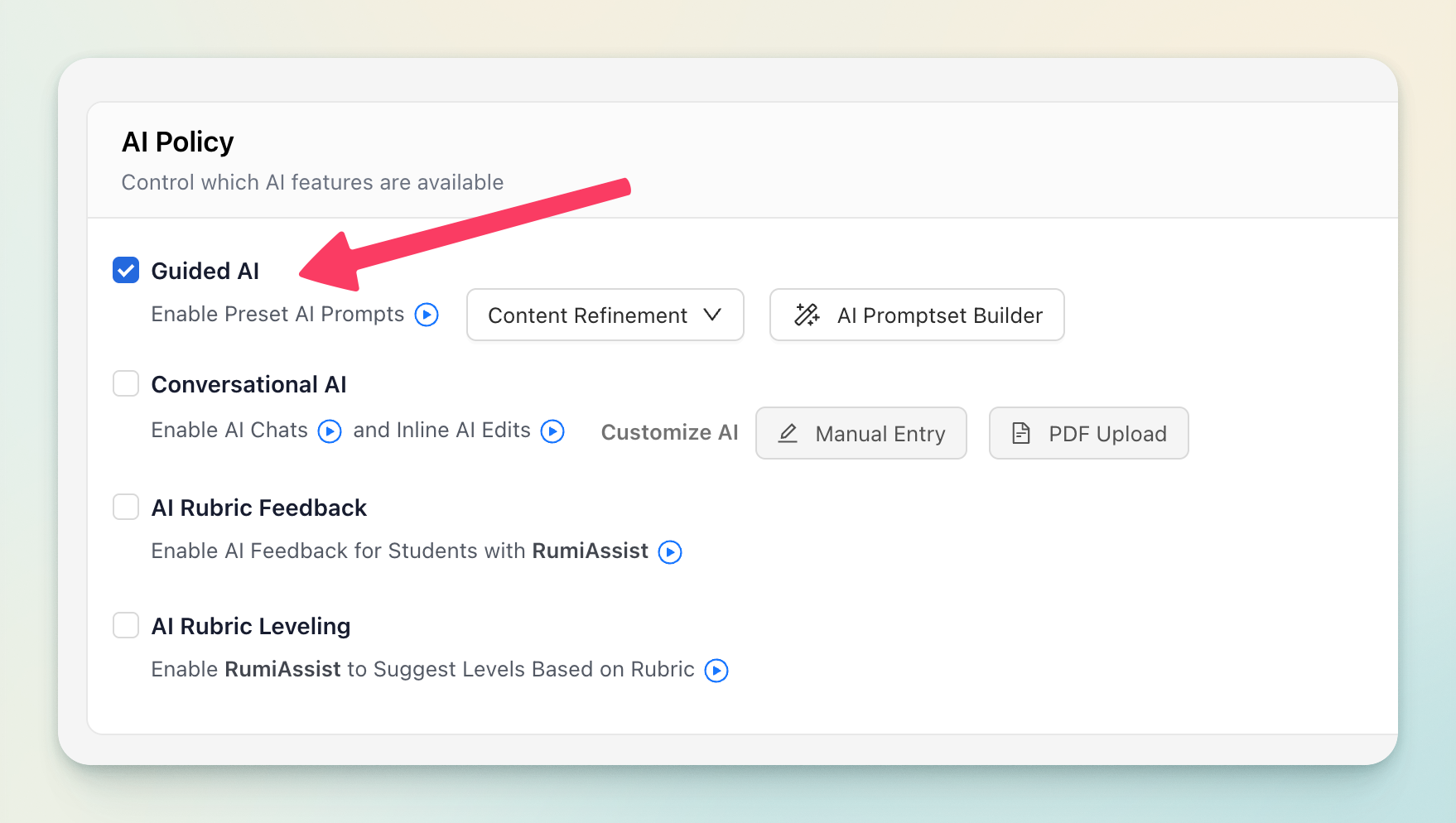
1. Guided AI
Guided AI gives students a structured way to interact with the AI through a pre-set collection of prompts. These prompts are chosen by the instructor to align with the assignment or learning goals, ensuring that students receive focused, relevant support rather than open-ended responses.
Student Experience
When students highlight a section of text in the document, they can click the Rumi AI toggle button to open a menu of enabled AI prompts. These prompts guide students with specific actions—such as requesting feedback, generating explanations, or refining their writing—based on the highlighted content.

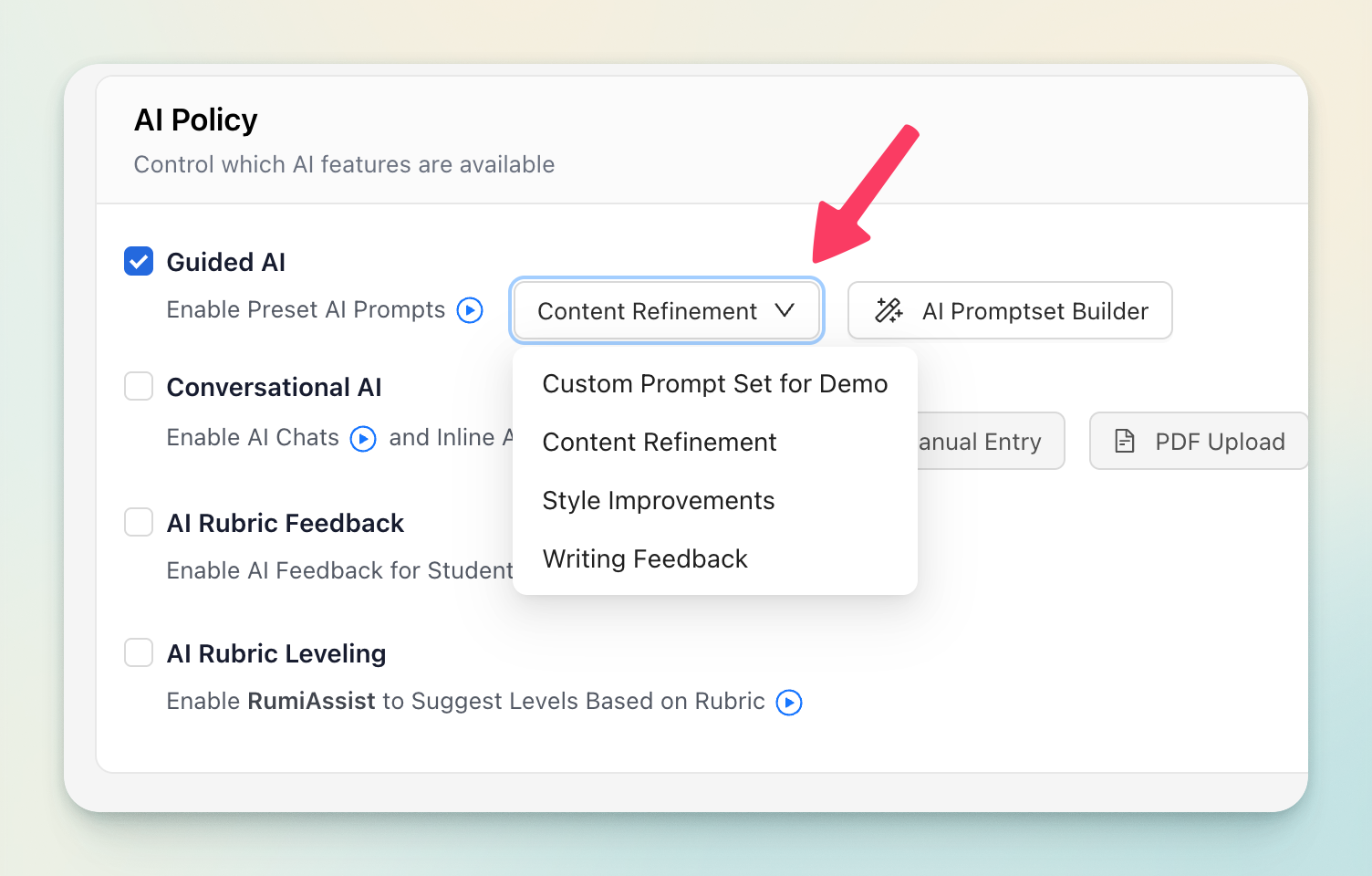
AI Promptset Selection
Instructors can decide which AI support students have access to on each assignment by selecting a Promptset—a collection of tailored AI prompts. For every assignment, they can either choose from pre-existing Promptsets (built around common learning activities like brainstorming, outlining, or peer review) or create their own custom Promptset to match unique course objectives. This flexibility allows instructors to guide how students engage with AI, ensuring the feedback and assistance students receive is always aligned with the assignment’s goals.
2. Conversational AI
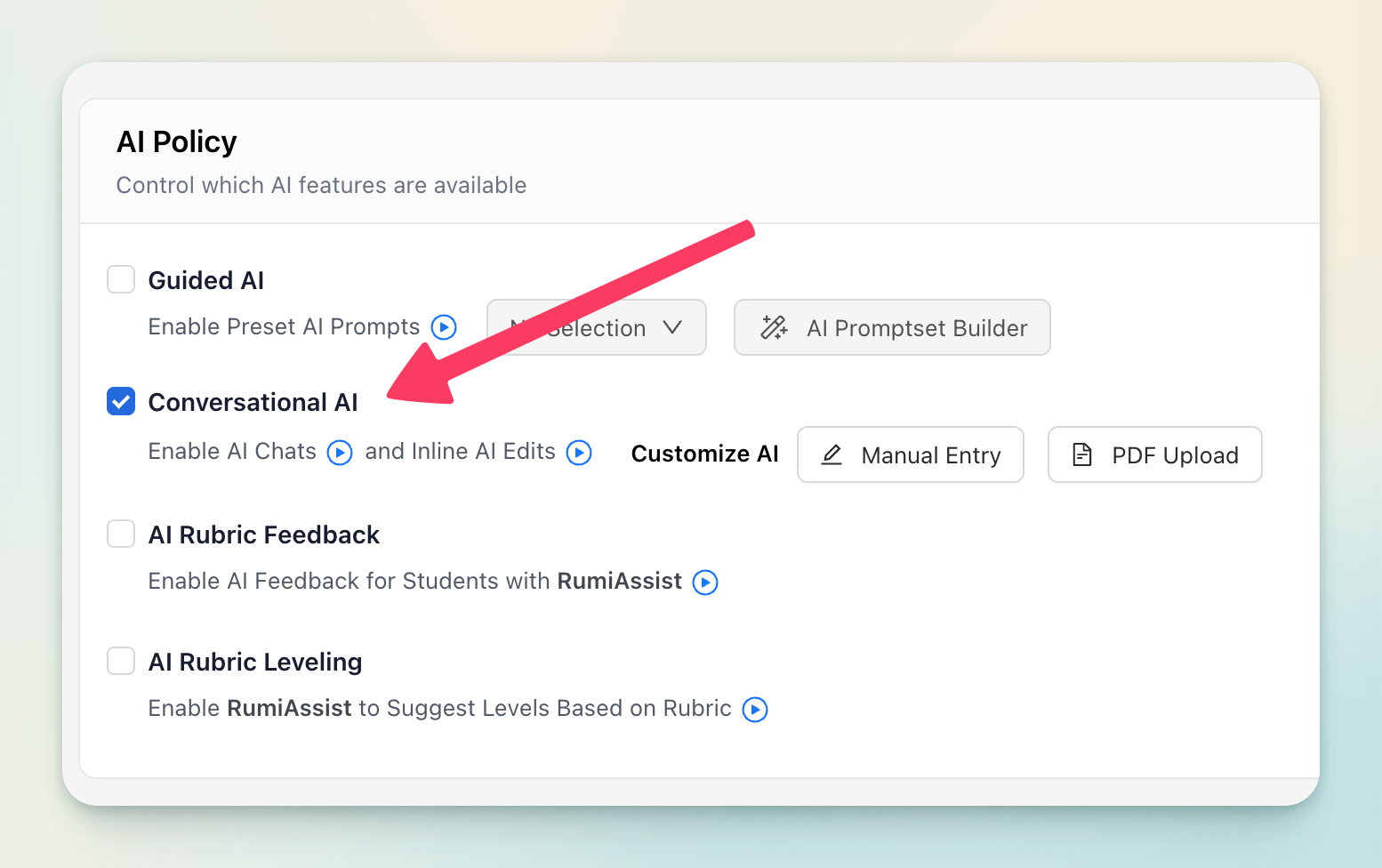
With Conversational AI, students can either chat with the AI or make inline edits directly in their document. Because the AI already has full access to the document’s content, there’s no need to copy and paste text into the chat. Instead, students can ask open questions—like “Give me feedback” or “Suggest improvements”—and receive custom, context-aware responses that are specific to their work.
Student Experience
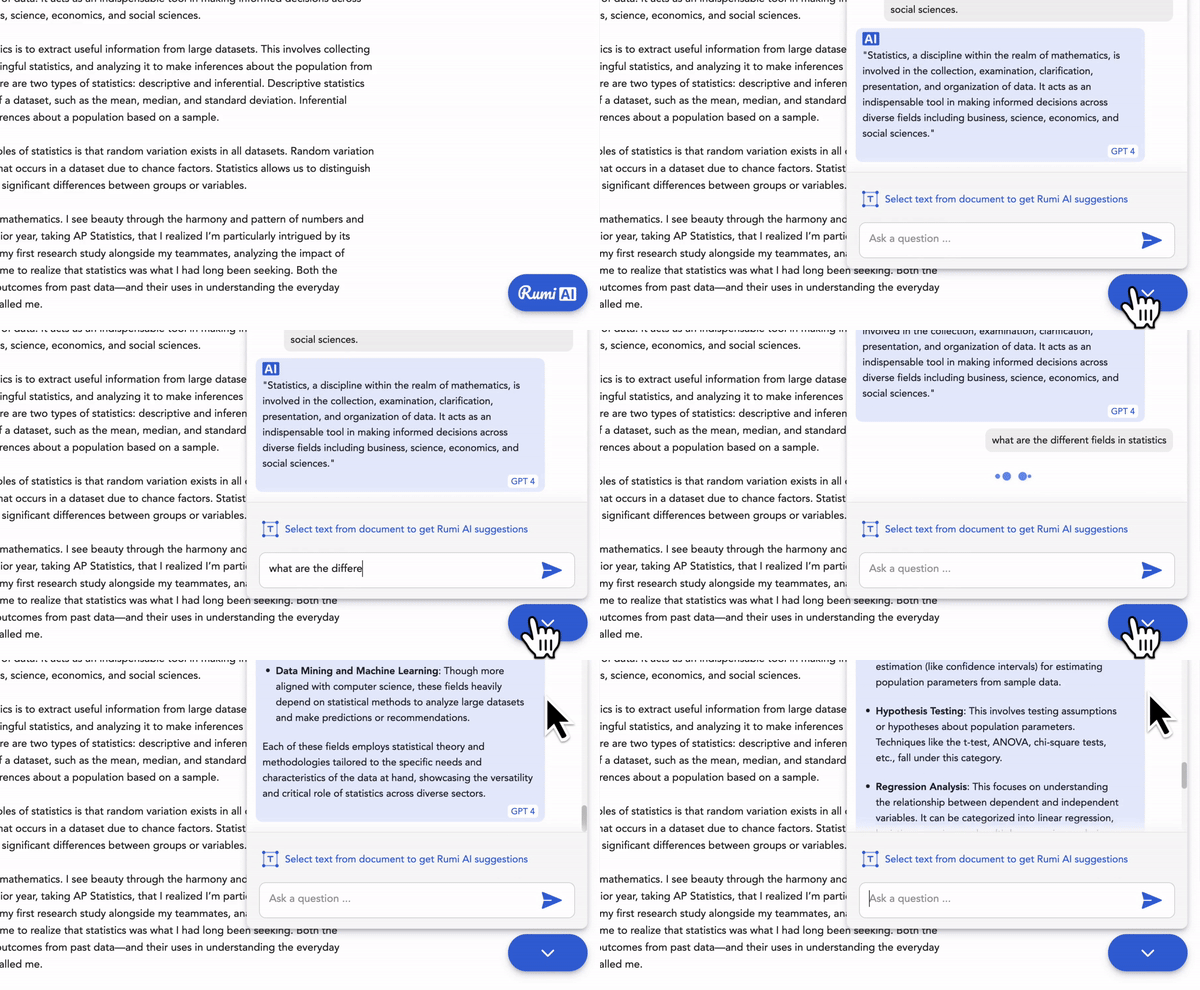
Students can interact with Rumi AI by either highlighting text in the document for context-specific help or by clicking the Rumi AI button at the bottom right for general questions and support.
AI Chats
AI Chats allow students to freely engage with the AI by asking any question. This open-ended interaction gives them the flexibility to explore ideas, seek clarification, or get additional support beyond preset prompts.
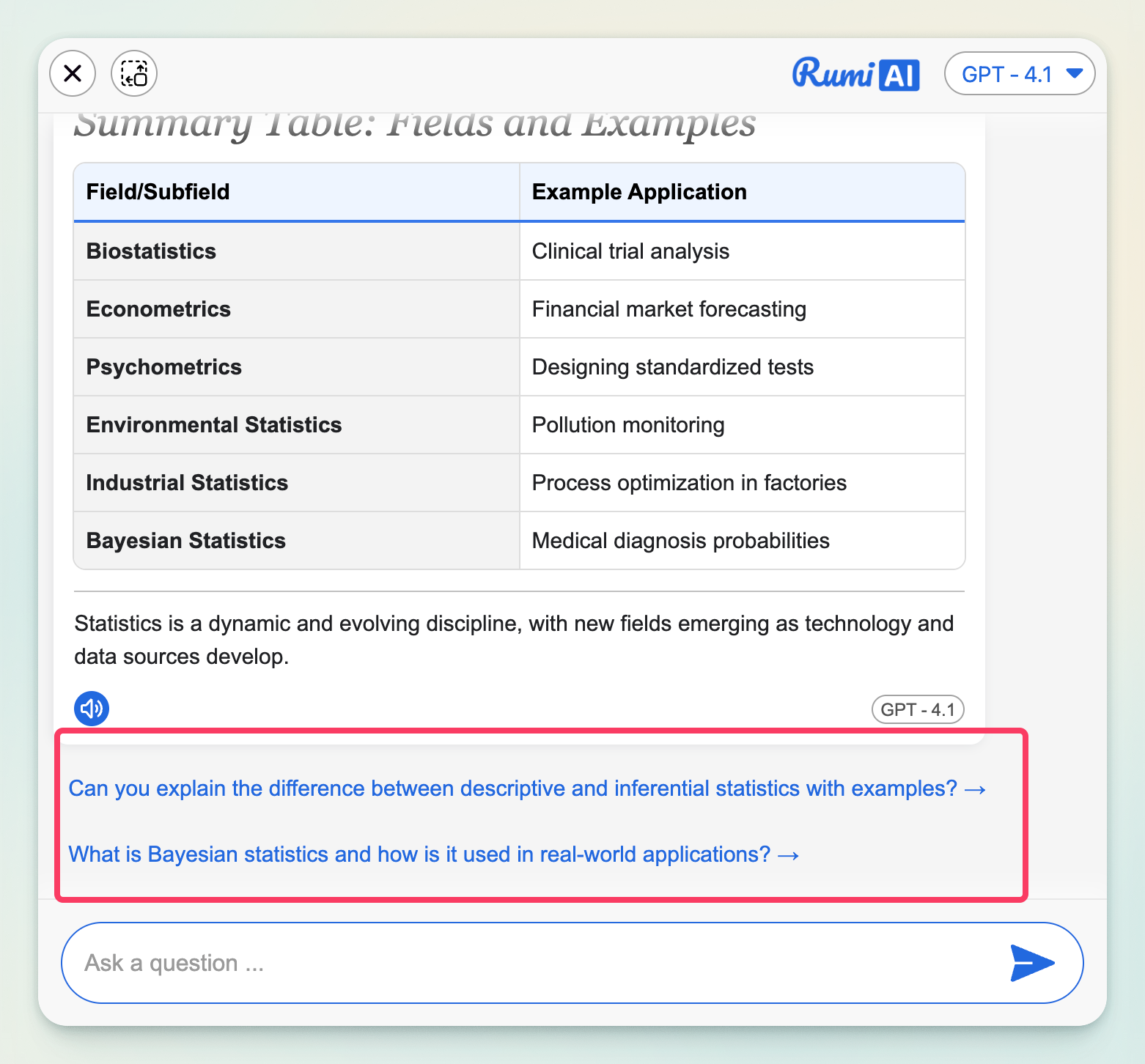
After students ask a question in AI Chat, Rumi AI suggests two follow-up prompts.
Inline AI Edits
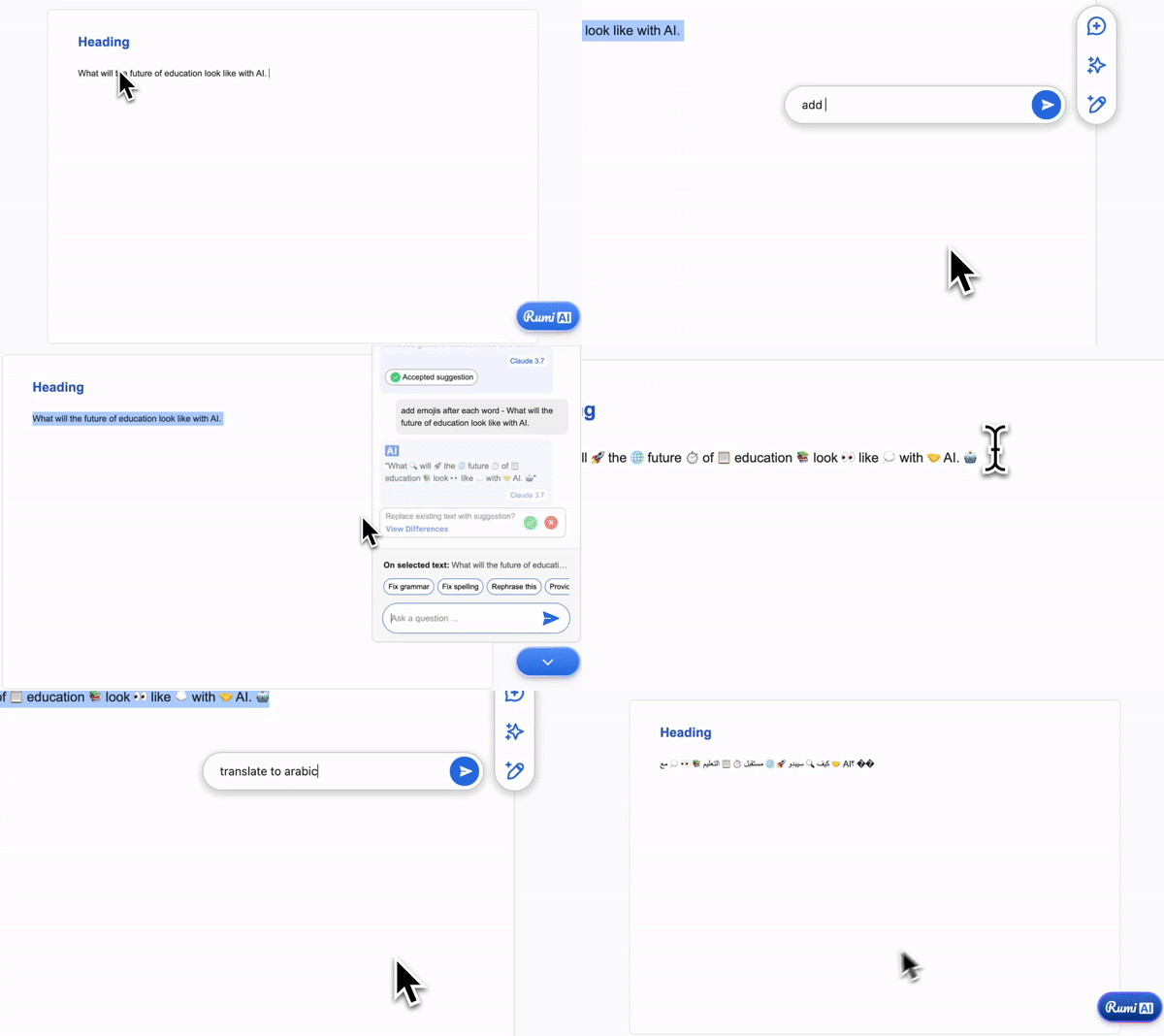
Inline AI Edits let students revise their work directly within the document using AI-powered suggestions. This feature can help with improving clarity, grammar, style, or structure, as well as performing tasks like translating text, simplifying complex passages, or adjusting tone. By working inline, students can refine their writing seamlessly without disrupting their workflow.
Customizing the AI
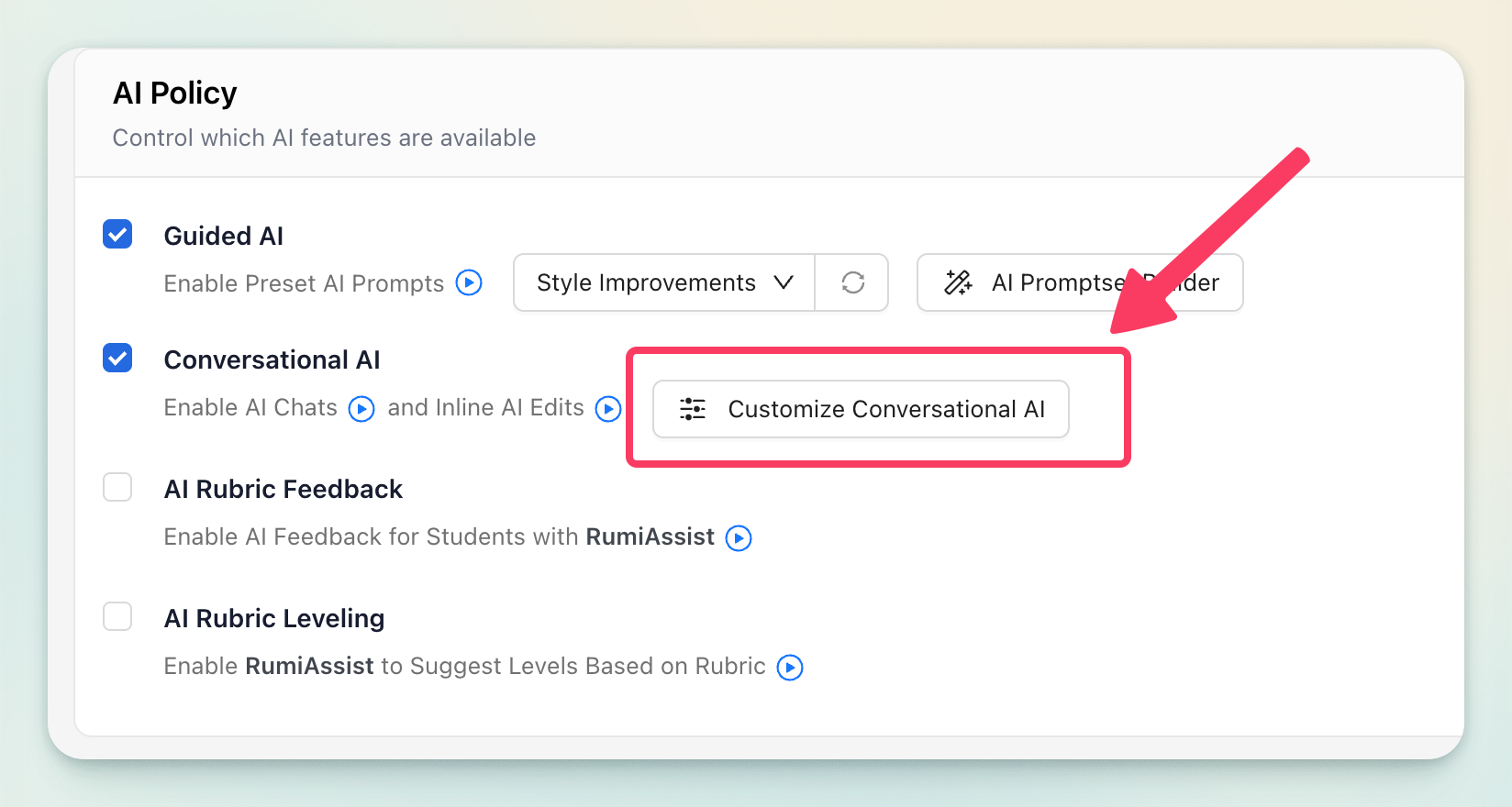
To learn in-depth about customizing the AI with specific example and scenarios visit this article.
Rumi instructs the AI to add headers, tables and lists in the AI responses as appropriate by default. When customizing the AI you can turn this setting OFF.
Instructors can provide the AI with custom instructions or supplemental training material to tailor its responses for specific learning objectives. This allows the AI to align more closely with the course content, teaching style, or assessment criteria.
The materials can be provided in multiple formats:
- Text input: Instructors can type detailed instructions, guidelines, or examples directly into the system.
- PDF upload: Reference materials such as syllabi, lesson plans, textbooks, or instructional guides can be uploaded in PDF format.
Once added, the AI can reference these materials during interactions with learners, ensuring that explanations, feedback, and practice exercises reflect the instructor’s expectations. This feature empowers educators to personalize the AI’s behavior and knowledge base, creating a more consistent and context-aware learning experience.
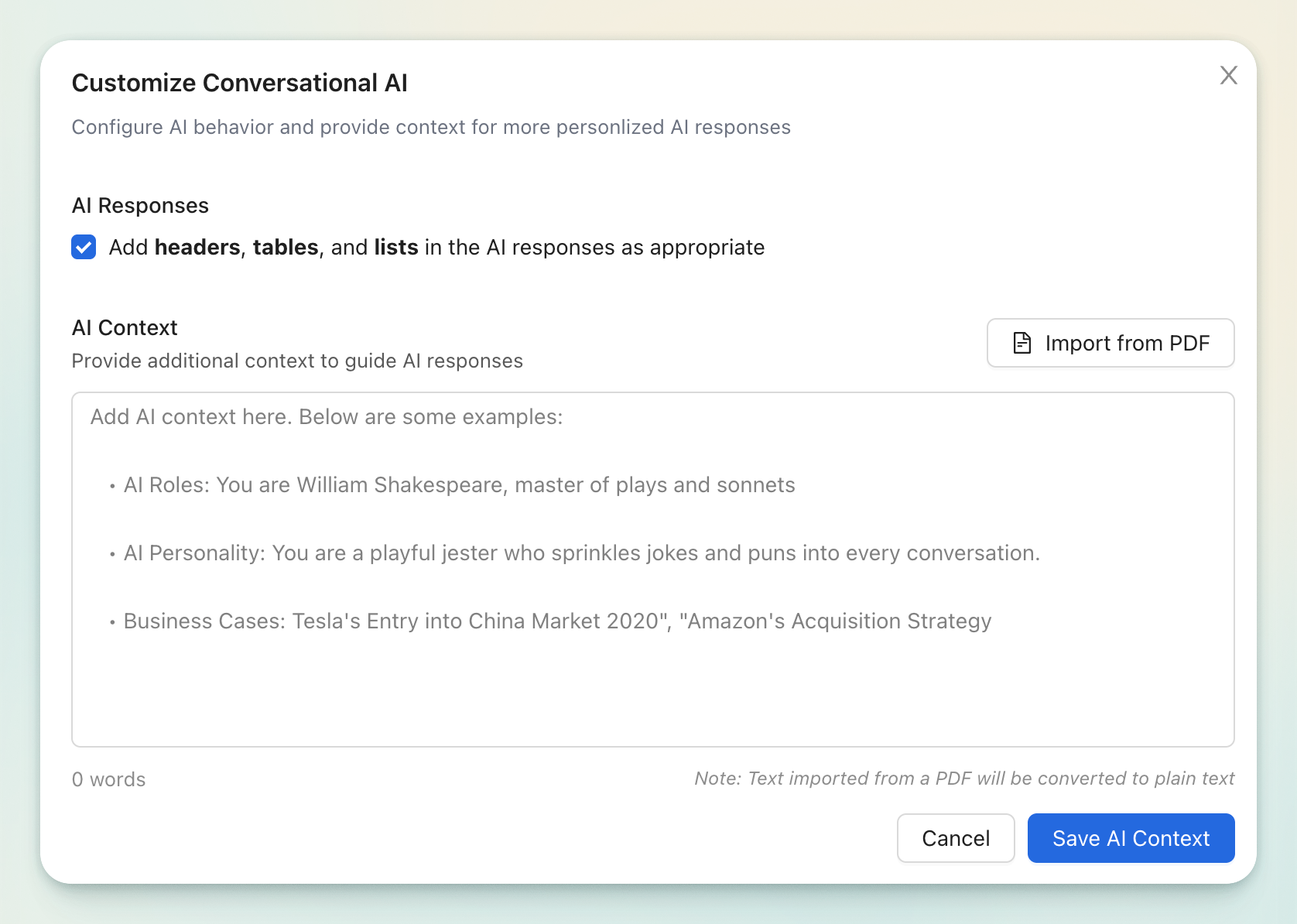
Below are some examples:
- AI Roles: You are William Shakespeare, master of plays and sonnets
- AI Personality: You are a playful jester who sprinkles jokes and puns into every conversation.
- Business Cases: Tesla's Entry into China Market 2020
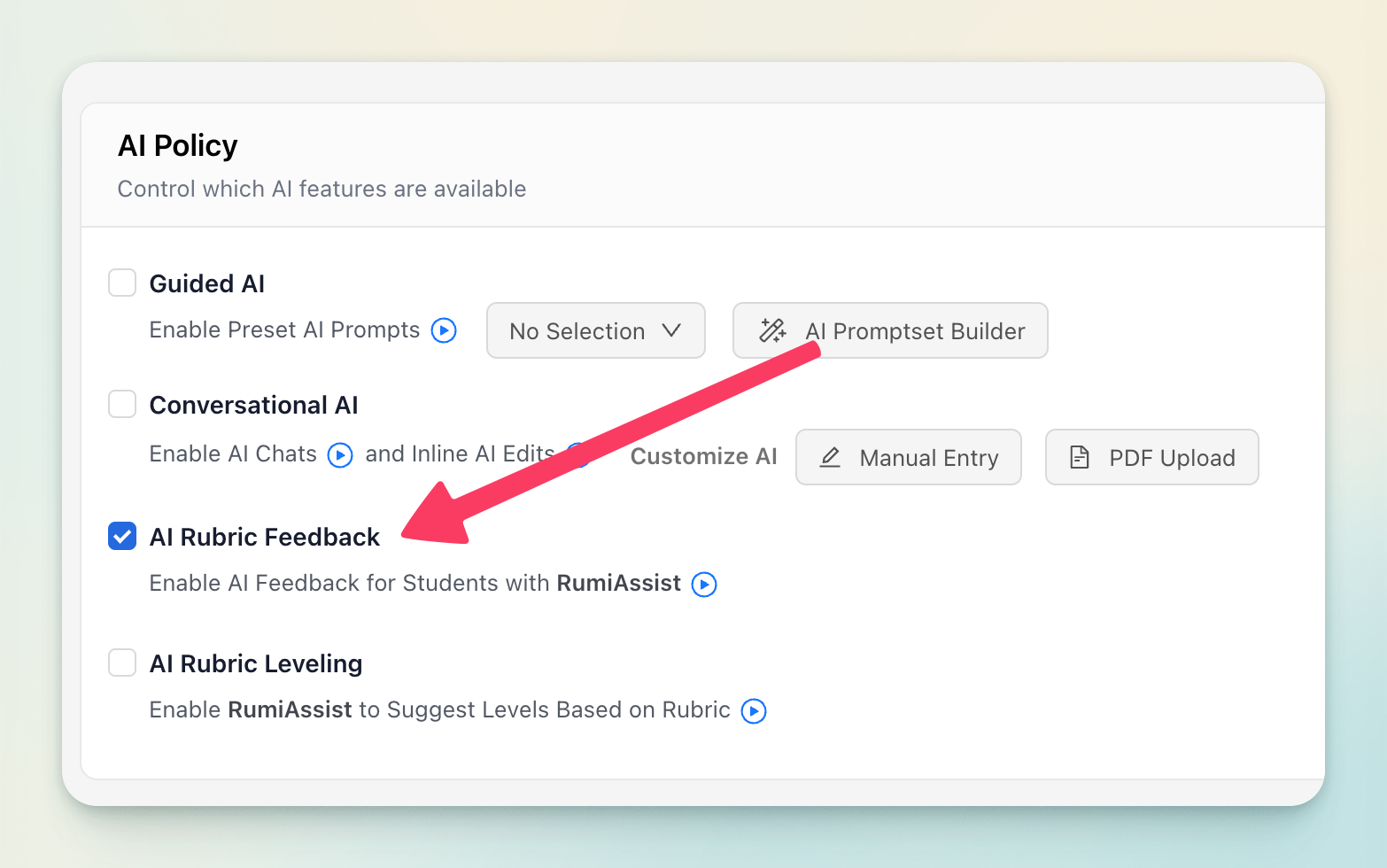
3. AI Rubric Feedback
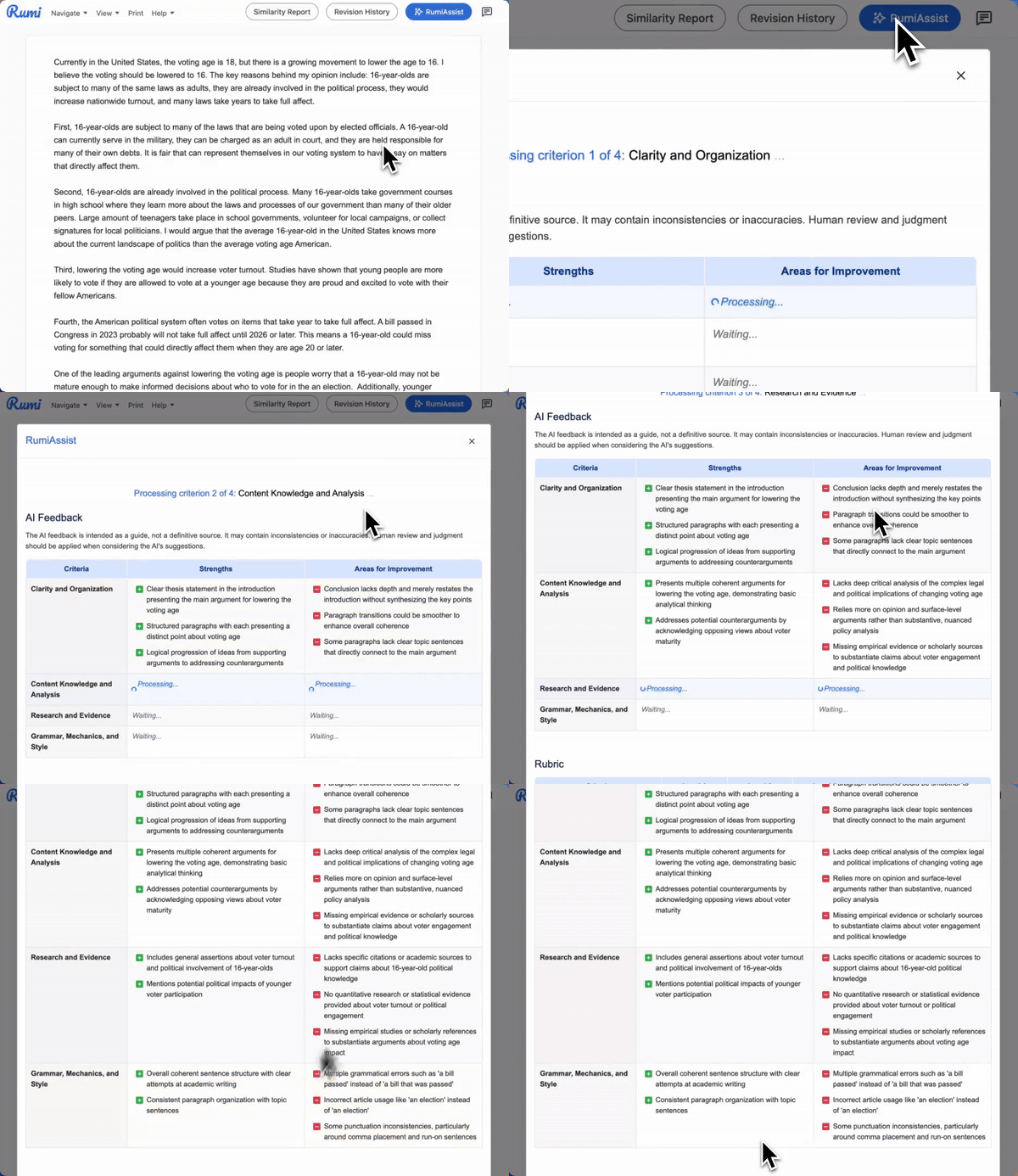
RumiAssist gives students personalized feedback by highlighting their strengths and identifying areas for improvement based on the assignment’s rubric. If no rubric is provided, RumiAssist will instead use a generic rubric to ensure students still receive meaningful guidance.
Student / Instructor Experience
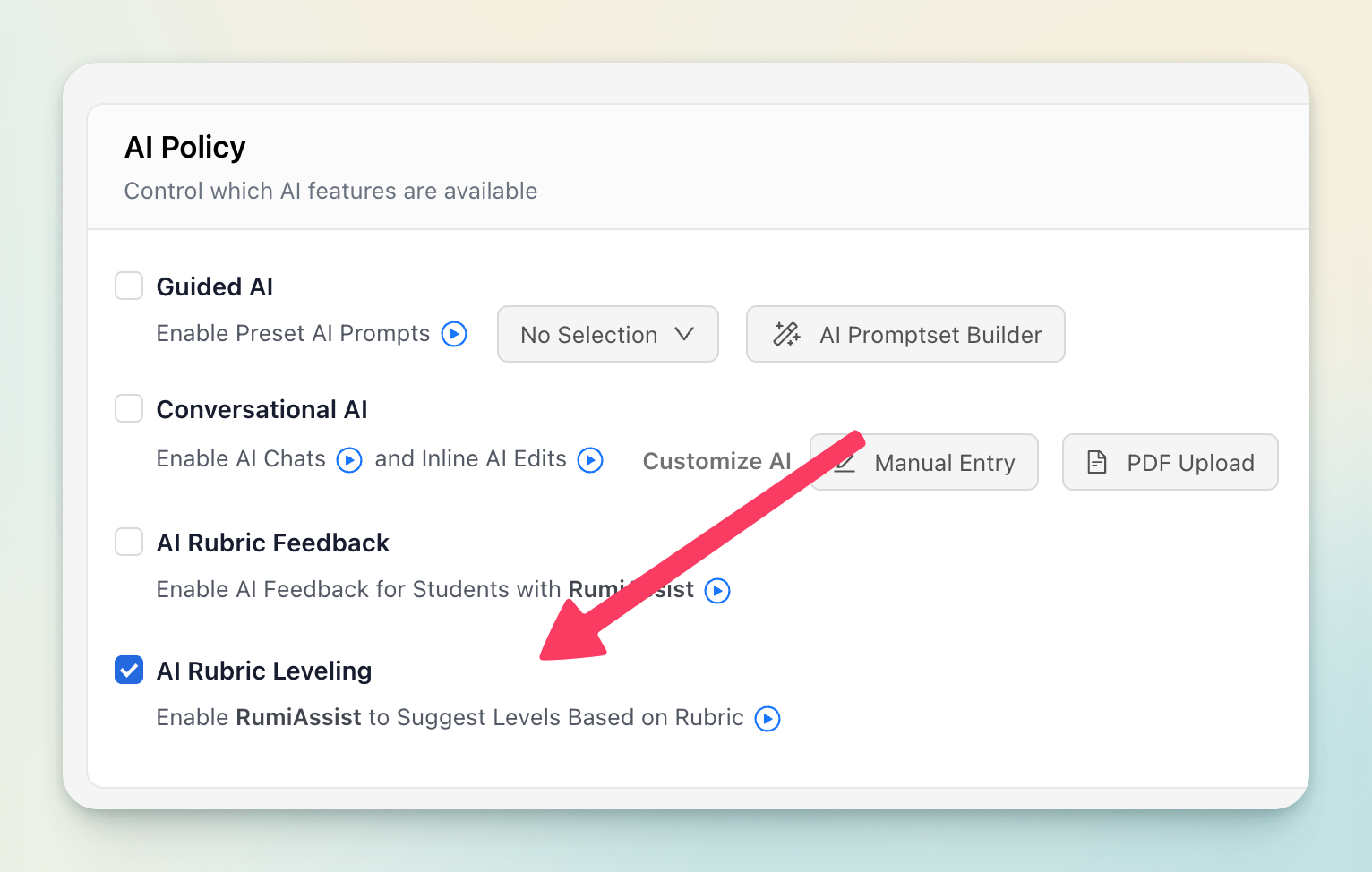
4. AI Rubric Leveling
RumiAssist analyzes student work and provides rubric-aligned leveling suggestions, helping students understand how their performance matches assignment expectations and where they can improve to reach the next level.
Student / Instructor Experience
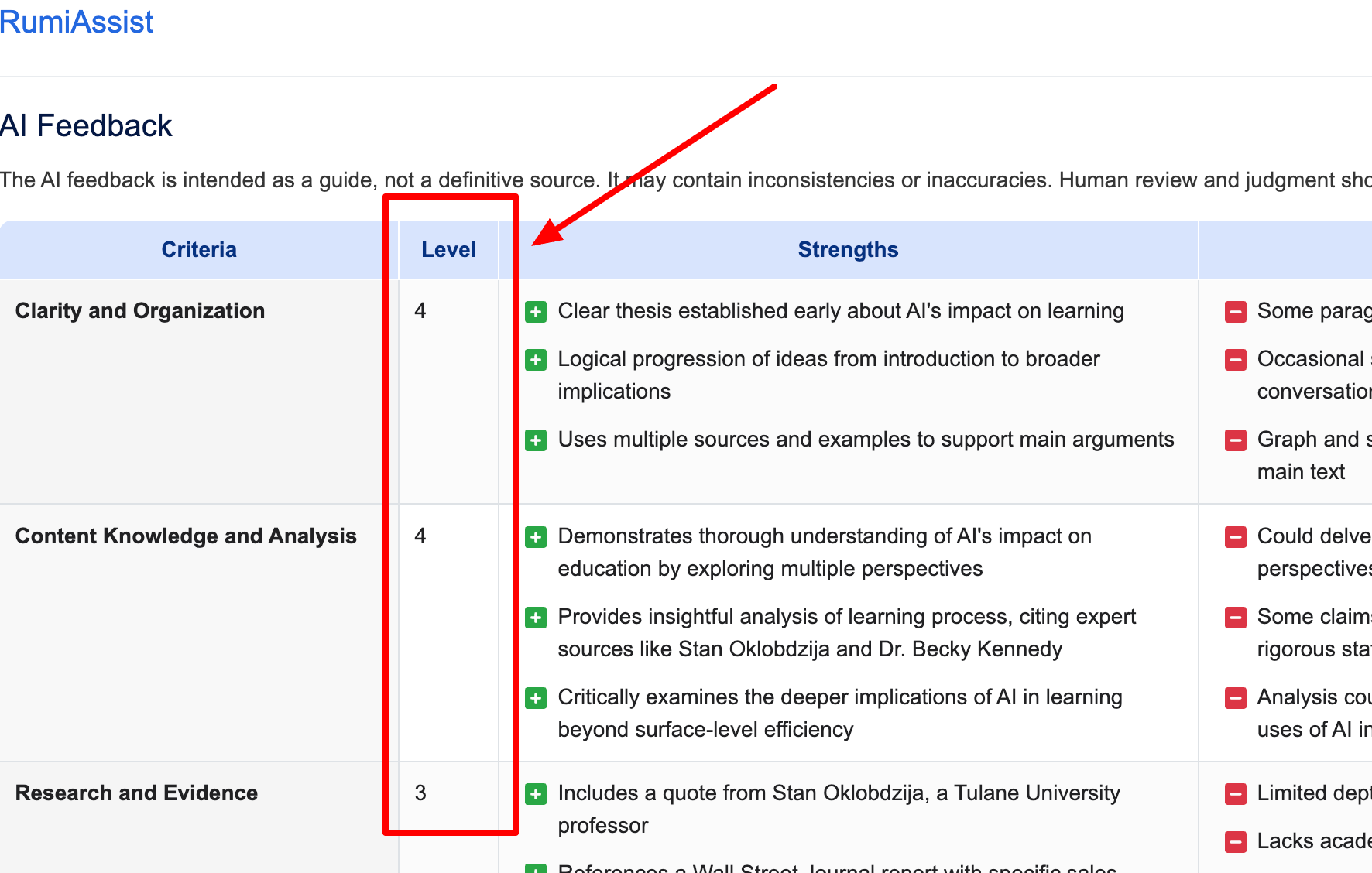
Use this feature with caution. The AI-generated leveling recommendations may be inconsistent, and the model may produce hallucinated or inaccurate outputs.