Real-time Peer Feedback
Intro
Peer review assignments allow students to provide comments on their classmates' submitted essays. This fosters collaboration, critical thinking, and reflection by encouraging students to learn from one another's work.
Beyond in-document comments, students can also give feedback directly on the assignment's rubric — selecting a level for each criterion and adding a written comment. The author then sees peer feedback, instructor feedback, AI feedback, and the plain rubric together in one panel.
Peer Review Types
Rumi offers two types of peer review assignments:
- No Peer-Review – Students only see their own work. (Default.)
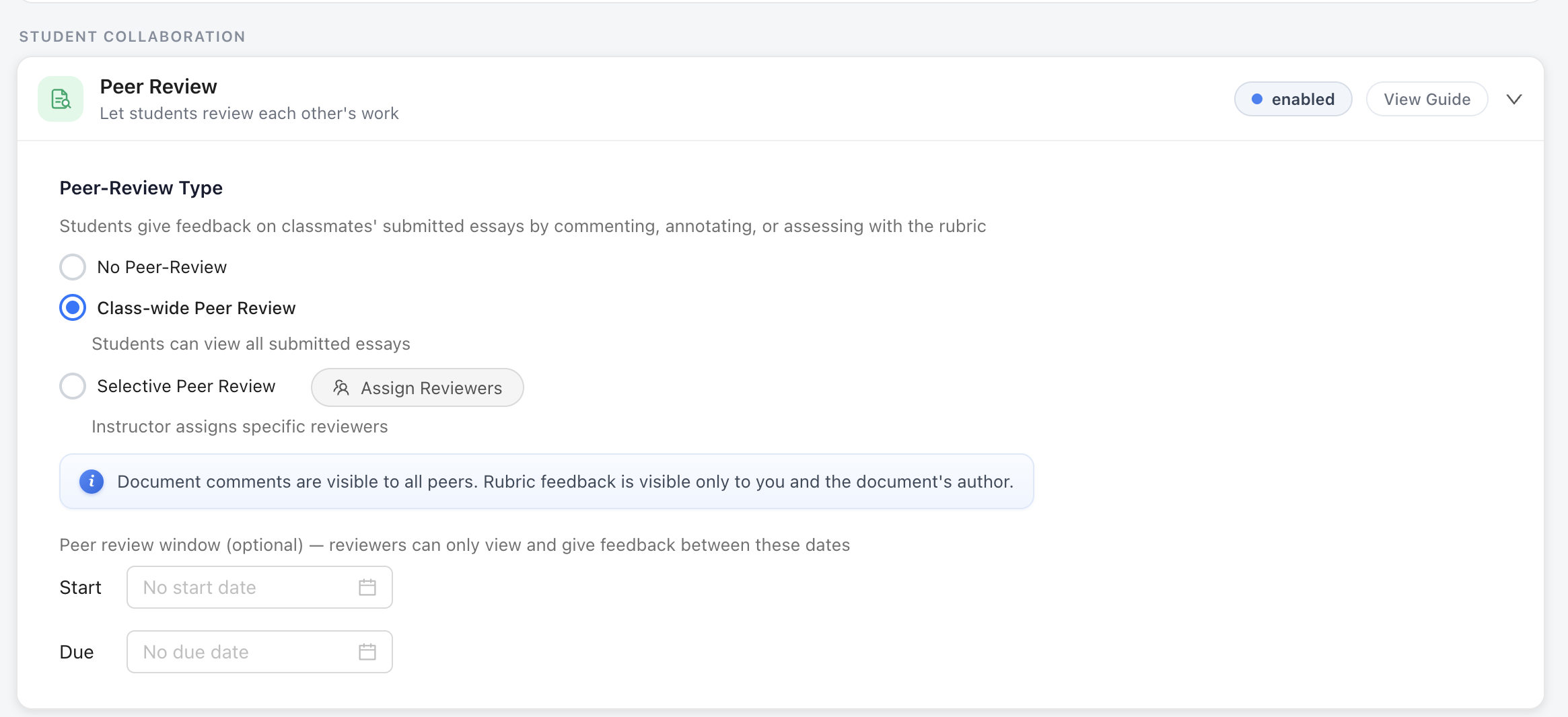
- Class-wide Peer Review – Everyone in the class can review any other peer from the class.
- Selective Peer Review – Instructors have full control over who reviews whom, with the option to automatically or manually assign or adjust reviewer pairings.
Who sees what: Document comments are visible to all peers. Rubric feedback is visible only to the instructor and the document's author — reviewers cannot see each other's rubric ratings or rubric comments.
Instructor Setup
Class-wide Peer Review
To enable class-wide peer review, select the Class-wide Peer Review option within the Rumi Dashboard when creating an assignment. This enables peer-to-peer feedback for your assignment. Students can view all submitted essays.

Selective Peer Review
To set up selective peer review:
Step 1. Select Selective Peer Review as the peer review type and click Assign Reviewers.

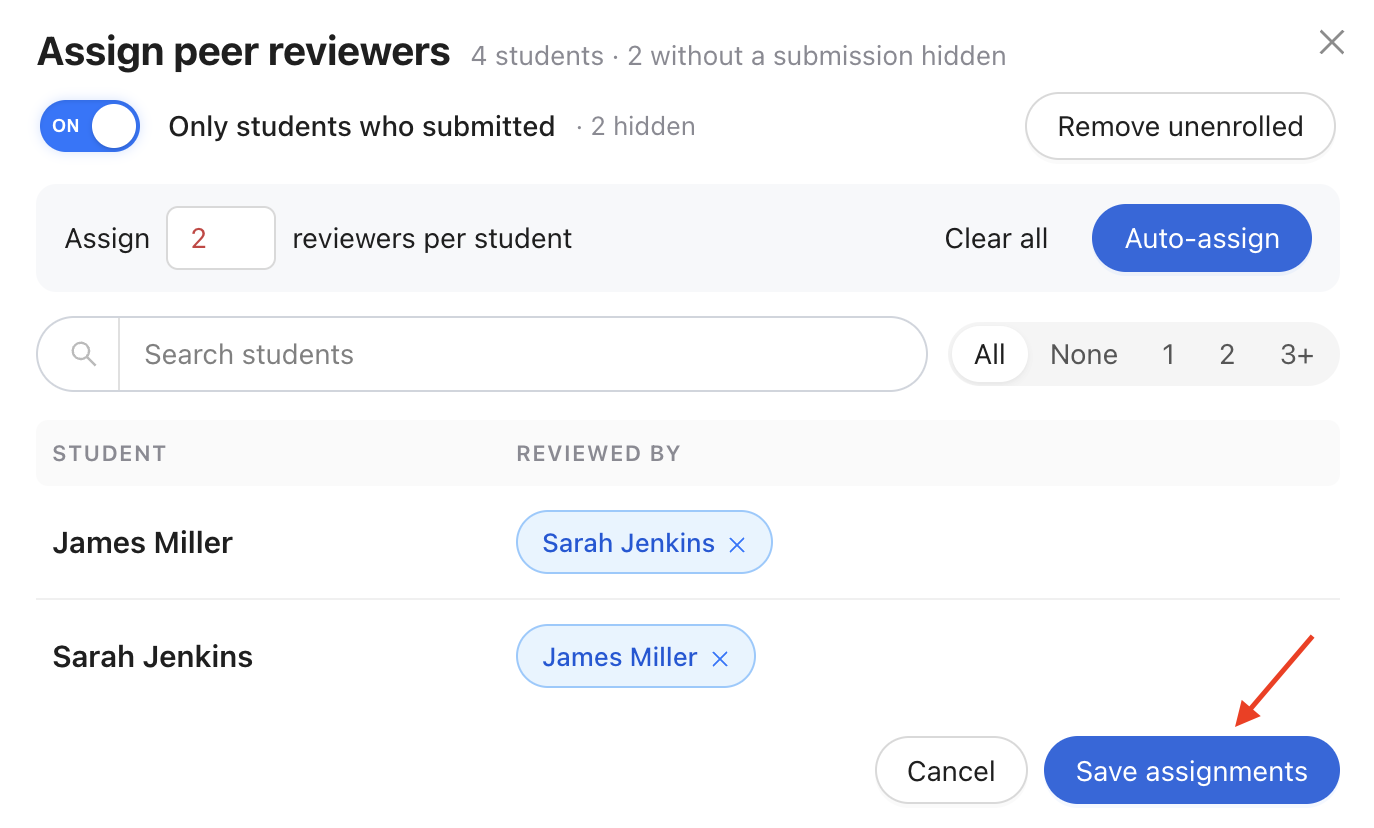
Step 2. In the Assign peer reviewers window, decide which students are eligible to be paired:
- Only students who submitted – Turn this on to limit the list to students who have already submitted their essay. This prevents you from assigning reviewers to an essay that doesn't exist yet, and keeps students who haven't submitted out of the review round.
- Remove unenrolled – Clears any assignments involving students who are no longer enrolled in the class.

Step 3. To automatically assign reviewers, set the number of reviewers you want per student in the Assign __ reviewers per student field and click Auto-assign. The system will randomly assign that many peer reviewers to each student.
Use Clear all at any time to reset every assignment and start over.

Step 4. If needed, you can manually adjust the assignments by clicking + Add in the Reviewed By column to search for and add a specific student as a reviewer, removing a reviewer by clicking the X button on their name chip, or using the Search students box to jump to a particular student.

Step 5. Use the reviewer-count filters — All, None, 1, 2, 3+ — to check your coverage before saving. This is the fastest way to spot a student whose essay has no reviewer assigned, or one who has fewer or more reviewers than the rest of the class.
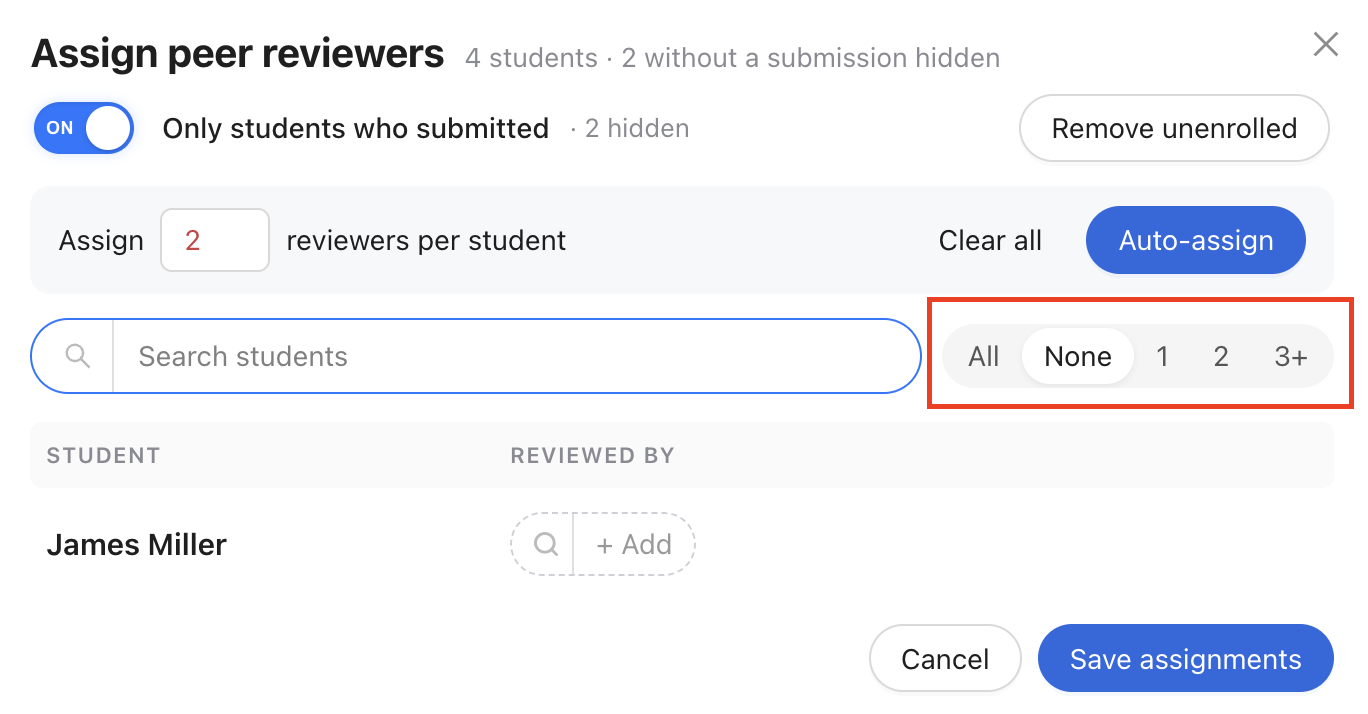
Step 6. Once you are satisfied with the assignments, click Save assignments to save your selections.
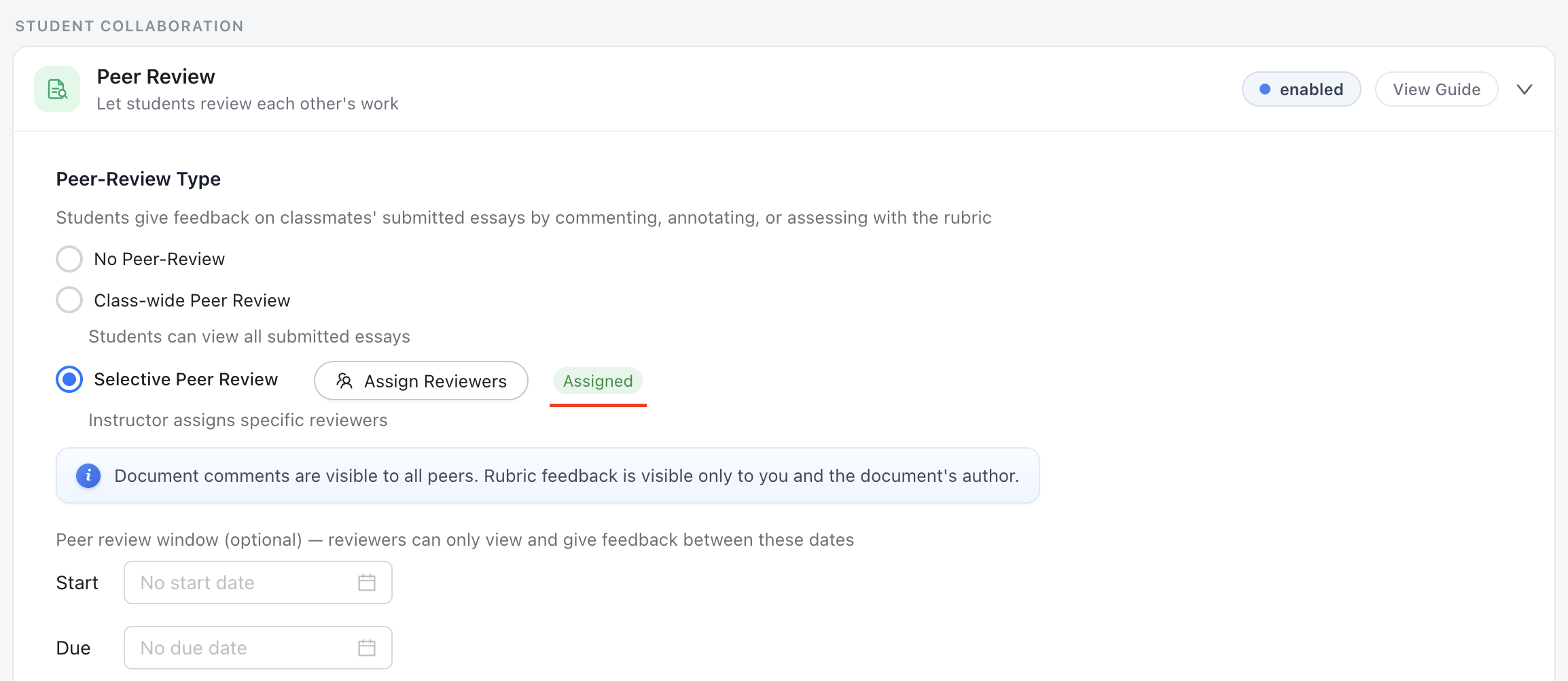
Step 7. You will be redirected to the settings page, where a confirmation message will appear to indicate that assignments were saved successfully. An Assigned chip will also appear next to the Assign Reviewers button confirming that reviewers have been successfully assigned.
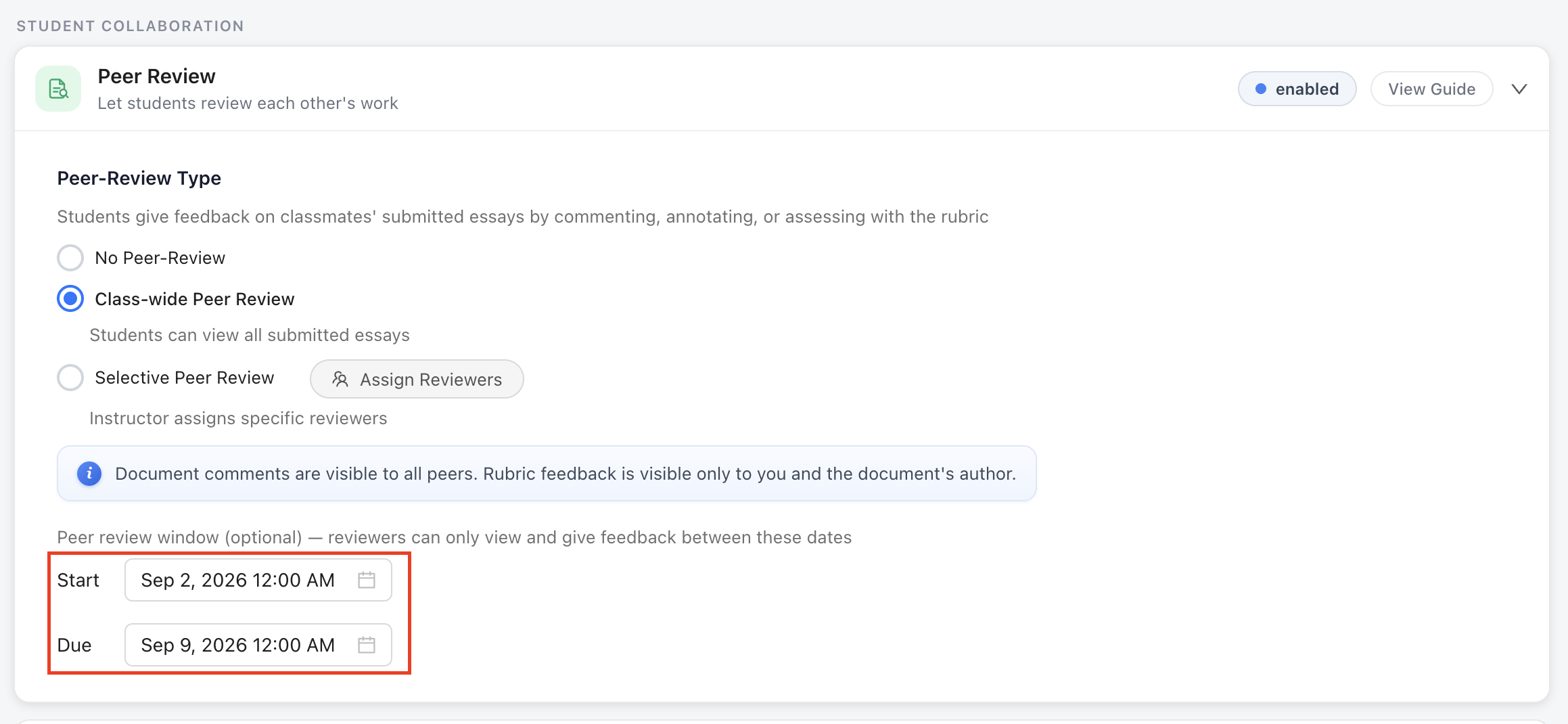
Setting a peer review window (optional)
You can limit peer review to a specific time range. Under the peer review type, set a Start date, after which reviewers can view and comment on peer essays, and a Due date, after which they can no longer add feedback.
Both fields are optional, and you can set one without the other. With neither set, peer review is open indefinitely. With only a start date, it opens on that date and stays open. With only a due date, it opens immediately and closes on that date. With both, it is open only between the two. An unset field simply means "no limit on that end" — peer review does not close on its own unless you give it a due date.
The window applies to both class-wide and selective peer review.
Releasing peer feedback and notifying students
Two settings control when students see the feedback written about them, and whether they're emailed about it. These work the same way as the equivalent settings for rubric feedback and instructor comments.
Manual release, when on, holds all peer comments, annotations, and rubric feedback until you release them; when off, students see peer feedback live as it's written. Email notifications, when on, sends students an email alert when new peer-review comments are added to their document.
Turning Manual release on is useful when you want every reviewer to form an independent opinion — nobody can see what others wrote before submitting their own feedback, and you can review the batch before it reaches the author.

Student Experience
Class-wide Peer Review
Students will see a View Peer Essays button at the top of their screen.
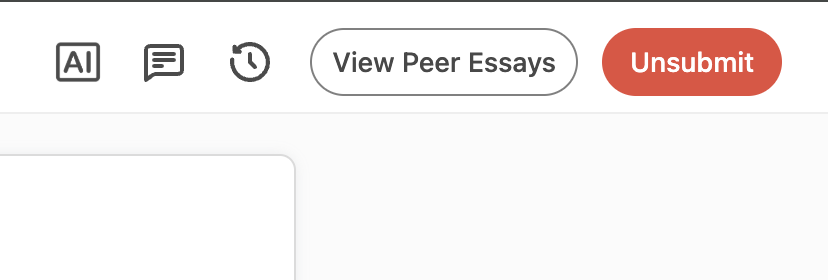
Clicking it gives them access to their peers' essays, where they can highlight sections and leave comments. The experience mirrors commenting on their own work, making the process familiar and intuitive.
Selective Peer Review
Similar to class-wide peer review, students can review their peers' work by clicking the View Peer Essays button located in the top corner of their essay page.
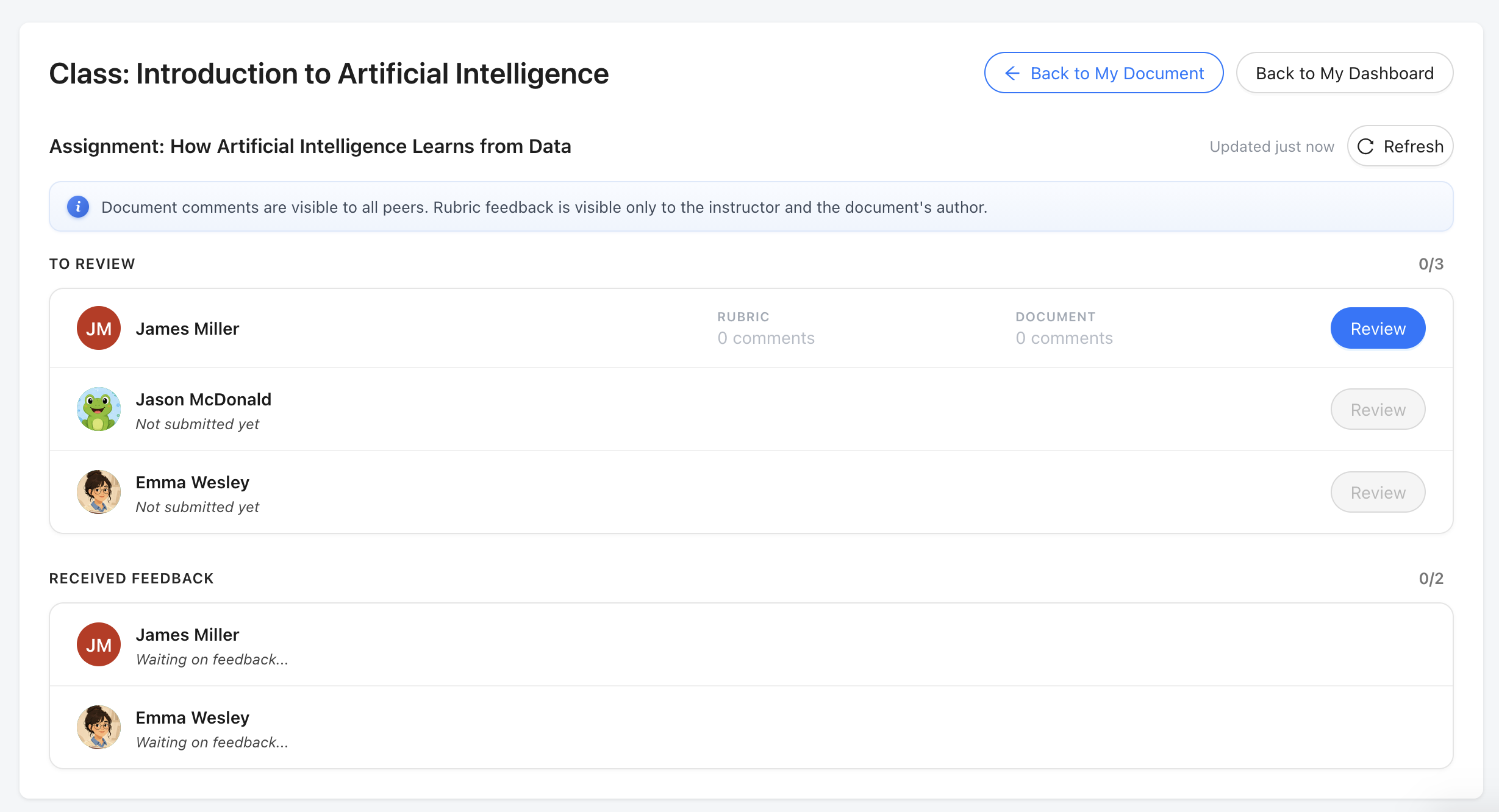
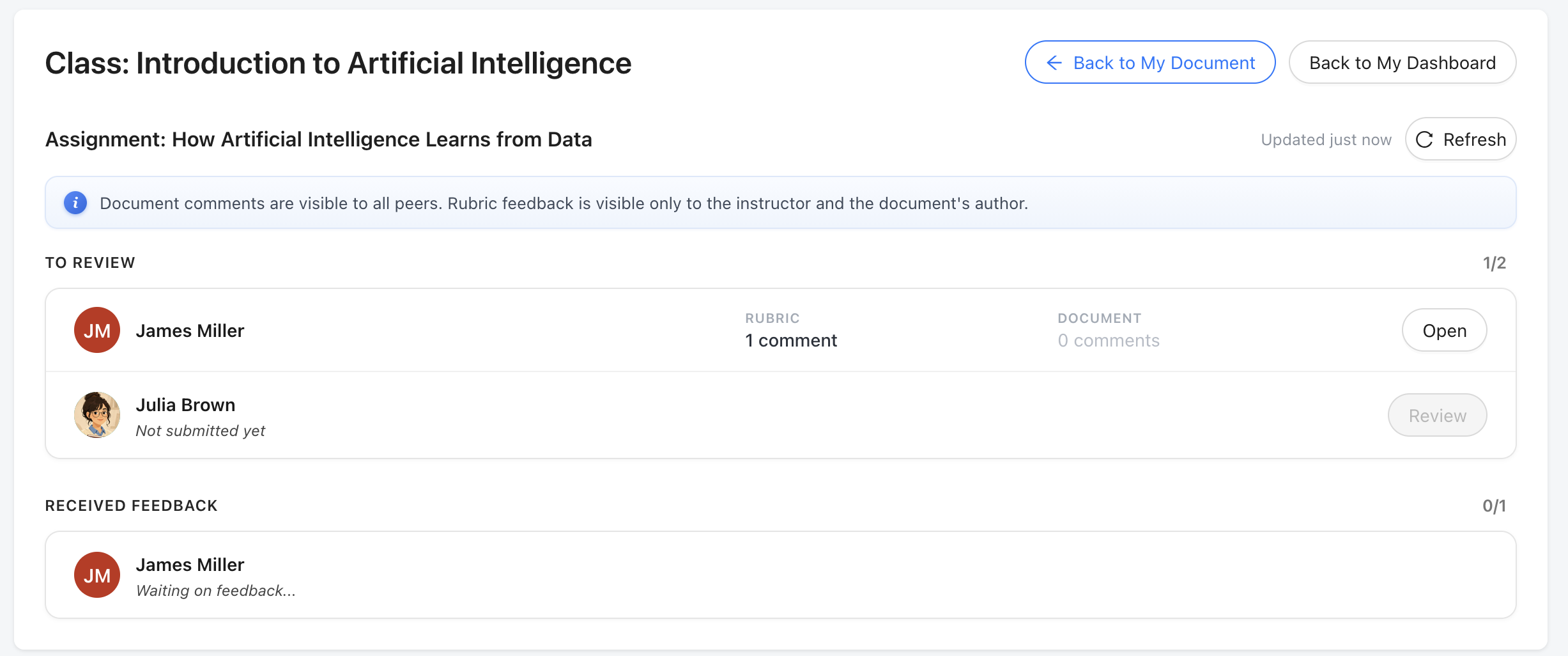
This opens the Peer Review Dashboard, where students can view the essays they are assigned to review, see how much Rubric Feedback and Document Feedback has been left on each one, open any assigned essay to start or continue reviewing, and track whether reviews have been completed or are still pending.
Note: Students can only access essays that are assigned to them for review, and only if the essay has been submitted.
Giving Feedback on a Peer's Essay
Once a reviewer opens a peer's essay, they can give two kinds of feedback.
1. Document feedback. Highlight any passage and leave a comment, exactly as they would on their own document. These comments are visible to all peers reviewing that essay.
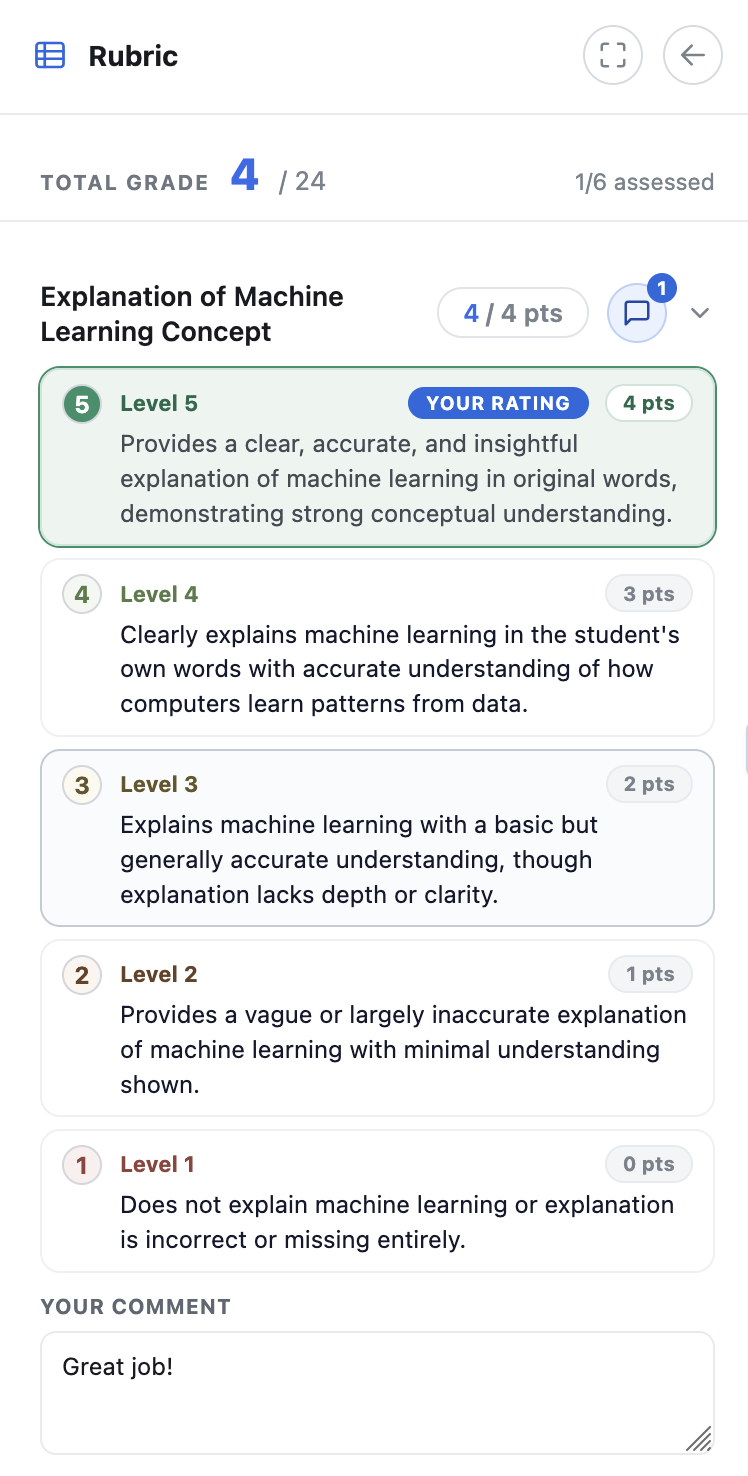
2. Rubric feedback. Open the rubric panel and, for each criterion, select the level that best matches the work — the chosen level is marked YOUR RATING — then add a written explanation in the Your comment box. Delete removes a rating and comment if they change their mind.
While reviewing a classmate's essay, a reviewer sees only their own rubric ratings and comments — not the instructor's assessment, and not other reviewers' ratings. Only the instructor and the essay's author see the full picture. Document comments work the other way: they're visible to everyone.
Students can only generate AI feedback on their own work, never on a peer's essay. See Rubrics & Learning Outcomes for details.
Viewing the Feedback You Received
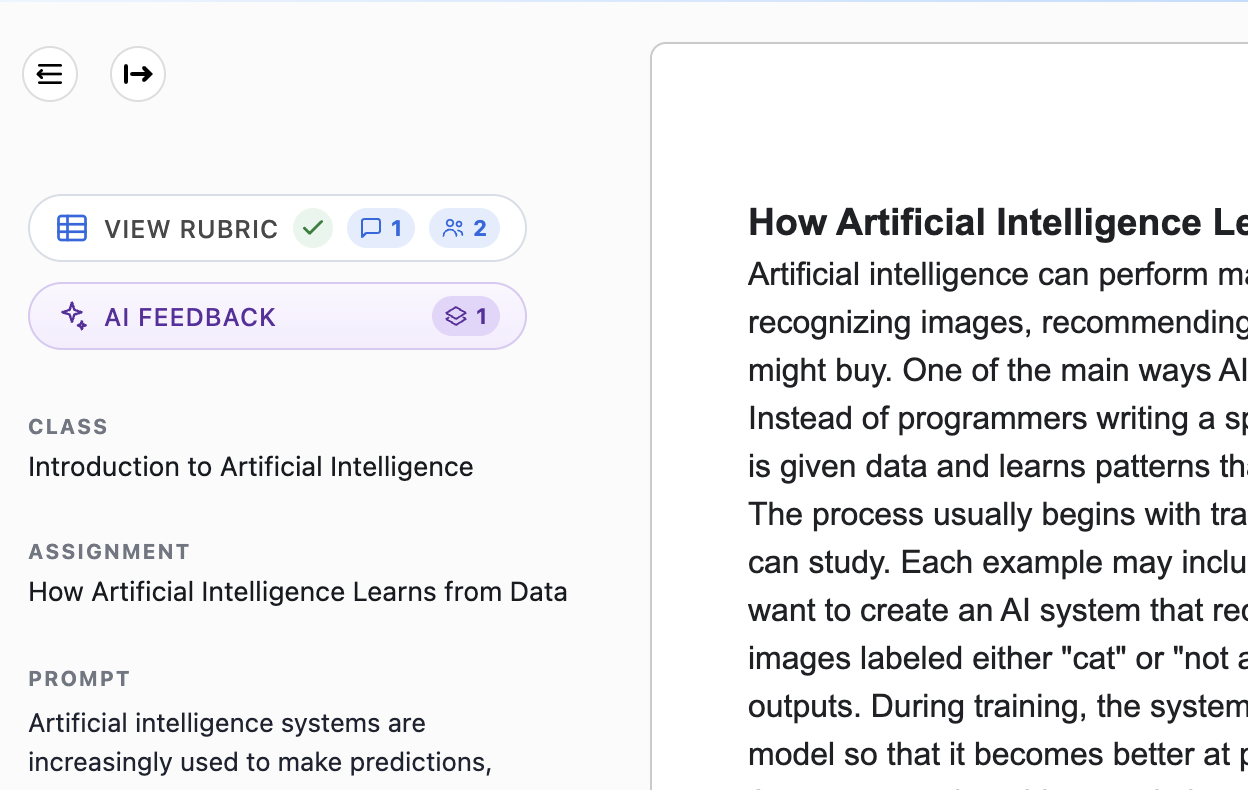
Before opening anything, the author can see what's waiting: the View Rubric button in the left panel carries a comment badge for instructor rubric comments and a people badge for the number of peer reviewers who have left rubric feedback.
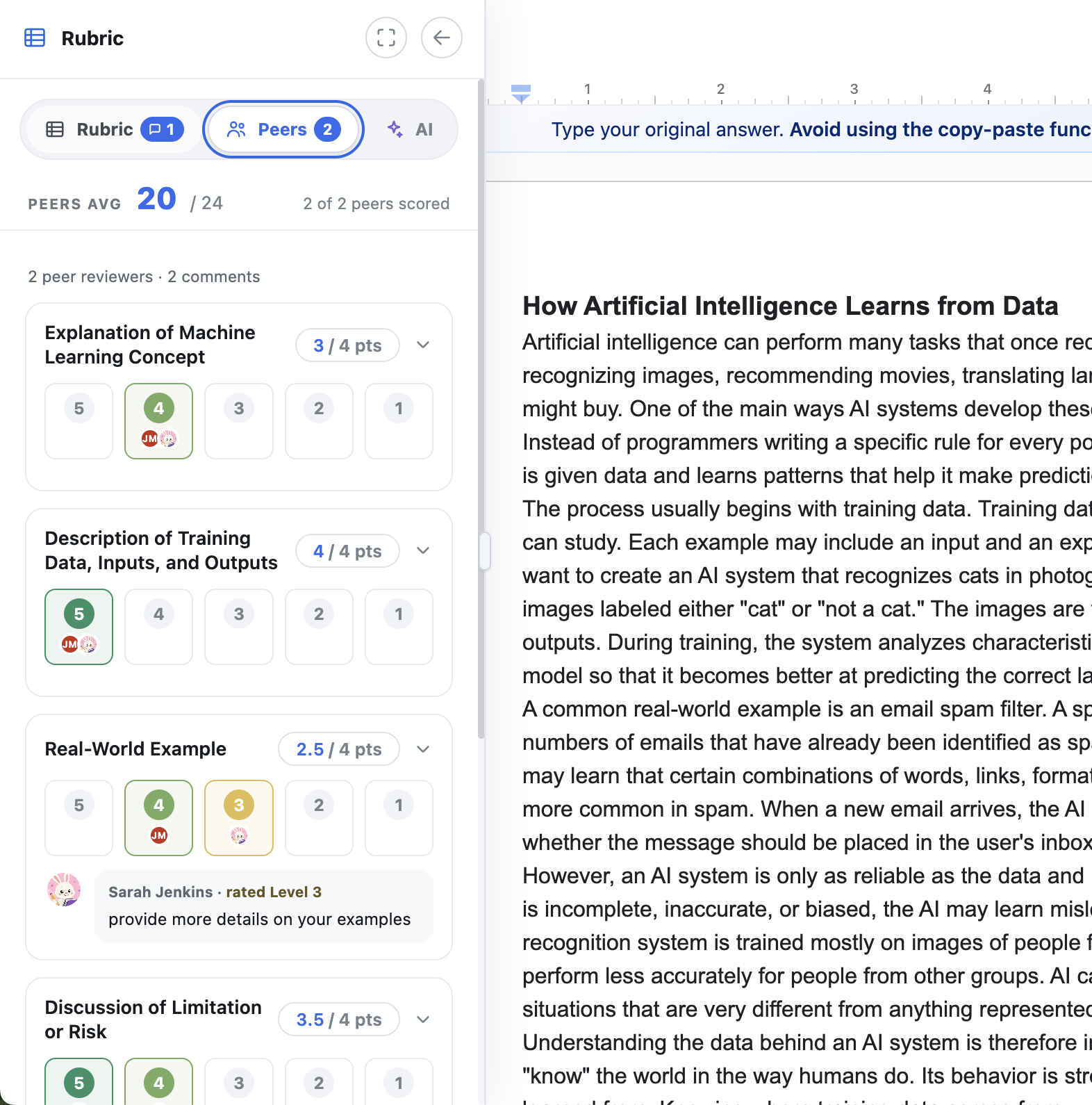
When the author opens their essay, the rubric panel gains a Peers tab alongside the existing Rubric and AI tabs — so peer, instructor, and AI feedback on the same criterion sit side by side without leaving the document. Each tab carries its own badge.
The Peers tab carries a badge with the number of reviewers, and a summary line such as "1 peer reviewer · 1 comment". For each criterion the author sees the Average rating across all reviewers, how the ratings were distributed across the levels, and each reviewer's name, the level they chose, and their written comment. Criteria no reviewer rated show as Not scored.
The other two tabs are covered in Rubrics & Learning Outcomes: the Rubric tab holds the rubric itself plus the instructor's assessment and comments, and the AI tab holds the student's own AI review of their essay.
If Manual release is on for the assignment, peer feedback only appears in the Peers tab after the instructor releases it.
Tracking Reviews
Class-wide Peer Review
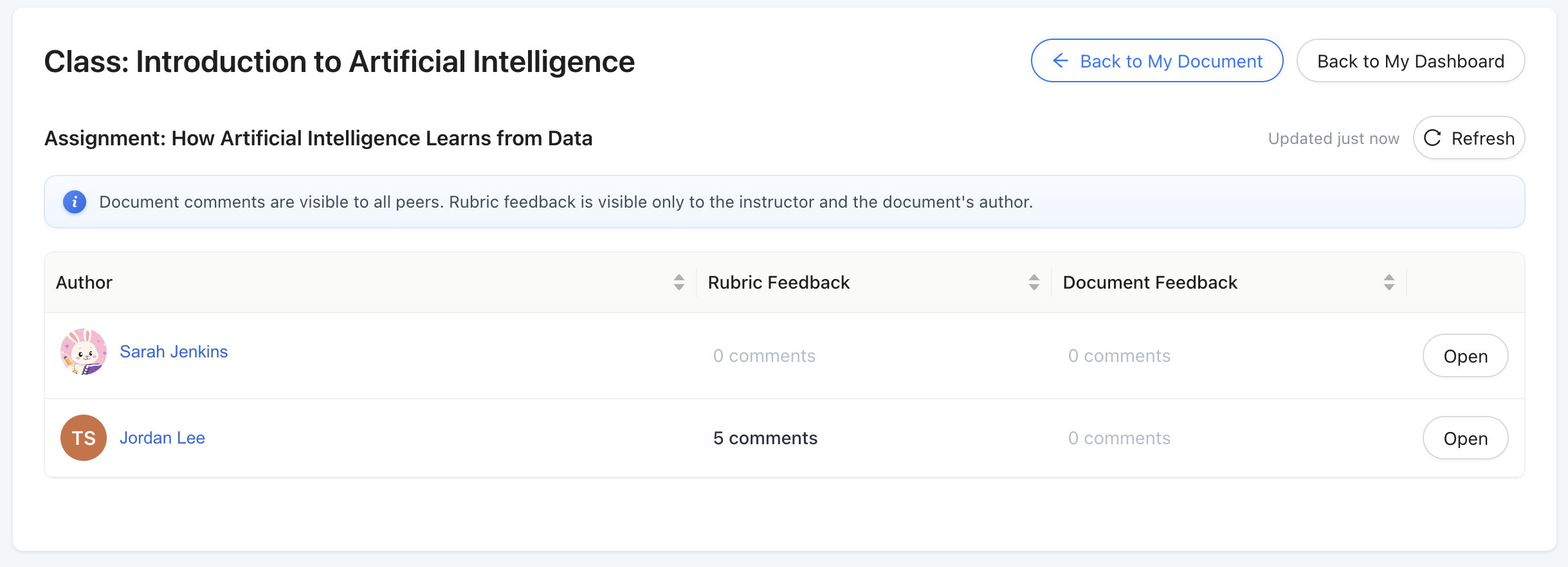
As students complete their reviews, the activity is reflected in their Peer Review Dashboard. Students can see submitted essays and the number of comments added to each essay.
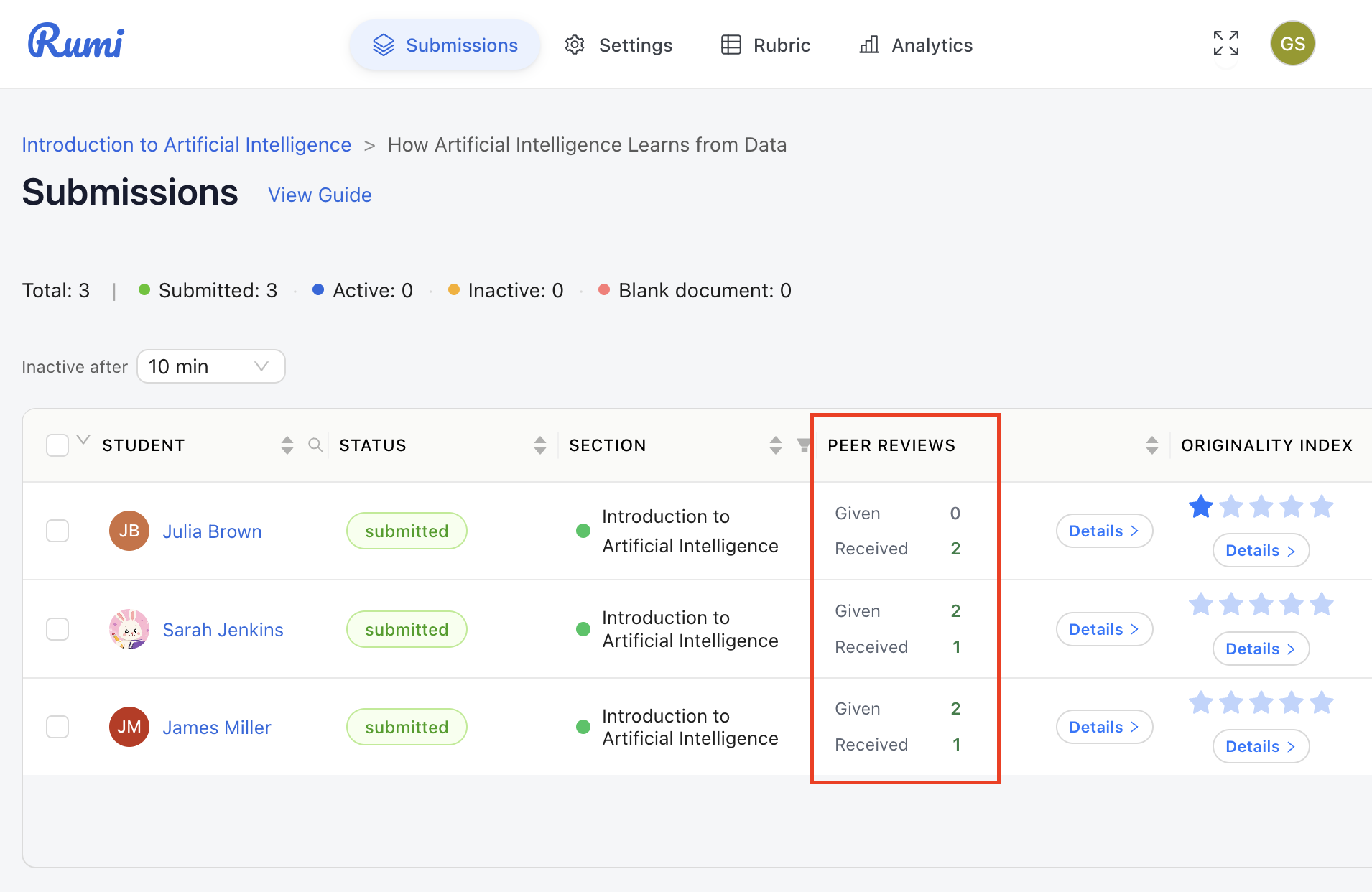
Instructors can monitor all review activity from the Submissions Dashboard.
Selective Peer Review
As students complete their reviews, the activity is reflected in their Peer Review Dashboard, now broken out into Rubric Feedback and Document Feedback counts per essay.
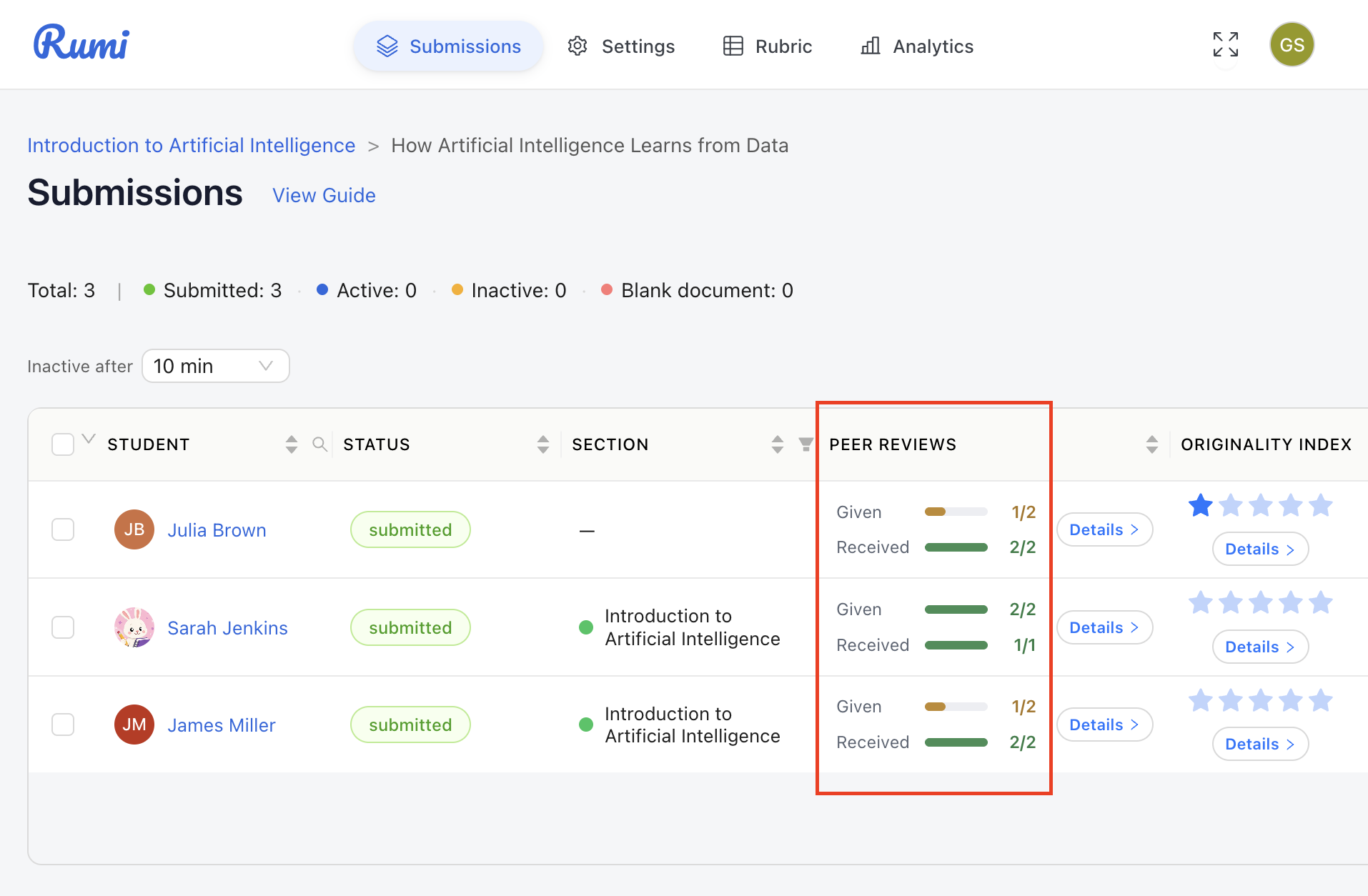
Instructors can monitor all review activity from the Submissions Dashboard. By clicking View Details, instructors can see a detailed breakdown of each student's review progress, including which papers have been reviewed and which are still pending.

Visibility at a Glance
The short version: document comments are public to the group; rubric feedback is private.
Document comments live in the essay and are visible to the author, every peer reviewer, and the instructor.
Peer rubric levels and comments appear in the author's Peers tab. The author and the instructor see all of them; each reviewer sees only their own.
Instructor rubric assessments and comments appear in the author's Rubric tab. The author and the instructor see them; peer reviewers never do.
AI feedback appears in the AI tab. Students can generate it on their own essay only, 3 times per essay; instructors can generate it on any essay without limit; peer reviewers cannot generate it at all.
If Manual release is on, the author sees peer feedback only after the instructor releases it.