Commenting
Intro
Rumi’s commenting system allows both students and instructors to collaborate through real-time comments directly on a document. Comments appear instantly—without needing a page refresh—so feedback and discussions flow naturally. This feature creates an interactive learning environment where students can receive guidance, clarify ideas, and engage with peers or instructors as they work.
Comment Functions
Rumi provides a range of commenting tools designed to support both feedback and discussion:
Add Comment
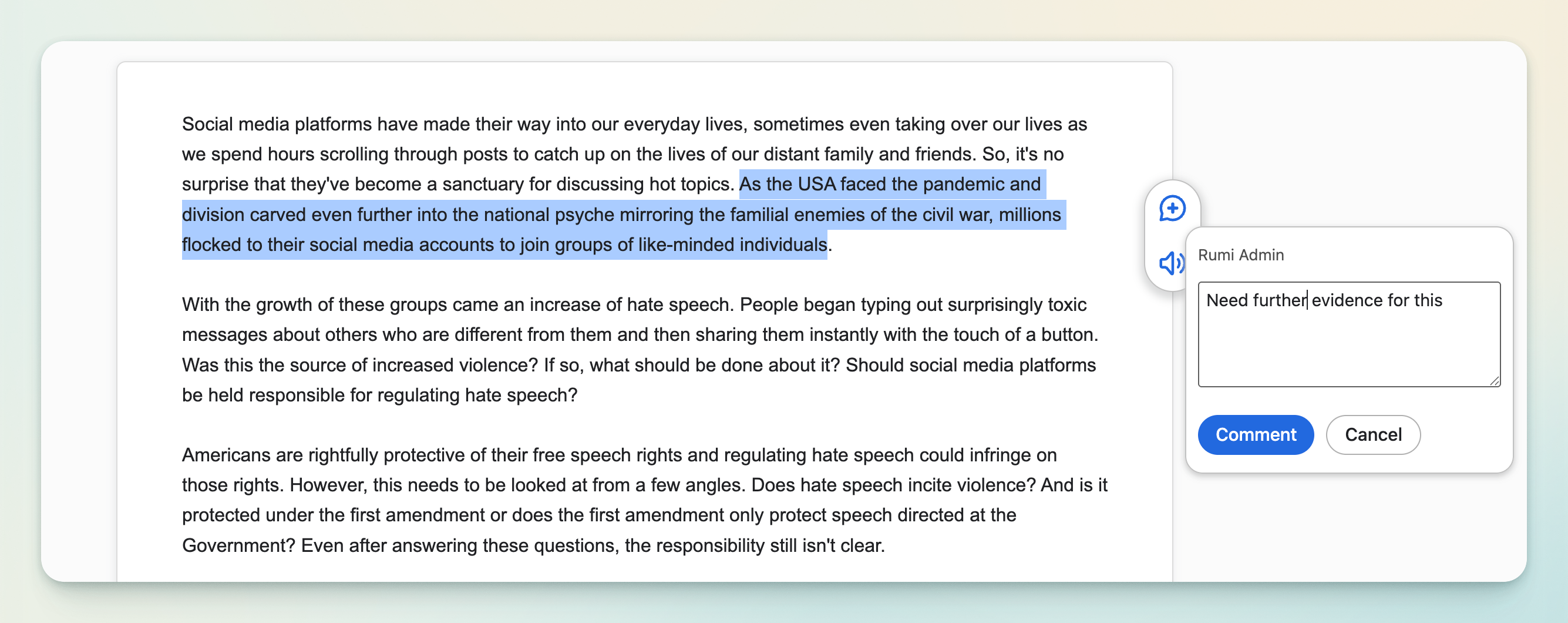
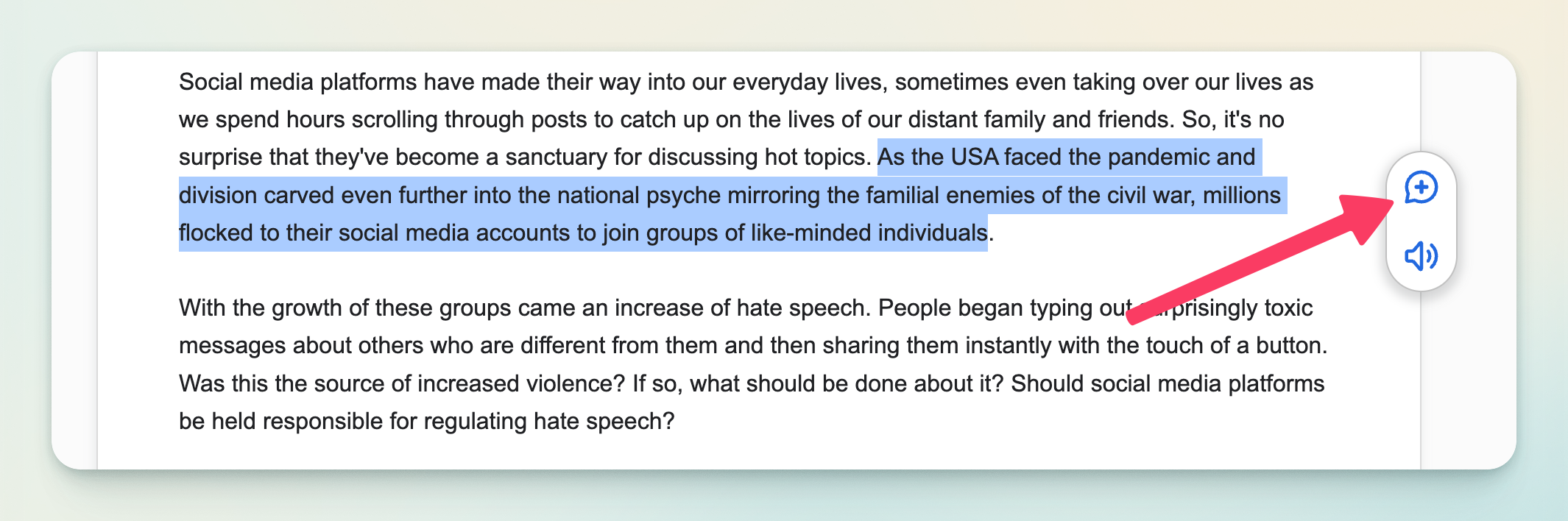
To add a comment, users can highlight a section of text and click the comment button in the floating context menu. Comments are always linked to the selected text, so it’s clear which part of the document the feedback applies to.
Edit / Delete Comment
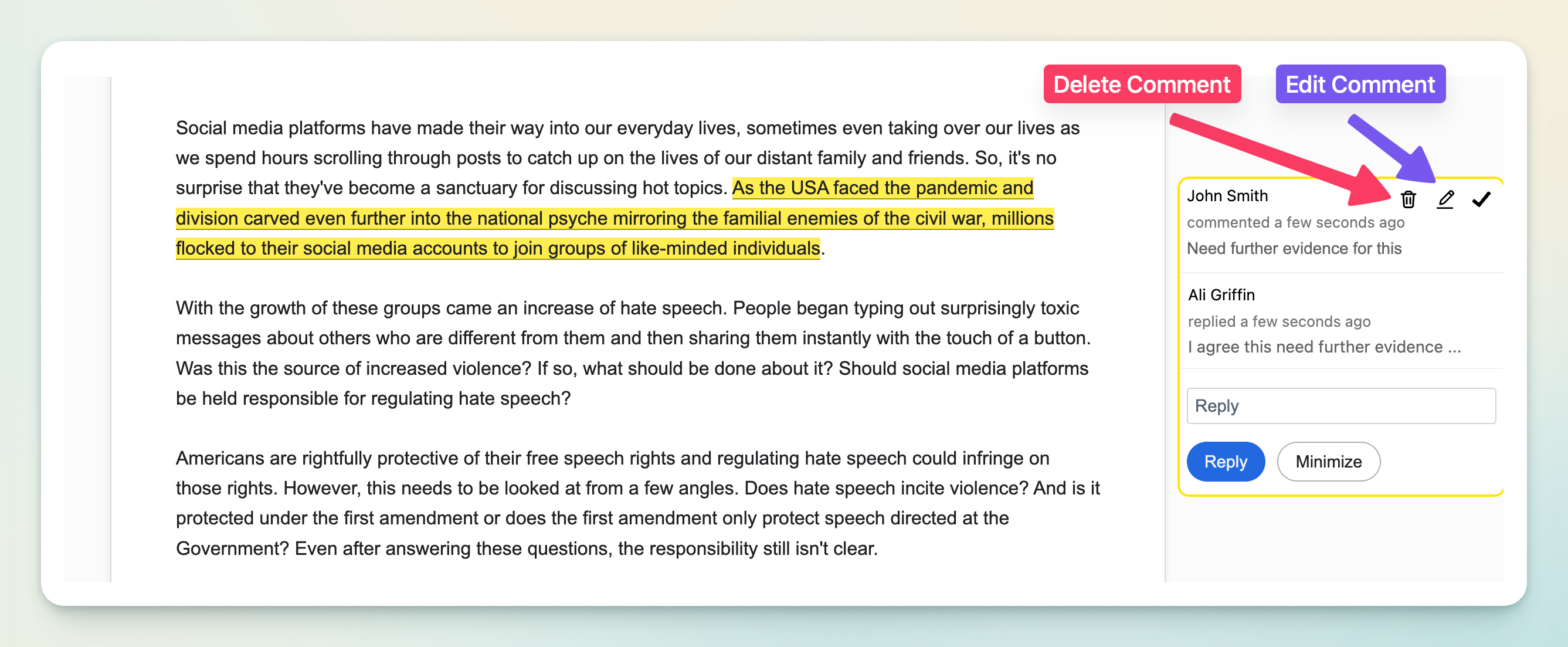
Users can edit or delete their own comments at any time. This ensures that mistakes or outdated feedback can be corrected without confusion. Other users cannot alter someone else’s comments, preserving accountability.
Reply to Comment
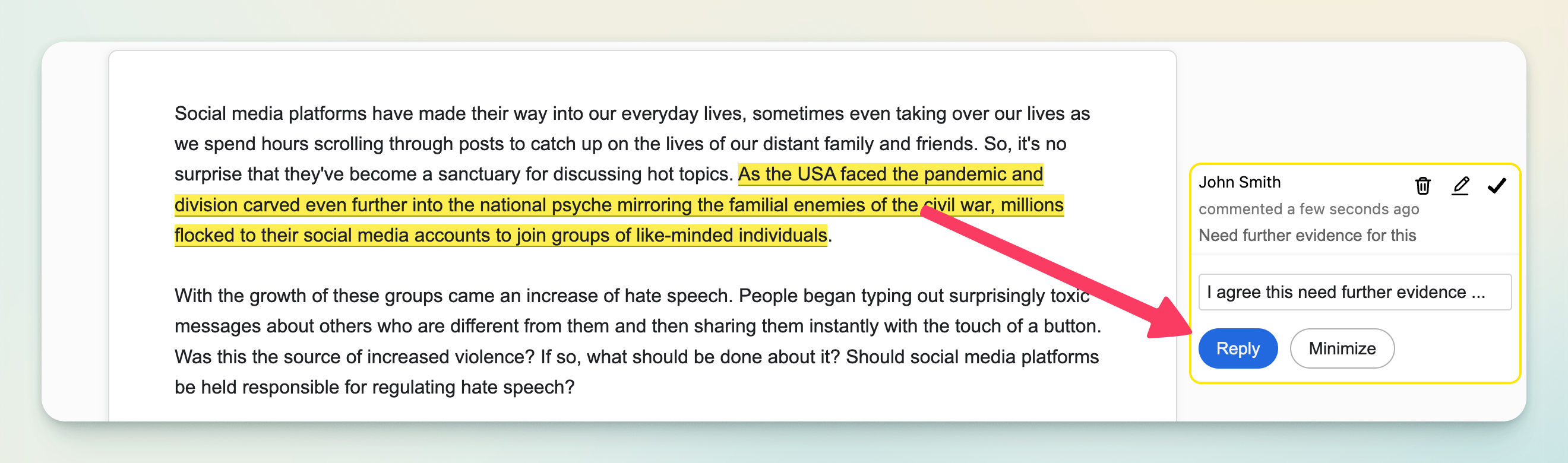
Any user with access to a document can reply to existing comments, allowing for threaded discussions. There is no limit to the number of replies, so conversations can develop naturally around a point of feedback. Users can also delete their own replies if needed.
Resolve Comment
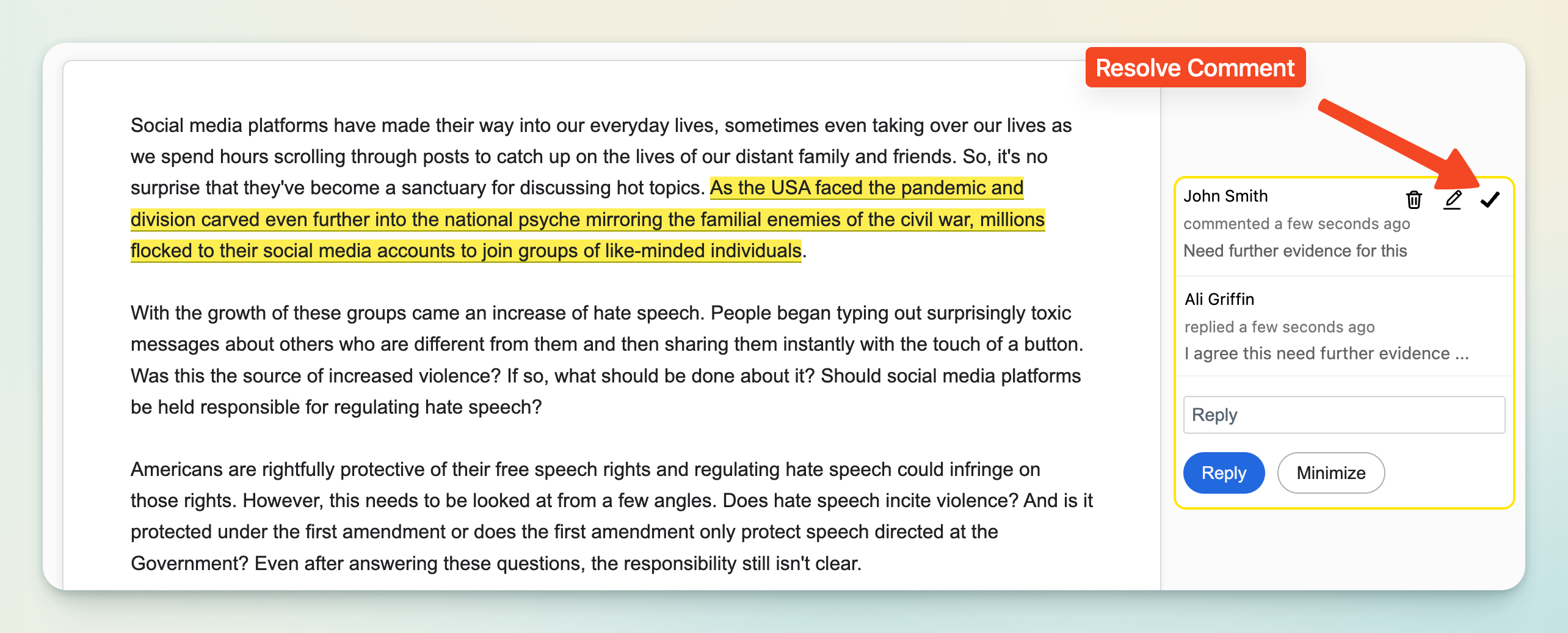
When an issue or suggestion has been addressed, any user with access to the document can mark the comment as resolved. This helps keep the workspace tidy and signals that the feedback has been acted on.
View Comment History
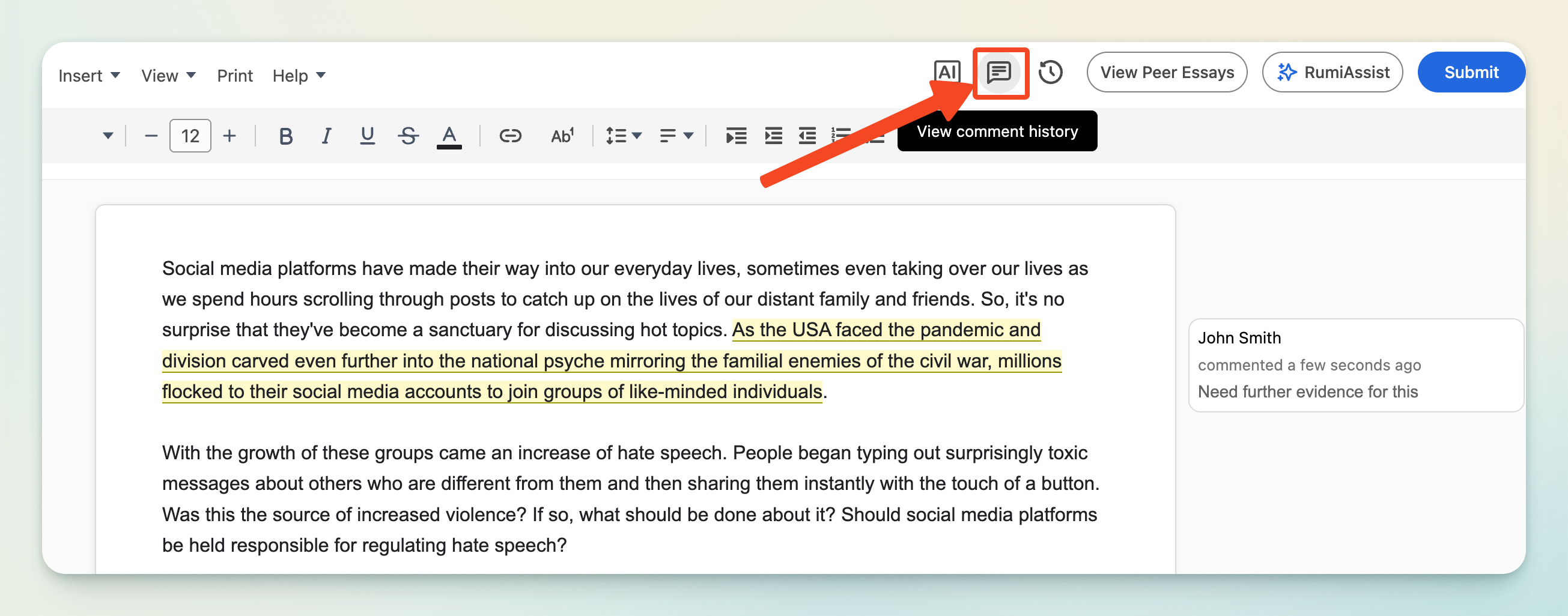
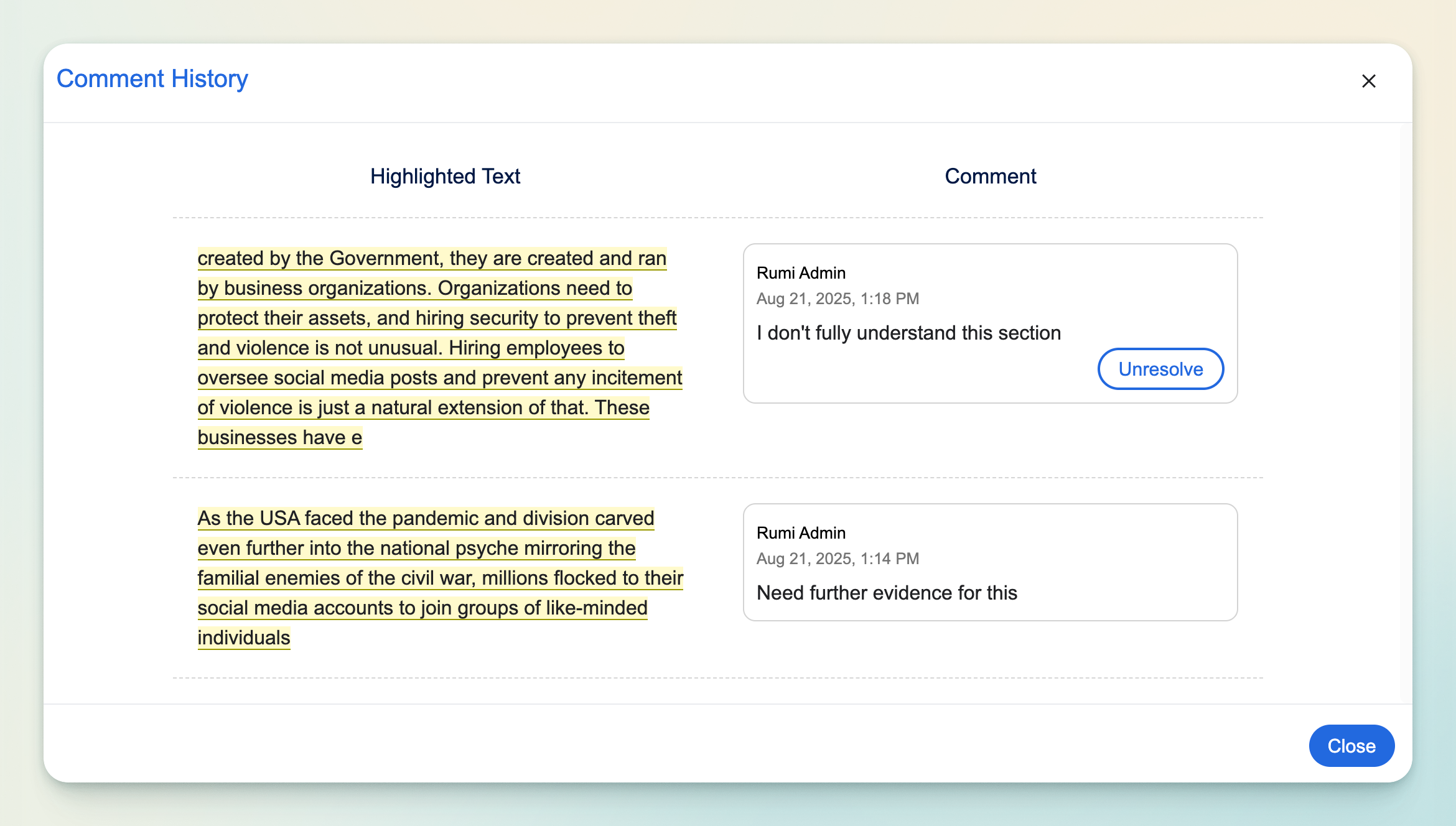
Rumi maintains a comment history panel that stores all comments and their associated highlighted text. This makes it easy to review past discussions, revisit older feedback, or track how ideas evolved throughout the drafting process.
Unresolve Comment
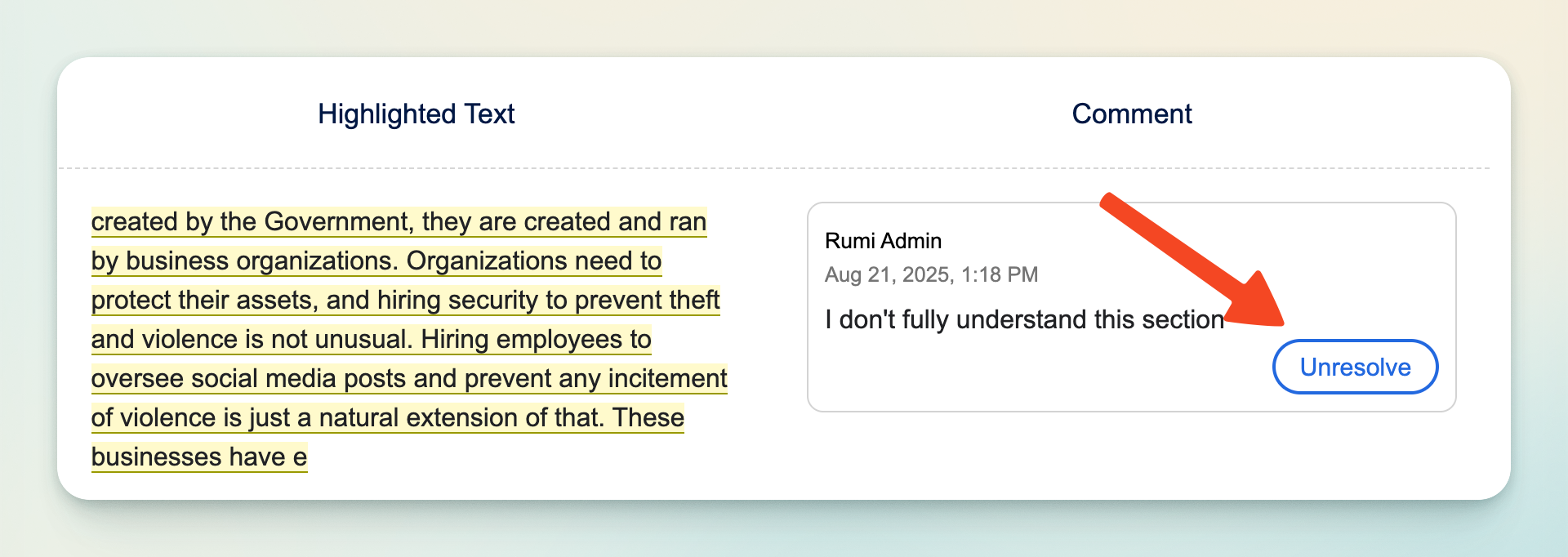
If a resolved comment needs further attention, users can unresolve it from the history panel, reopening the thread for more discussion.
Advanced Features
Manual Approval
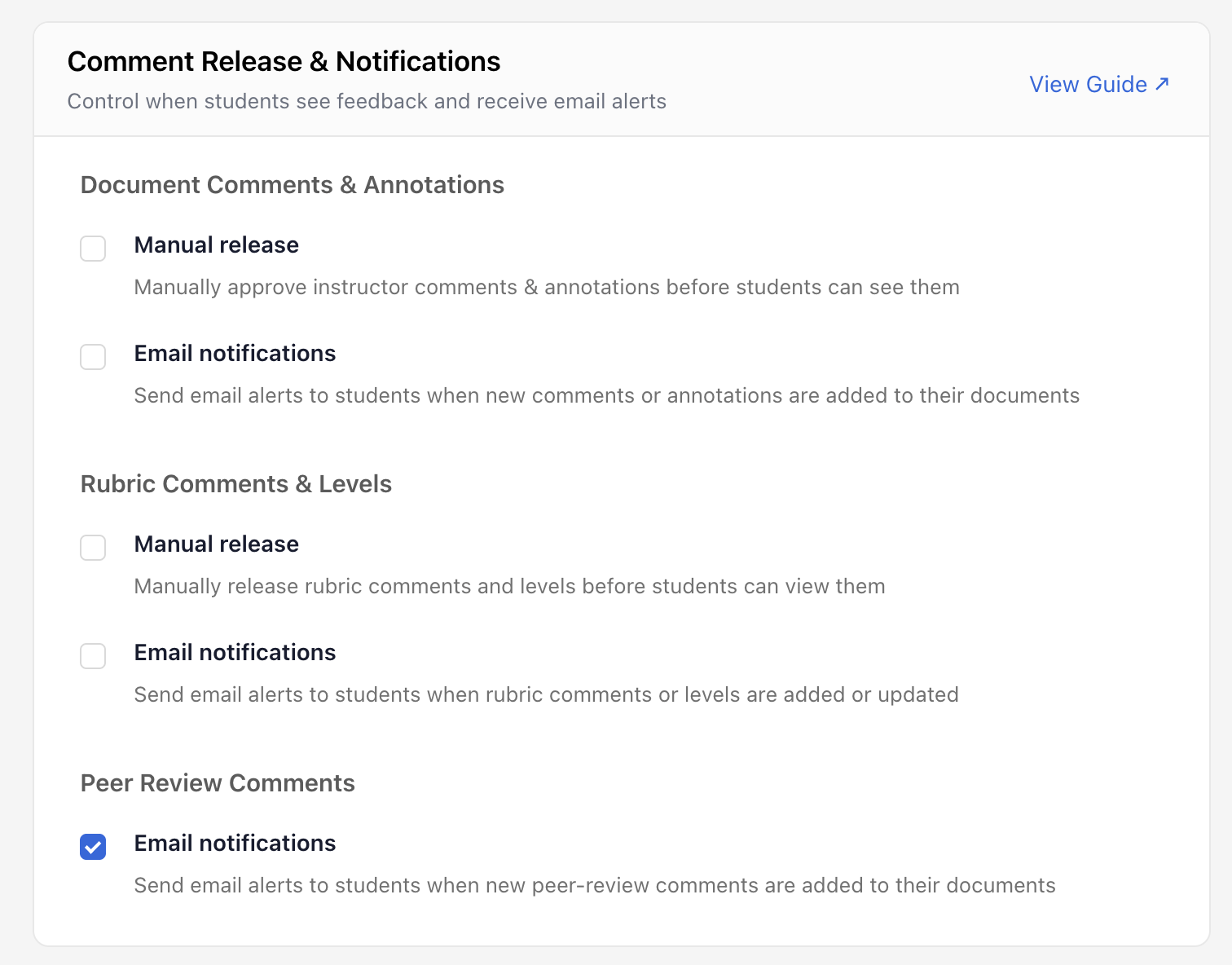
With Manual Approval enabled, instructors have control over when their comments become visible to students.

With this option enabled, instructor comments remain hidden until the instructor clicks the “Release Comments” button.

At any time, instructors can also unrelease comments, hiding them again from student view. This feature is particularly useful for sensitive feedback or staged review processes.

Email Alerts
When Email Alerts are enabled, Rumi automatically sends notifications whenever new comments are added to a document. This keeps both students and instructors updated on discussions, ensuring timely responses and preventing feedback from being overlooked.

Peer Review Comments
When Peer Review Comments are enabled, Rumi automatically sends email notifications to students whenever new peer-review comments are added to their documents. This ensures students stay informed about feedback from their peers and can engage in discussions or revisions promptly.