Embedded Mode
Overview
Choose how Rumi opens inside your LMS: either
- Embedded Mode: Embedded directly on the assignment page (default) or
- New Tab Mode: Show a status page with a button that opens Rumi in a separate browser tab.
This setting applies to both student and instructor views.
In embedded mode, both students and instructors can click the button in the top-right corner to open the page in a dedicated tab.
Student Experience
Embedded Mode
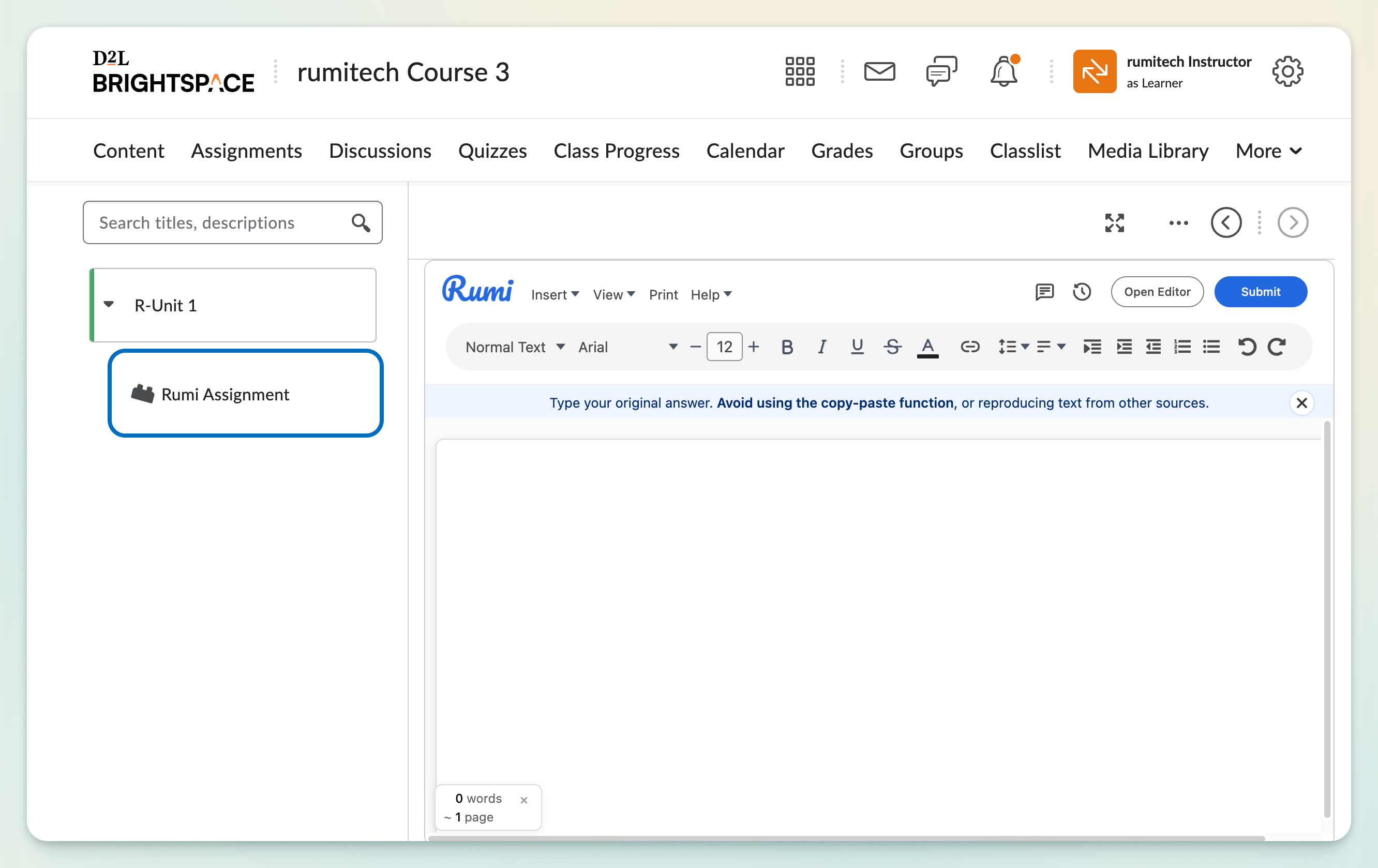
Students work with Rumi right inside the assignment page—no extra windows. This keeps everything in one place for quick drafting and submission.
Open in New Tab Mode
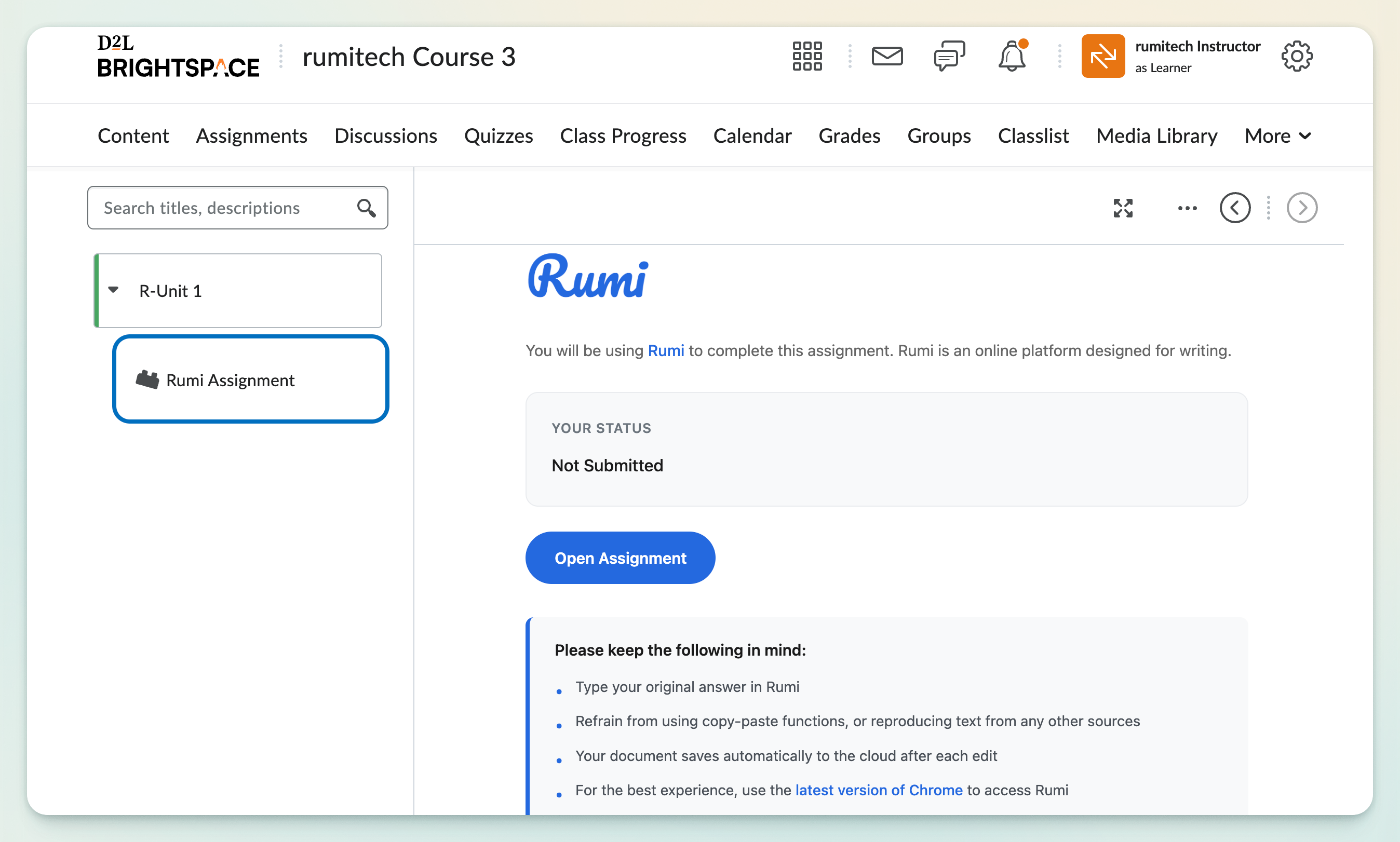
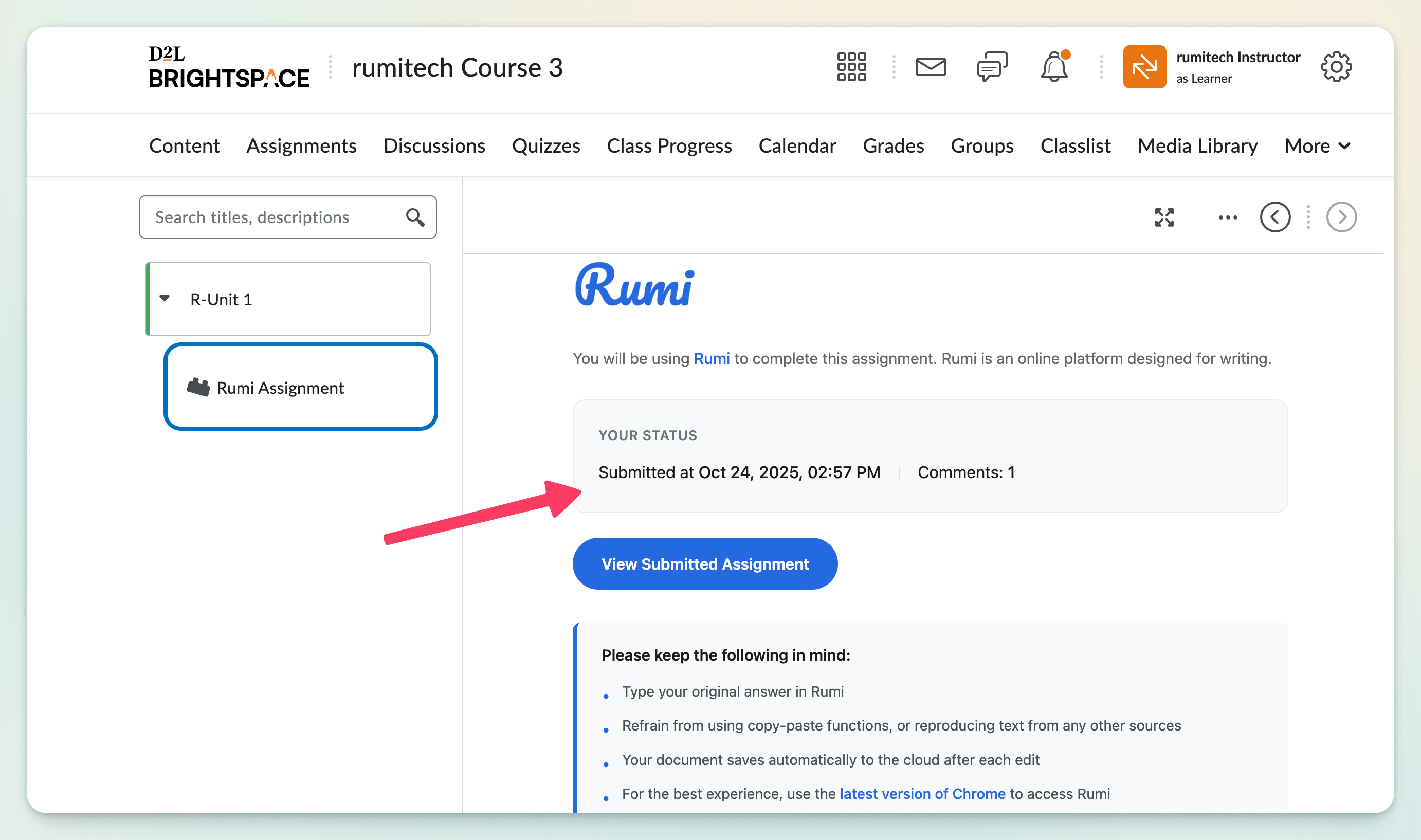
Students first see a status page, then click a button to launch Rumi in its own tab. This gives more screen space and a distraction-free editor; both the “new assignment” and “submitted assignment” states are shown below.
Instructor View
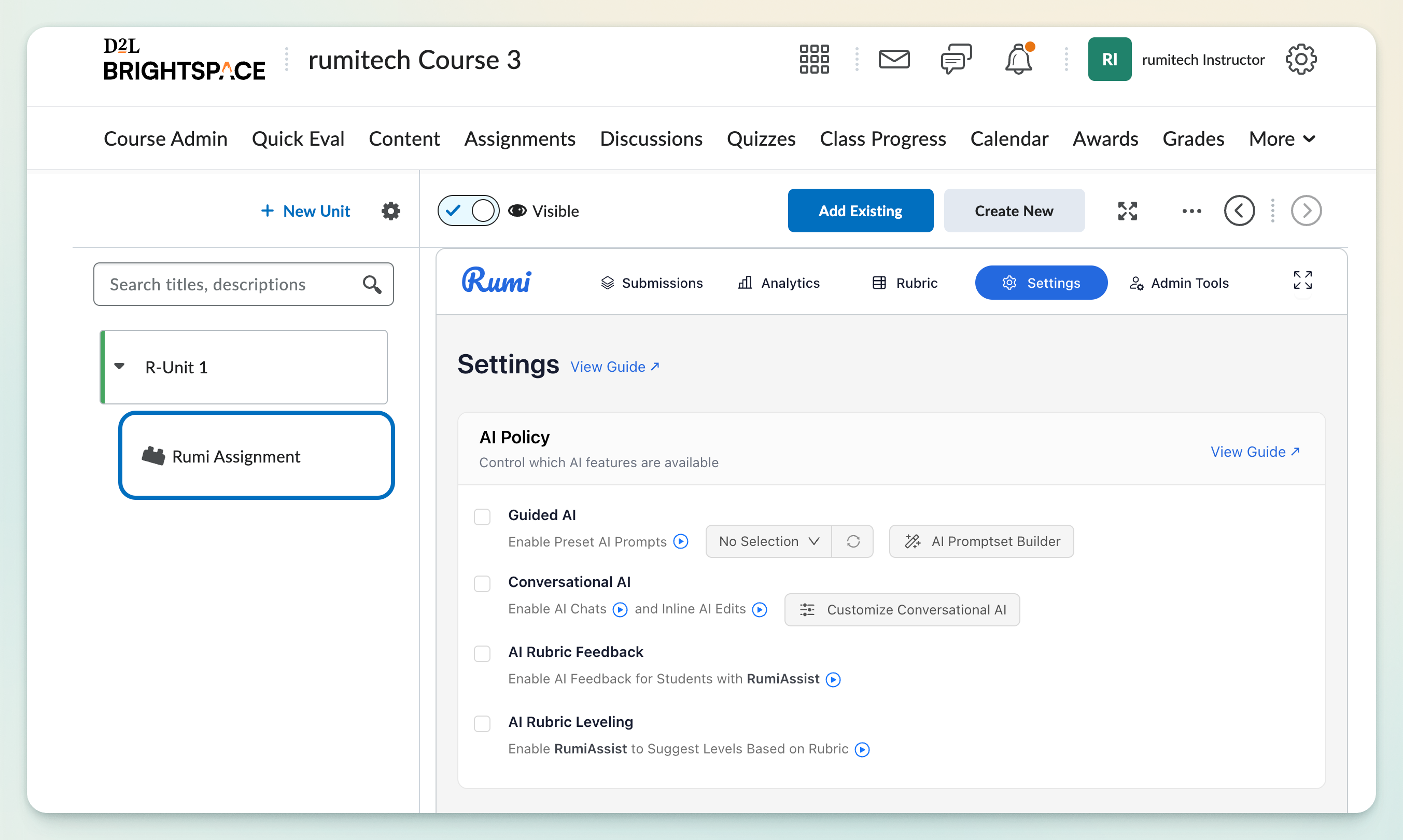
Embedded Mode
Instructors access Rumi within the course page alongside grading and course tools. This makes it easy to review settings and student work without leaving the LMS context.
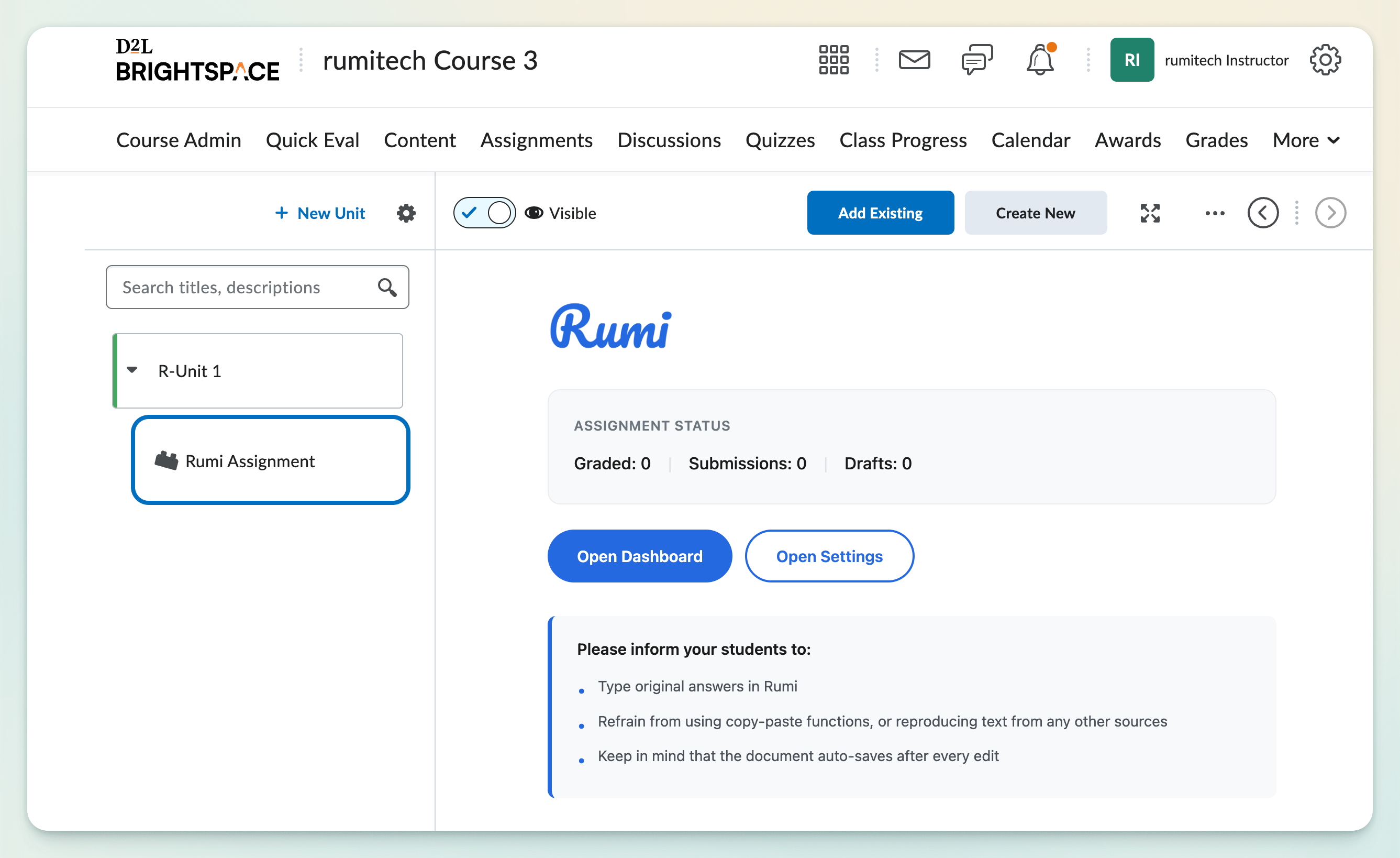
Open in New Tab Mode
Instructors see a status page with controls and can open Rumi in a dedicated tab. This is useful if you like managing Rumi in a larger workspace.
How to Change Setting
Assignment Settings
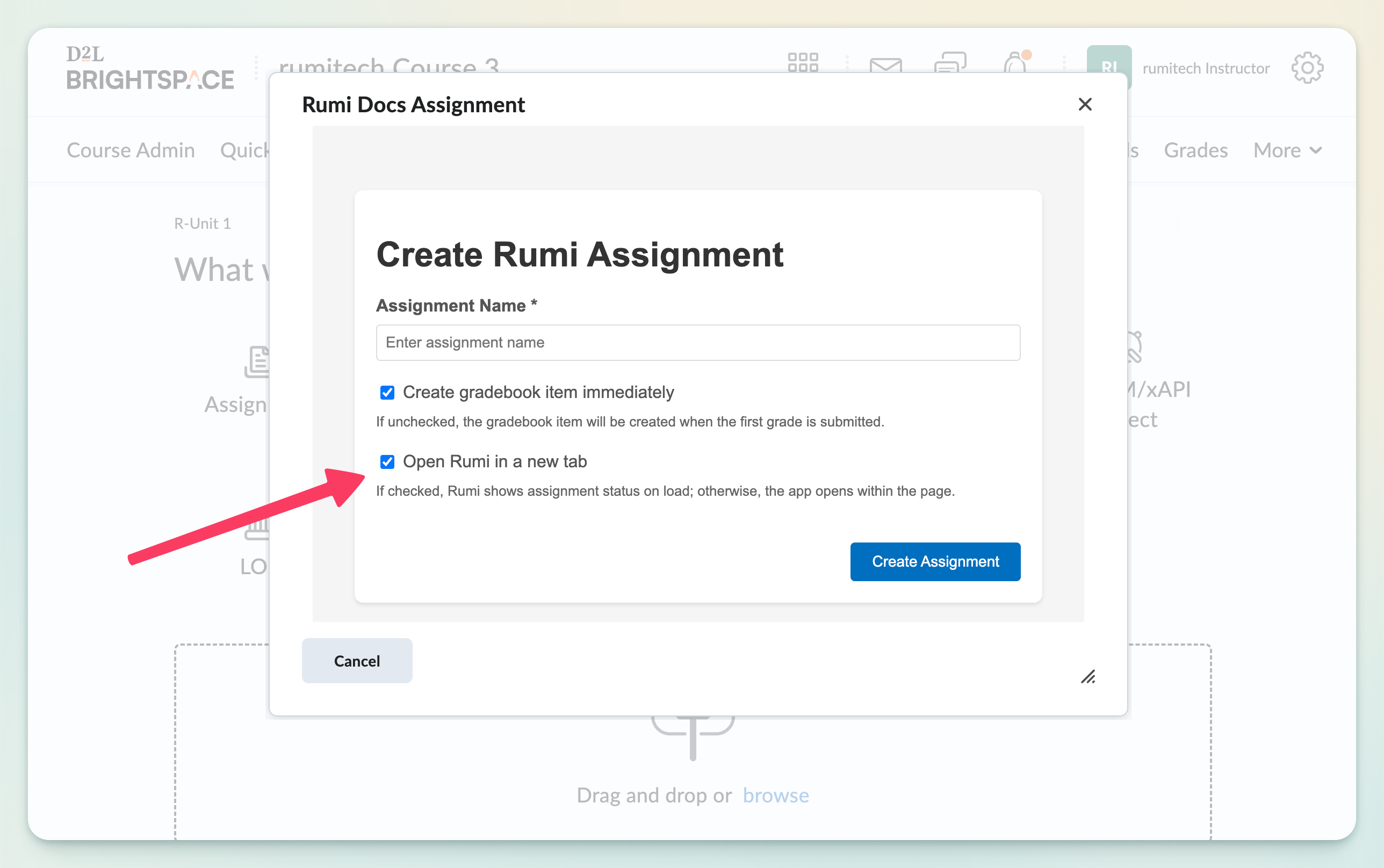
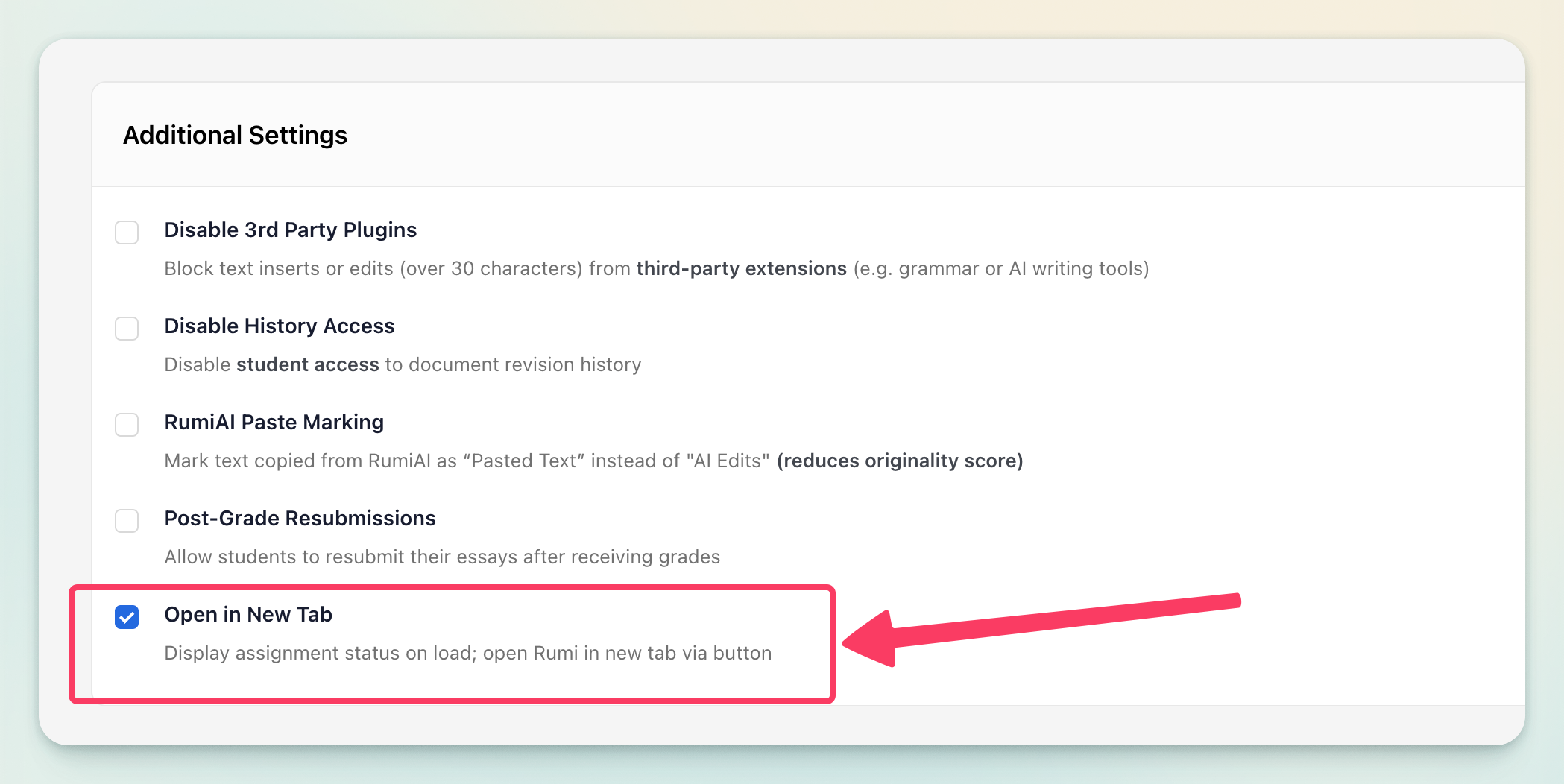
Toggle the “Open in New Tab” option in the assignment’s Additional Settings to switch between embedded and new-tab behavior.
D2l Assignment Creation
When creating a Rumi assignment in D2L, you can also choose the “Open in New Tab” option during setup. This ensures the desired experience is configured from the start.