Discussion Board
Discussion Board
A Discussion Board is an assignment type where the whole class writes in one shared document, together, in real time. Instead of each student receiving their own document, everyone opens the same board, reads what classmates have written, and adds their own posts and replies. Every contribution is colour-coded and labelled with its author, and the instructor dashboard shows who wrote what, when, and how.
Important: Discussion boards have Protected contributions. Students can write on the same line as a classmate, at the same time, but no student can change or delete anyone else's words. Each student's writing stays exactly as they wrote it, and the template text stays in place too.
A board is never submitted and is not graded inside Rumi — it is a shared space for conversation and collaborative writing, with full visibility into each student's contribution.
In this article, we'll look at how to:
- Create a Discussion Board and choose the settings that apply to it
- Set a due date, and lock or reopen the discussion
- Understand what students see and how they write in the board
- Join the conversation as the instructor
- Read the Authorship tab to see who wrote what, when, and how
Creating a Discussion Board
The assignment type is chosen in Assignment Settings, at the top of the page under Assignment type. Two cards are offered: Document, for individual or group writing in real time (the default), and Discussion Board, for one shared board for the whole class. Select Discussion Board to turn the assignment into a board. Hover the Preview tag on the card to watch a short video of a board in use.
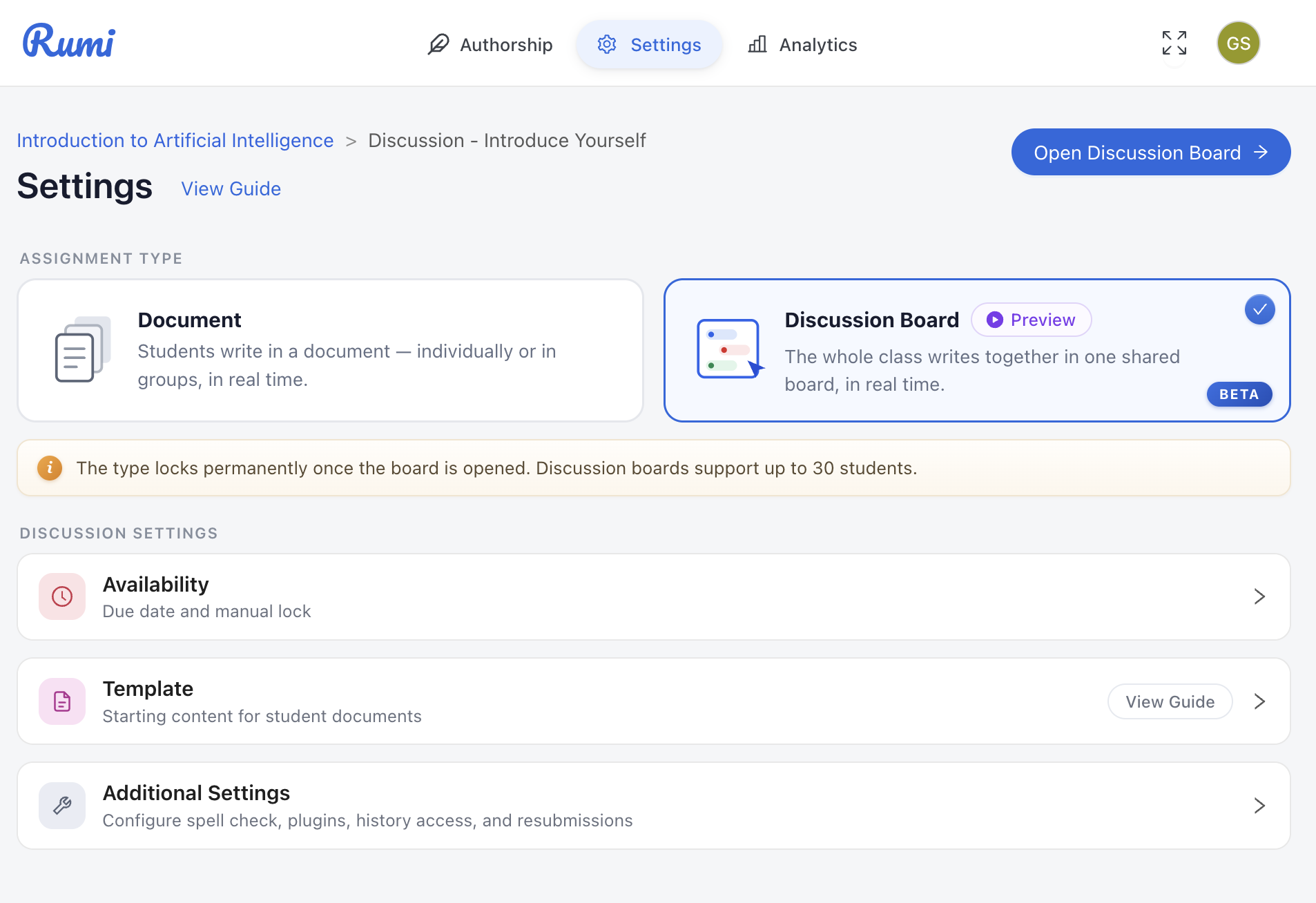
Important: the assignment type locks permanently once the board is opened for the first time. After that the cards are greyed out and the type cannot be switched, because the content is shaped by the type — one shared board versus one document per student. Decide on the type before sharing the assignment with students.
Student limit: Discussion Boards support up to 30 students. If a 31st student tries to open the board, they see a message that the board is full and are asked to contact their instructor. For larger sections, create a second board assignment. The instructor does not count toward the limit.
Settings that apply to a board
Because a board is one shared document with no submission step, the settings page is shorter than for a Document assignment. four sections apply to every board, and one to boards created from D2L.
Template is optional starting content for the board — for example, explaining the structure students should follow. Once the board is opened, students can write around the template, but they can't change or delete it.
Availability holds the due date and the manual lock, covered in the next section.
Post Editing controls whether instructors can edit students' posts. Students can never edit a classmate's writing. Instructors can edit students' posts is on by default; turn it off to protect students' posts from instructors as well.
Assignment Description appears only for boards created from D2L, the same as for D2L Document assignments. It is the discussion topic or prompt, and it appears in the sidebar of the board for every participant so students always have the question in view. Canvas boards do not have this field in Rumi — the prompt lives in the Canvas assignment itself.
Additional Settings work the same way for a board as for a Document assignment. Under Writing Tools, Disable Enhanced Spell Check turns off real-time spelling and grammar suggestions in the board, and Allow 3rd Party Plugins lets text be inserted from browser extensions such as grammar or AI writing tools. Under Document Access, Disable History Access stops students from opening the board's revision history, and Open in New Tab shows the assignment status on load and opens the board in a new tab from a button.

Availability: due date and locking the discussion
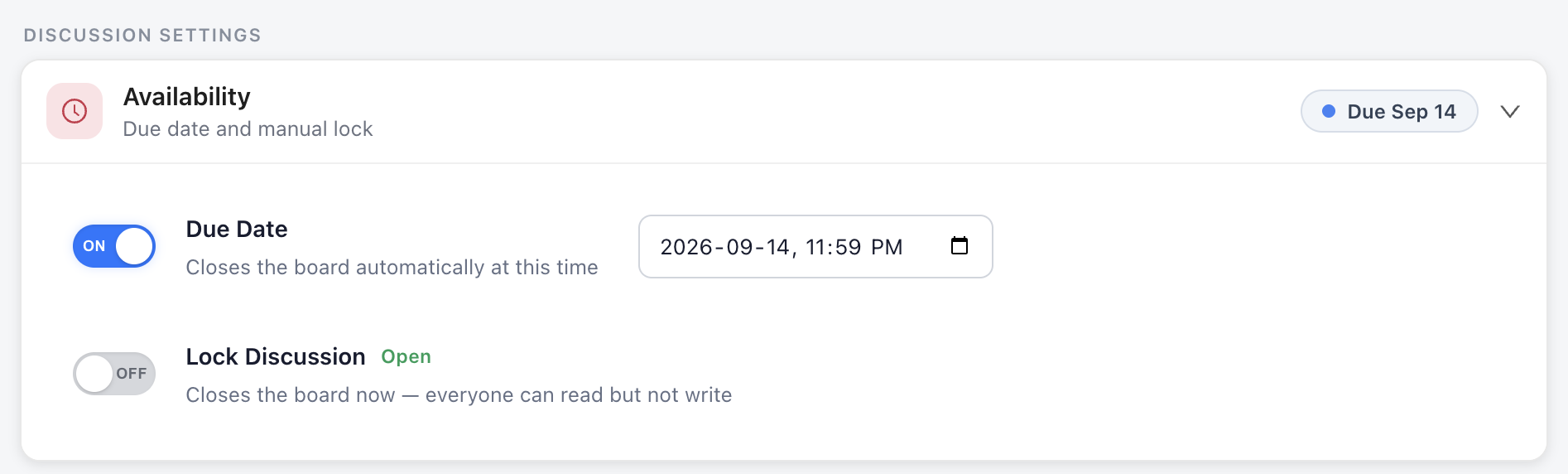
The Availability section controls when students can write in the board. It is the first section under Discussion settings.
Due Date
Switch on Due Date and pick a date and time. The board closes automatically at that time: everyone can still open and read it, but no one can write. Leave the due date off and the board stays open until you lock it yourself.
A Discussion Board's due date is managed here in Rumi and is not read from your LMS assignment.
Lock Discussion
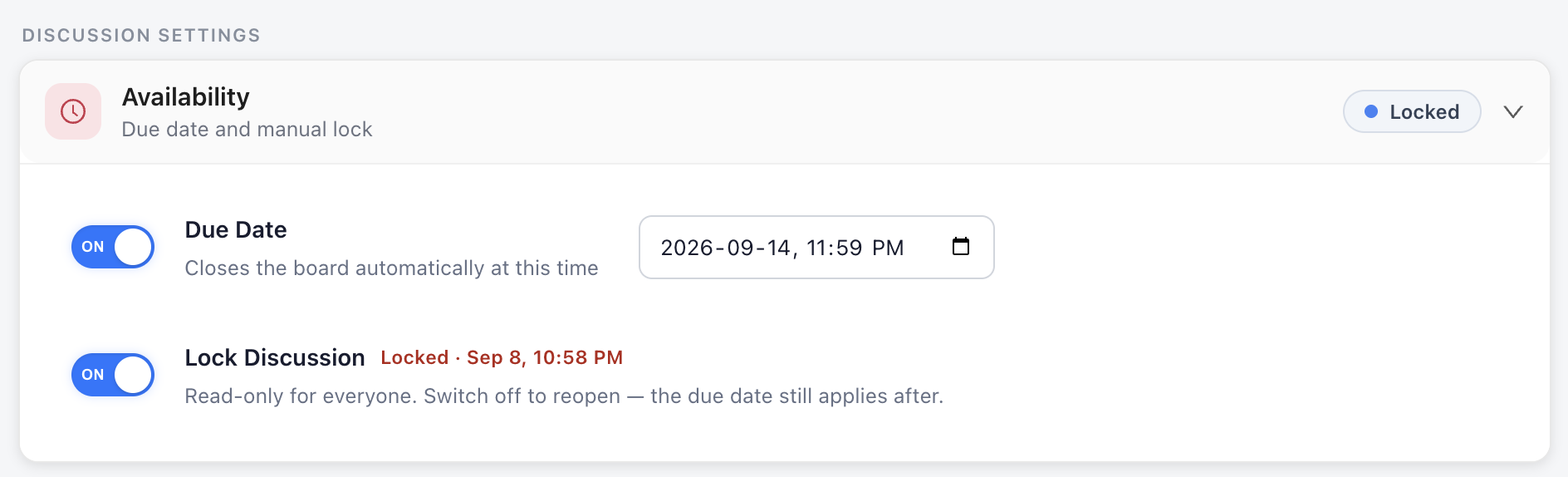
Switch on Lock Discussion to close the board immediately. The board becomes read-only for everyone, instructors included, and the status chip shows Locked with the time you locked it. Switch it off to reopen the board. If a due date is set, it still applies after you reopen.
If the due date has already passed, the chip reads Closed by due date. To reopen the board in that case, extend the due date. While students can write, the chip reads Open.
What students see when a board is closed
A banner appears above the board explaining why it is closed and what they can still do. A board you locked reads "This discussion was closed by your instructor on Sep 8, 10:58 PM. You can read it, but not write in it." A board closed by its due date reads "This discussion closed at its due date, Sep 07, 11:59 PM. You can read it, but not write in it."
Students who already have the board open see the change within about a minute, and any text typed after the board closed is not saved. When you reopen a board, open tabs become writable again on their own.


Writing in the board
Student experience
Students open the board from the assignment link or from their LMS, exactly as they would a Document assignment. Everyone writes together in the same document in real time, with classmates’ contributions appearing live as they type.
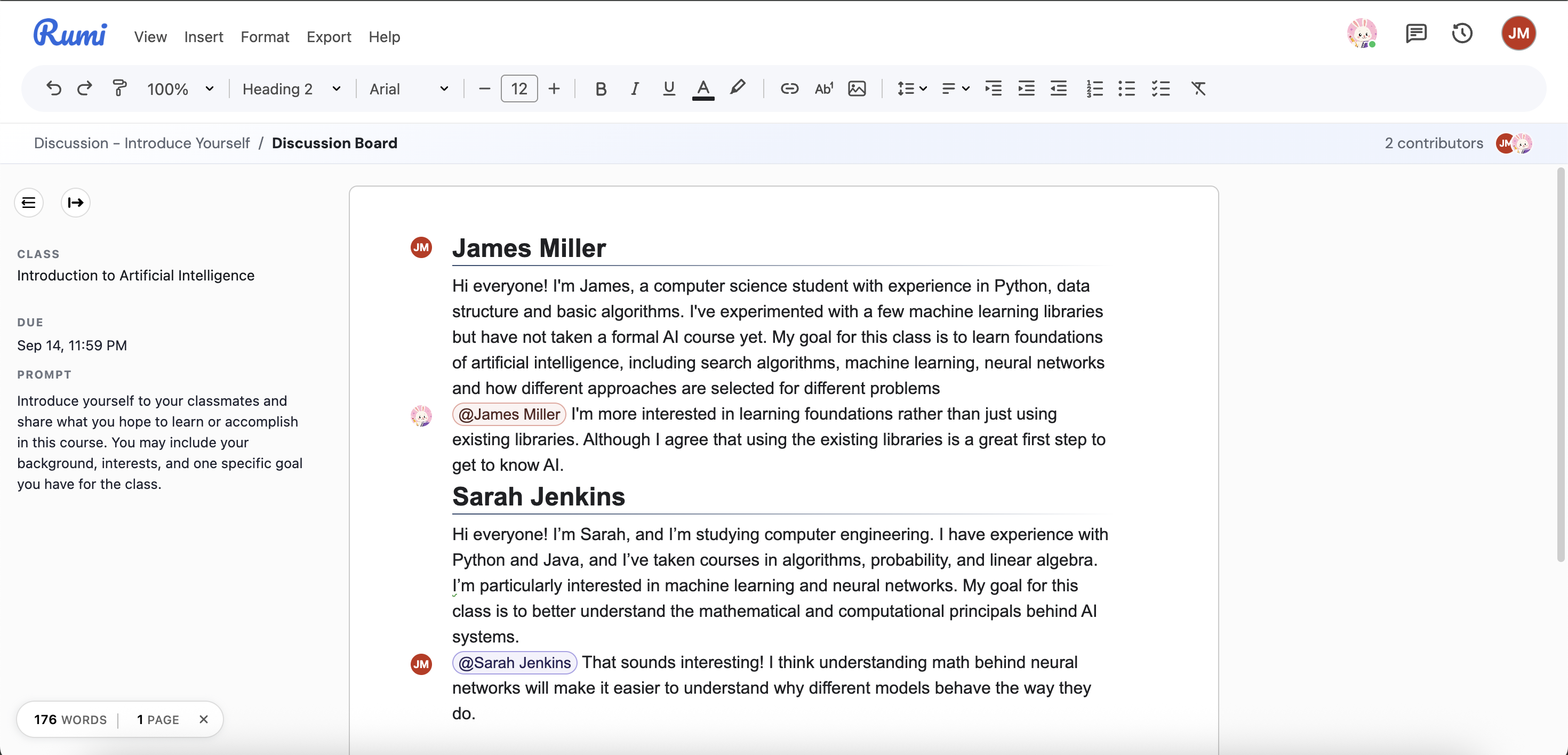

Protected contributions. Students can write on the same line as a classmate, at the same time, but no student can change or delete anyone else's words. Each student's writing stays exactly as they wrote it, and the template text stays in place too.
Author colours and avatars. Each participant's text is tinted with their own colour, and their profile picture appears in the gutter beside each of their contributions. Hovering an avatar shows the author's name and highlights everything they wrote; clicking it pins the highlight until you click elsewhere.
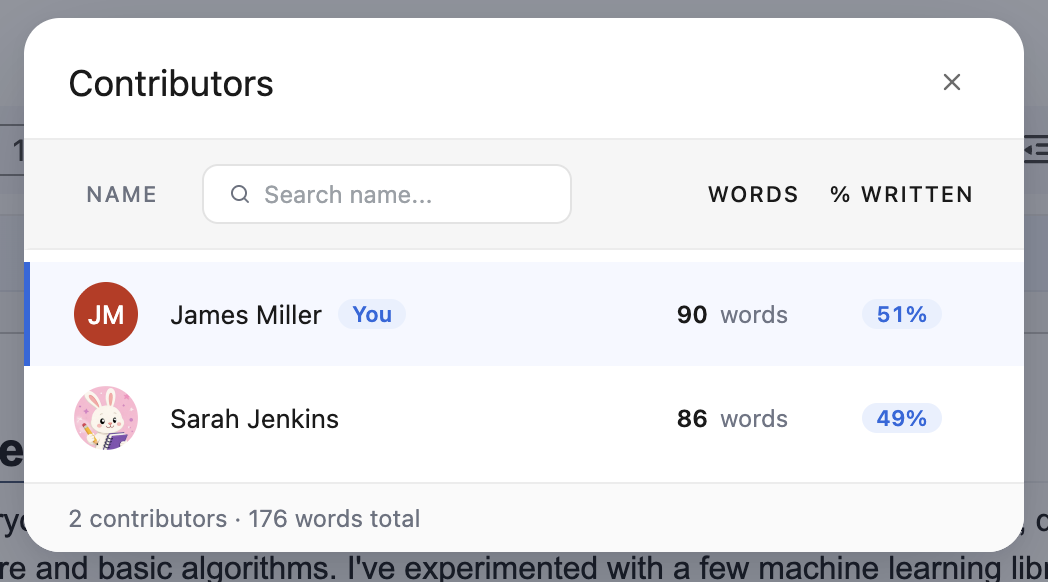
Contributors. The header strip at the top of the board shows how many classmates have posted, with a stack of their avatars. Click it to open the Contributors list, which can be searched by name and sorted by name or by words written, and shows each person's word count and share of the board.
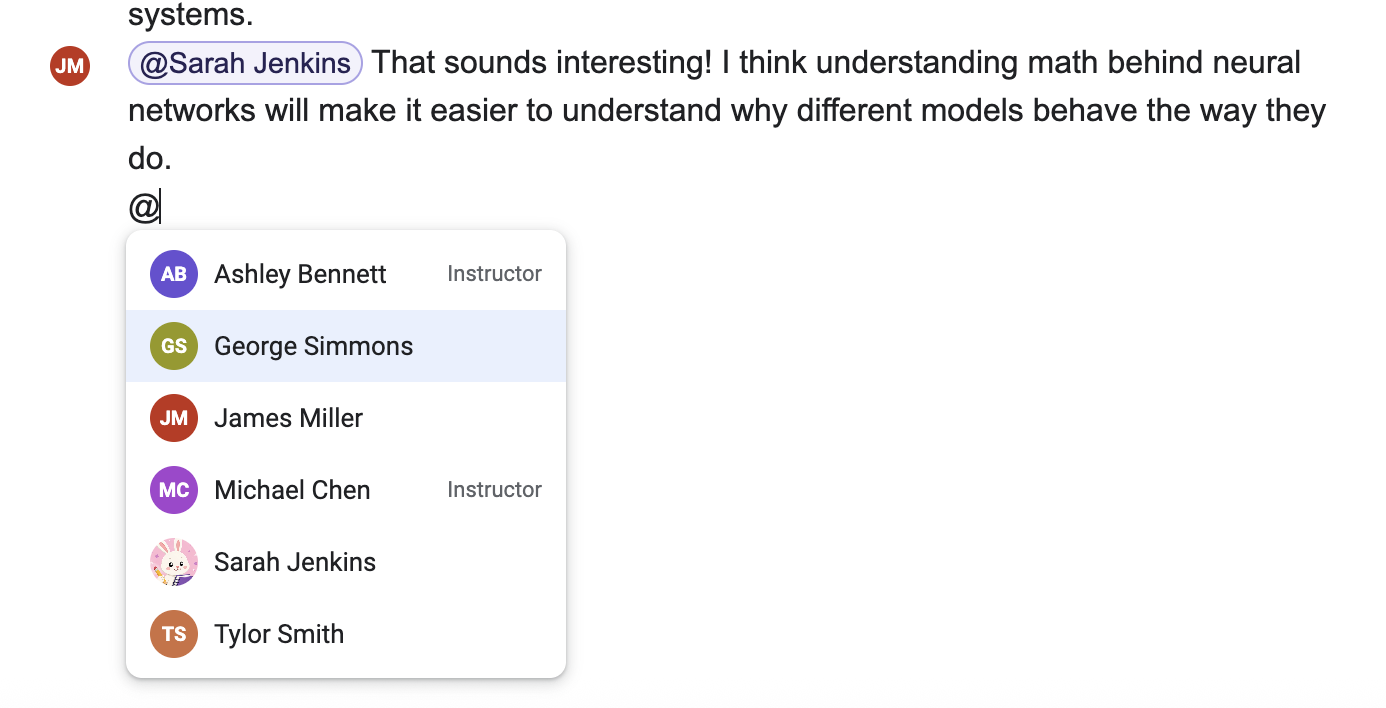
@mentions. Type @ to bring up a list of everyone in the class. Choosing a classmate inserts their name as a coloured pill that matches their avatar colour. Mentions are visual only; no notification is sent.
Formatting. The usual formatting tools, images, tables and other inserts are available. To keep the shared column readable for everyone, the board is always in the standard (pageless) layout with fixed margins; page view and margin controls are not offered.
What is different from a Document assignment. There is no Submit button — nothing is turned in. There is no originality report, no Rumi AI tools, and no comments panel in the board. Version history can be viewed by everyone unless Disable History Access is turned on in Additional Settings, and only the instructor can restore an earlier version. Pasted text is still tracked, and large pastes are visible to the instructor in the Authorship tab.
How it compares to group documents
Group documents are still fully collaborative, so use them when students are meant to revise a shared draft together. Use Discussion Boards when every contribution should stay attributable to the student who wrote it.
Instructor experience
Instructors join the board as a participant under their own name. Use Open Board on the assignment card, or Open Discussion Board on the assignment page. You see exactly what students see.

Because everyone is writing in the same document, the grading and annotation tools of a Document assignment are not present in a board. As the instructor, you can write and reply in the board like any participant — to seed a thread, model a response, or steer the conversation. If Instructors can edit students' posts is on (the default), you can also edit or delete students' text, for example to fix a typo or remove something inappropriate. You can restore an earlier version from the version history if something is deleted or the board gets derailed; this is the recovery tool for a board. And you can close or reopen the board at any time from Assignment Settings → Availability.
The Authorship tab
For a Discussion Board, the Submissions tab of the assignment page is replaced by an Authorship tab. It answers the questions a board raises: who wrote, how much, when, and whether the text was written in the board or pasted in.
Summary
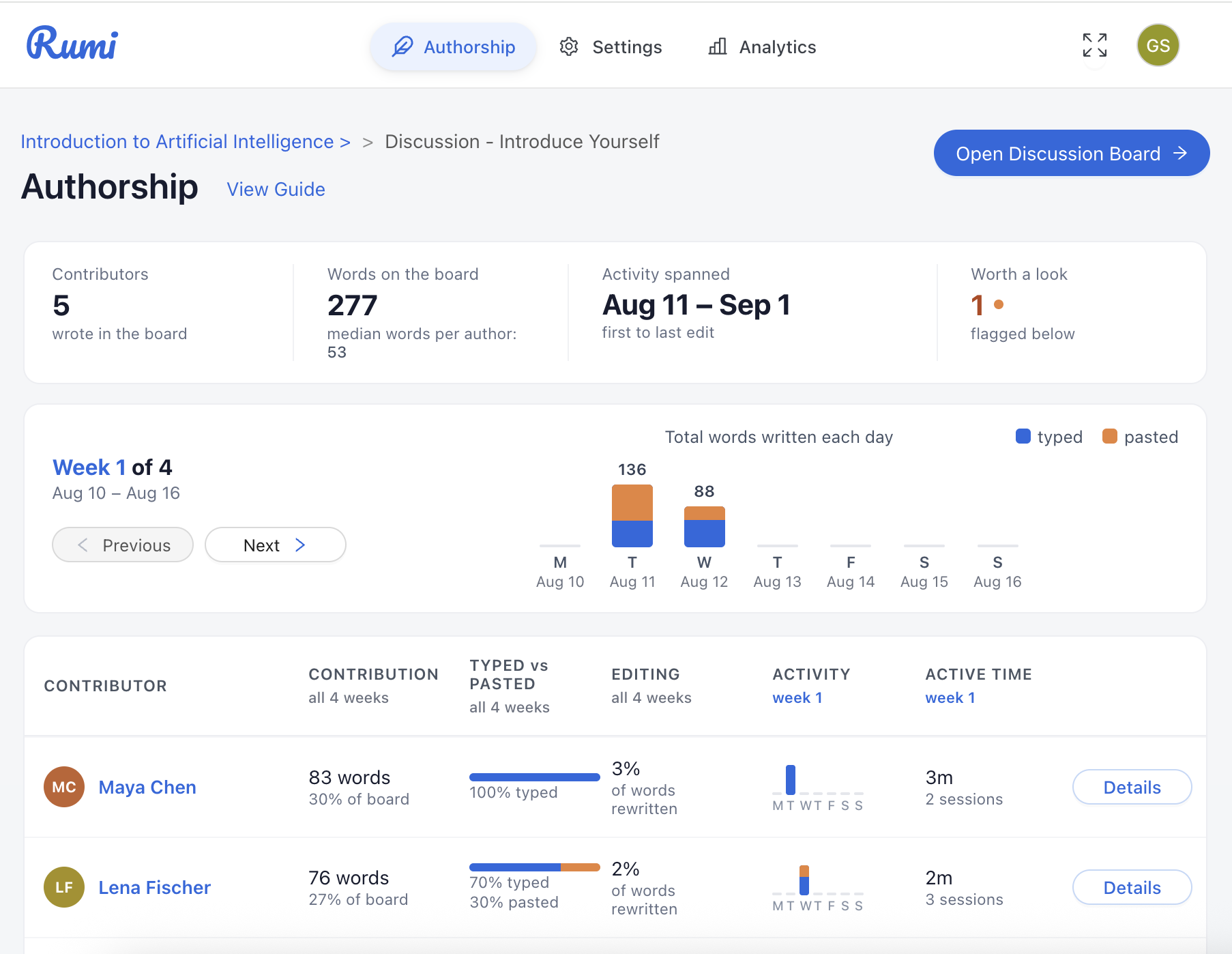
The strip at the top shows four figures: Contributors, how many students have written in the board; Words on the board, the total with the median words per author; Activity spanned, the dates of the first and last edit; and Worth a look, how many contributors are flagged for a large paste.
Weekly activity chart
The chart shows the total words written each day for one week, split into typed and pasted. Use Previous and Next to move between the weeks the board has been active, and hover a bar to see the day's breakdown. Days are shown in your own timezone.
Contributor table
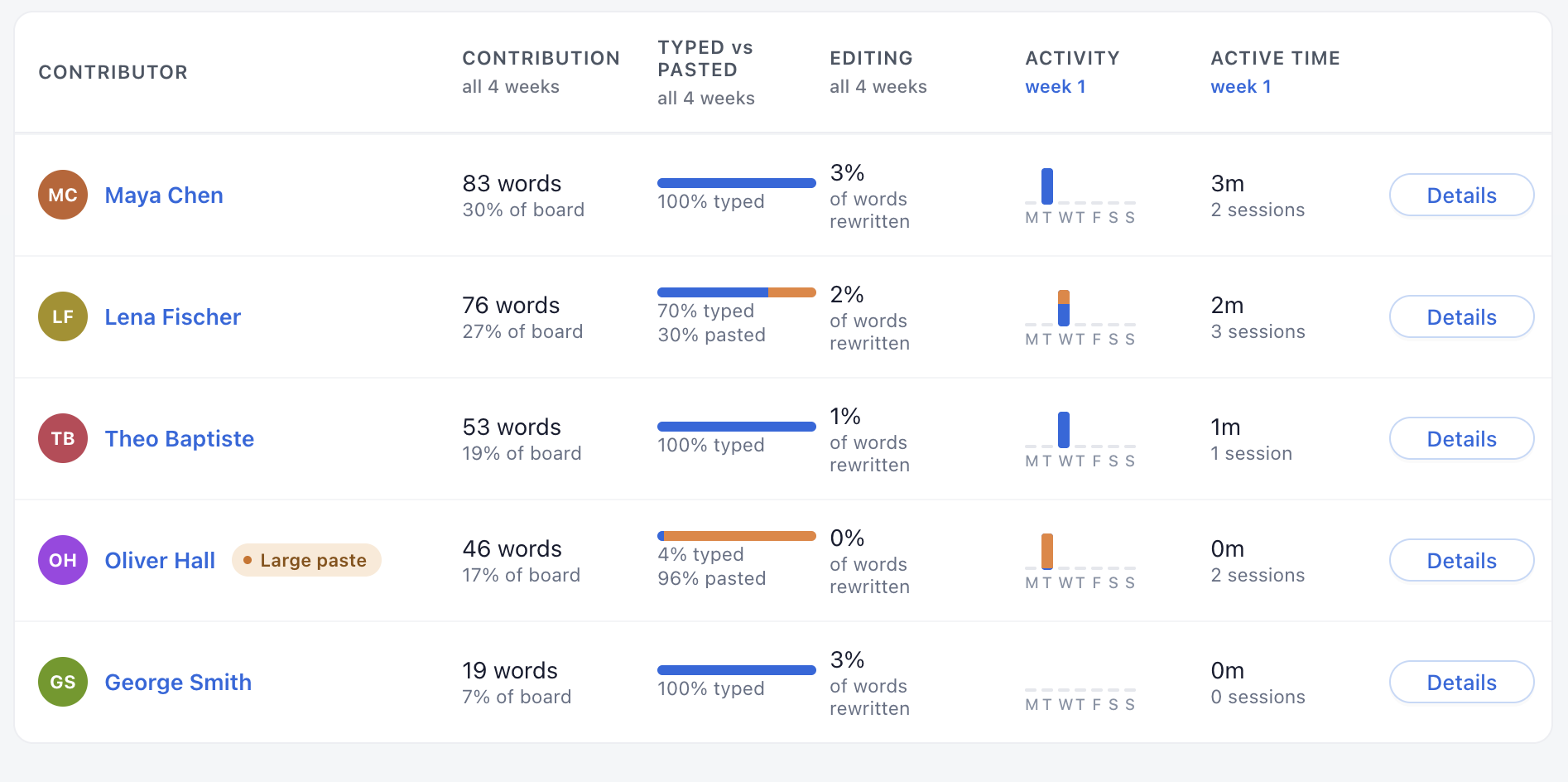
Each row is one student. Columns are labelled with their scope, because some cover the whole board and some cover only the week on display.
Three columns cover all time. Contribution is the student's words in the current board and their share of the whole board. Typed vs Pasted is how much of the student's text was typed versus pasted in. Editing is the number of edits recorded.
Two columns cover only the selected week. Activity is a small bar per day showing words written. Active time is the time spent writing that week, and the number of separate sittings.
Details opens the student's writing-process view, described below.
A Large paste flag appears beside a student's name when more of their text was pasted than typed. Quoting a source is normal work, so the flag fires only when most of the post arrived by paste.
Details: a student's writing process
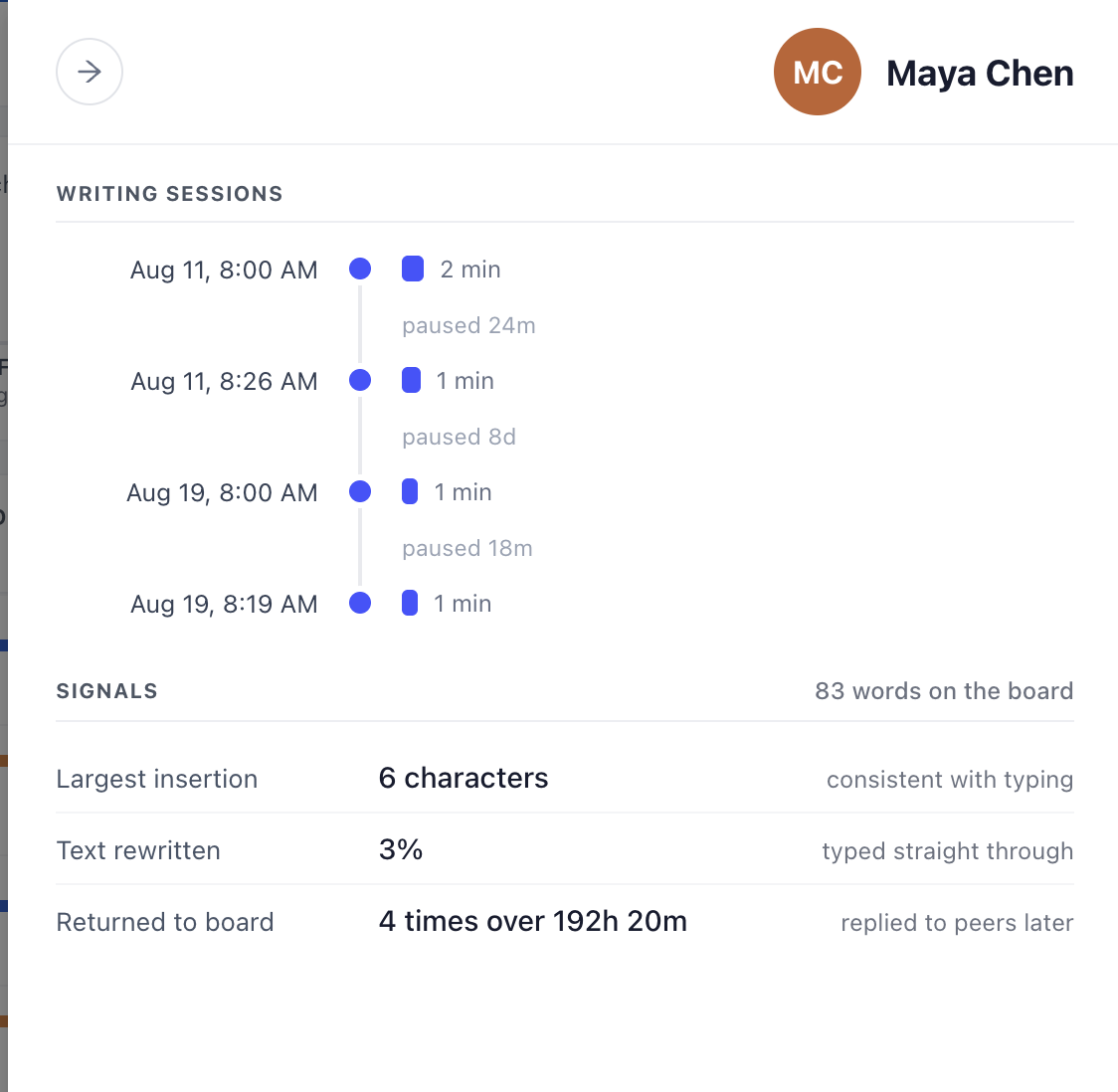
Click Details on a row to open a panel showing that student's writing sessions as a timeline, including the pauses between sittings, with the share of each sitting that was pasted. Below it, Signals lists the number of edits, the largest single insertion, how much of the post was pasted, and how much text was rewritten.
If the evidence points to text composed elsewhere and placed into the board in one go, a warning summarises it in plain words — for example, "The entire post arrived in a single insertion of 1,240 characters. Only 3 edits were recorded, so the text was composed somewhere else and placed here."
Caution: contribution and word counts describe activity, not quality. Word share can be gamed, and text a classmate later rewrote no longer counts toward the original author's share. Per-day word counts are estimates derived from characters written. Use these figures to start a conversation, not as a grade.
Grades and your LMS
Discussion Boards are not graded in Rumi and do not send grades back to the LMS. The LMS launch page for a board shows its status — open, locked, or closed — how many students have contributed, and when it was last edited.
Good to know
Board size. A single board works best under roughly 50 pages of text. For a long-running course, create a new board per unit or topic rather than one board for the term.
Copying settings. A board's settings cannot be copied to another assignment, and boards do not appear in the list of assignments to copy settings from. A board's settings are a handful of toggles rather than the rubric, AI and peer-review stack that Copy / Share Settings was built to carry between Document assignments.
Mentions do not notify. An @mention is a visual cue in the text; students are not emailed or alerted.