Google Classroom Integration Guide for Admins
Google Classroom Integration Guide for Admins
Rumi Docs is a Google Classroom add-on. Teachers add a Rumi writing assignment to Classroom, students write in Rumi without leaving Classroom, and grades sync with the Classroom gradebook. This guide is for your school's Google Workspace admin.
Key Points
- Approximate setup time is 10 minutes.
- Once the admin installs Rumi Docs, every teacher with an Education Plus or Teaching and Learning license will find Rumi under Add-ons when creating an assignment.
- To use Rumi in Google Classroom, classes and assignments must be created in Classroom, not in Rumi.
- This is a single sign-on integration with Google. Teachers and students should not register new accounts on Rumi.
- Until Rumi enables your school's plan (Step 1), your teachers and students can still use Rumi on the free plan, with monthly limits.
Before you start
- Your school uses Google Workspace for Education, and the teachers who will use Rumi have an Education Plus or Teaching and Learning license. Google shows add-ons only to teachers with one of these licenses.
- You have an admin account that can install Google Workspace Marketplace apps for your domain.
- Your school has a Rumi agreement for its plan. Without one, your teachers and students can still use Rumi on the free plan, with monthly limits.
Integration Steps
Step 1: Ask Rumi to enable your school
Email support@rumidocs.com with your school name, your Google Workspace domain (for example yourschool.edu) and a contact person. We reply when your school is enabled. You can continue with the steps below in the meantime. Until your school is enabled, your teachers and students can use Rumi on the free plan.
Step 2: Find Rumi Docs in the Marketplace
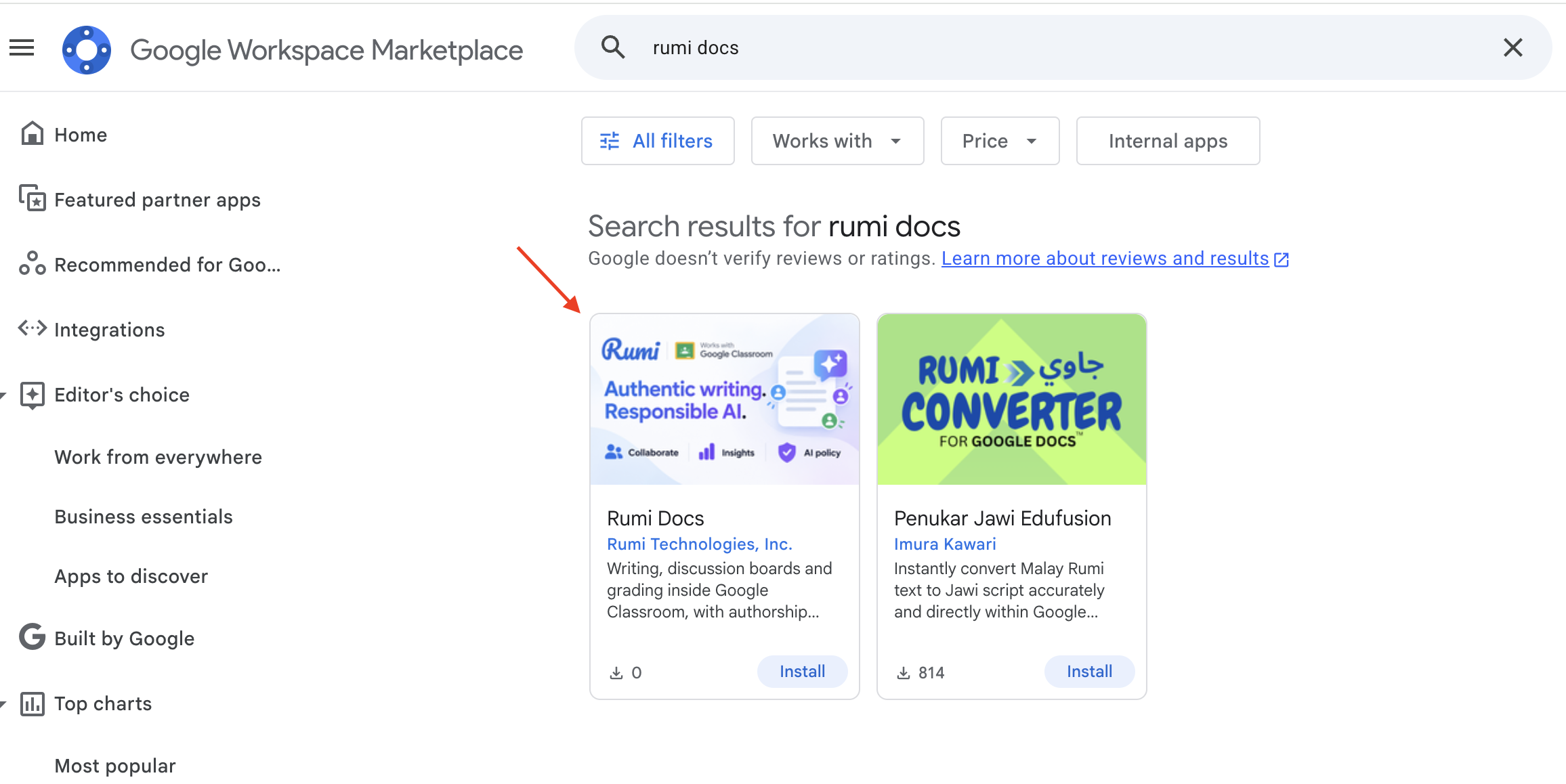
Sign in with your admin account then Open this link or open the Google Workspace Marketplace. Search for Rumi Docs and open the app by Rumi Technologies, Inc.
Note: Make sure you choose Rumi Docs by Rumi Technologies, Inc. It is not related to the app named "Rumi.ai".
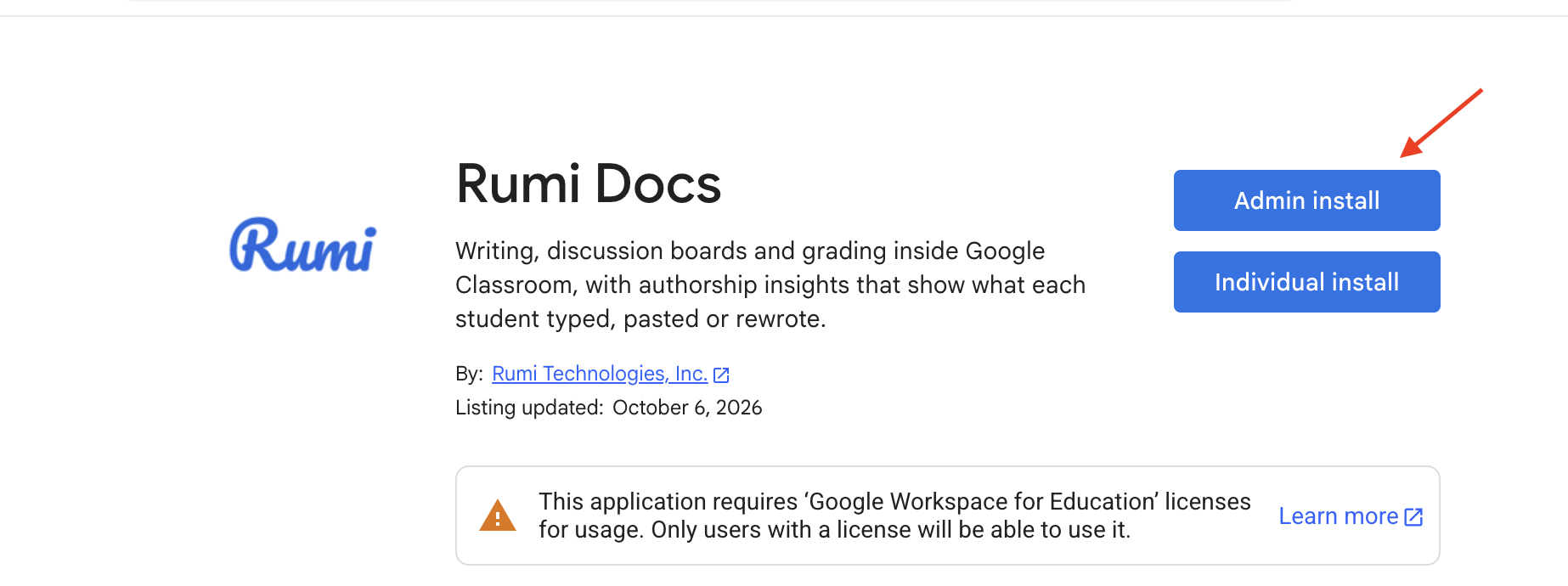
Step 3: Start the admin install
On the Rumi Docs page, click Admin install, then click Continue.
Step 4: Choose who gets Rumi Docs and finish the install
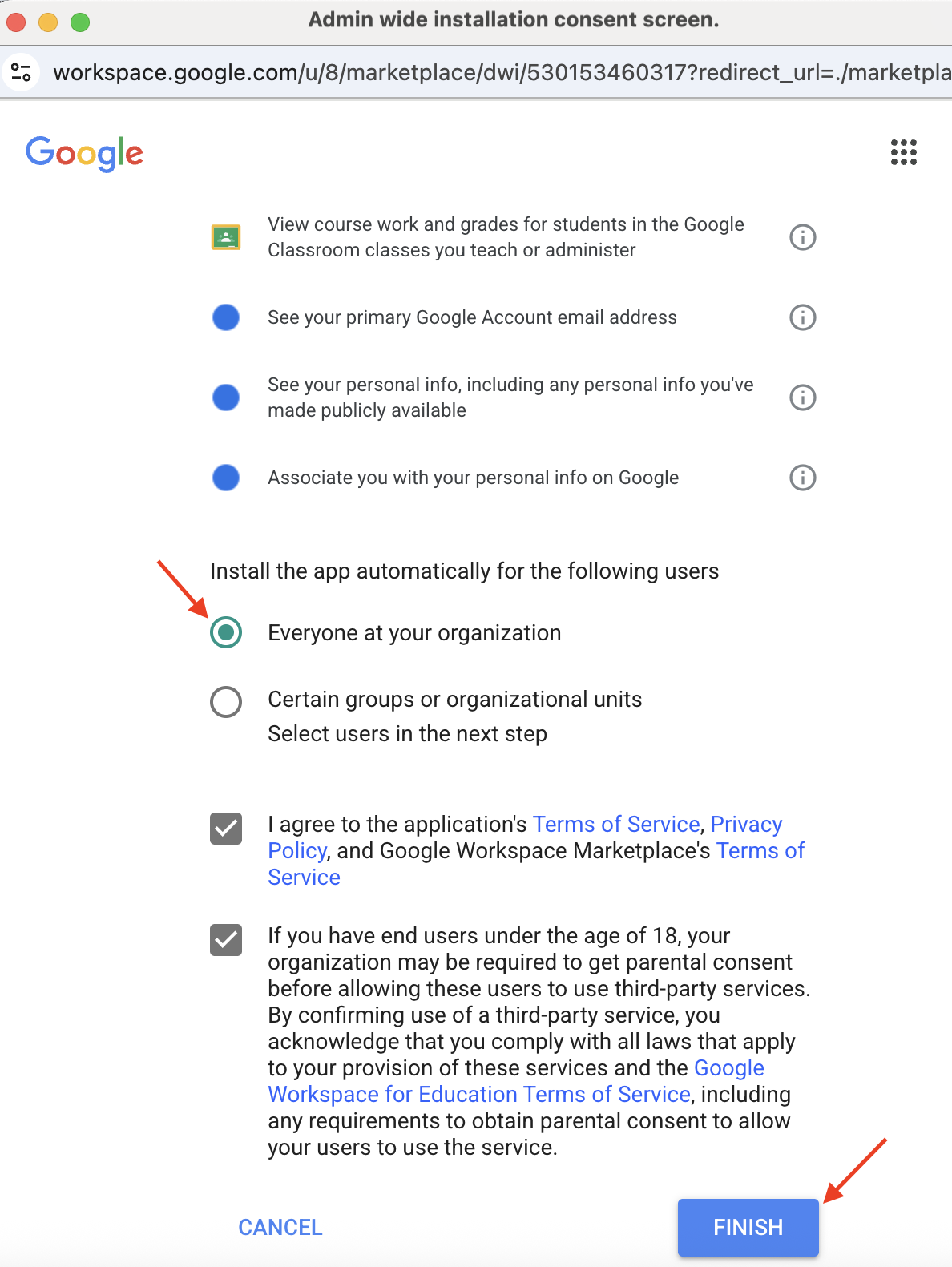
Google lists the data Rumi Docs can access. Under Install the app automatically for the following users, choose Everyone at your organization, or Certain groups or organizational units and pick them on the next screen. Tick the box to agree to the terms, tick the box about users under 18, and click Finish. Installing as an admin means your teachers and students skip their own permission screen.
Choose who gets Rumi Docs, accept and click Finish
Note: Install Rumi Docs for students as well as teachers. Students open their Rumi assignments through the same add-on.
Step 5: Confirm the installation
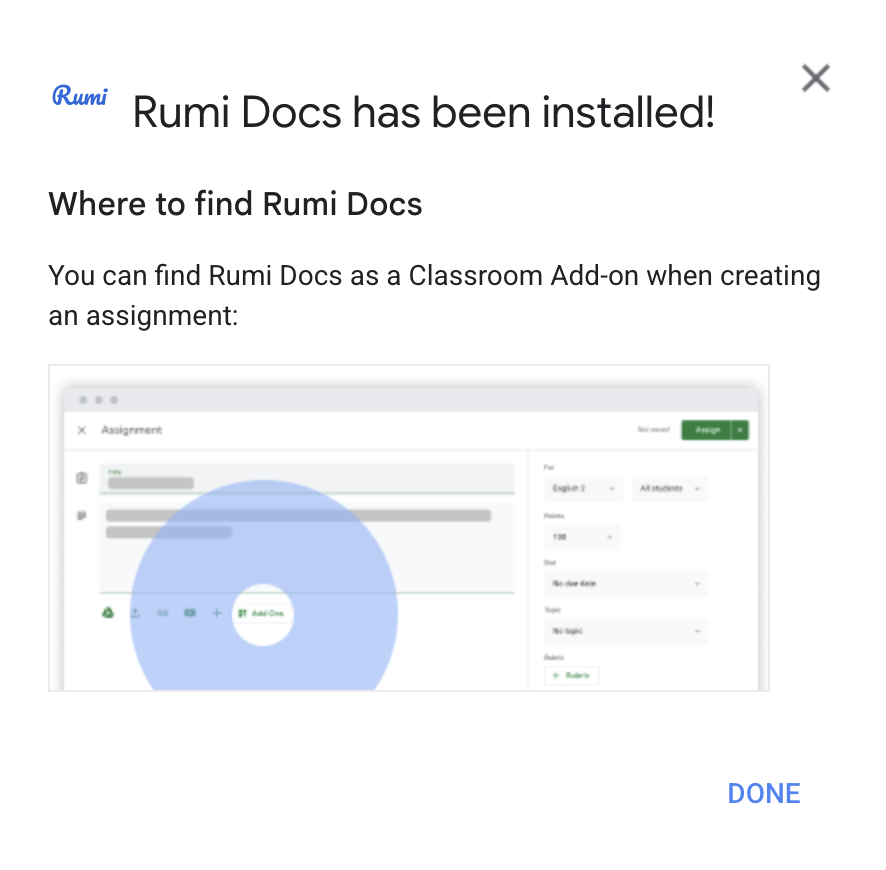
Google confirms that Rumi Docs is installed and shows where teachers find it: under Add-ons when creating an assignment. Click Done. Rumi Docs usually appears for your users within a few minutes, but it can take Google up to 24 hours.
Step 6: Trust Rumi Docs (restricted domains only)
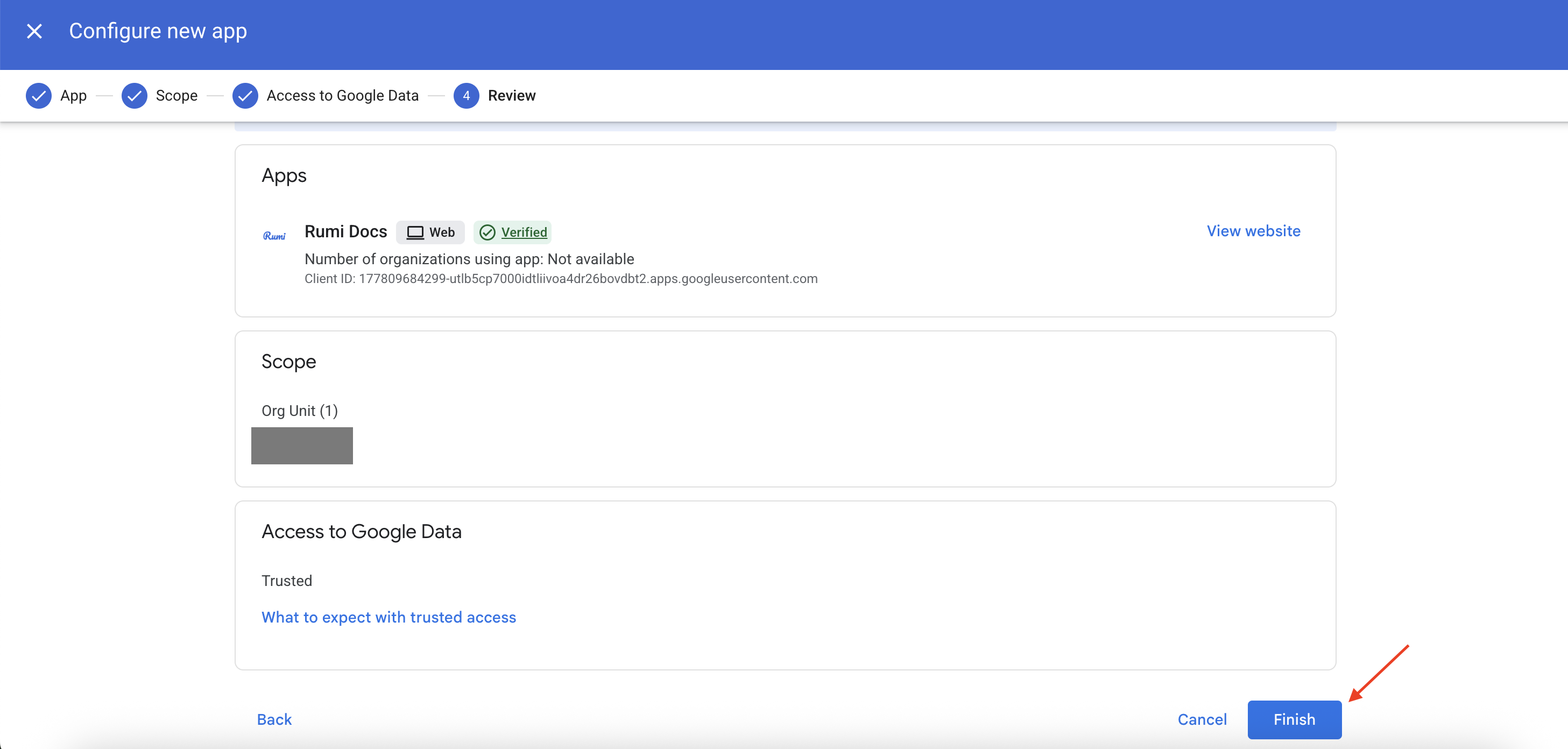
Skip this step unless your domain restricts third-party apps or your students are designated as under 18. In the Google Admin console, go to Security → Access and data control → API controls → Manage Third-Party App Access and click Configure new app.
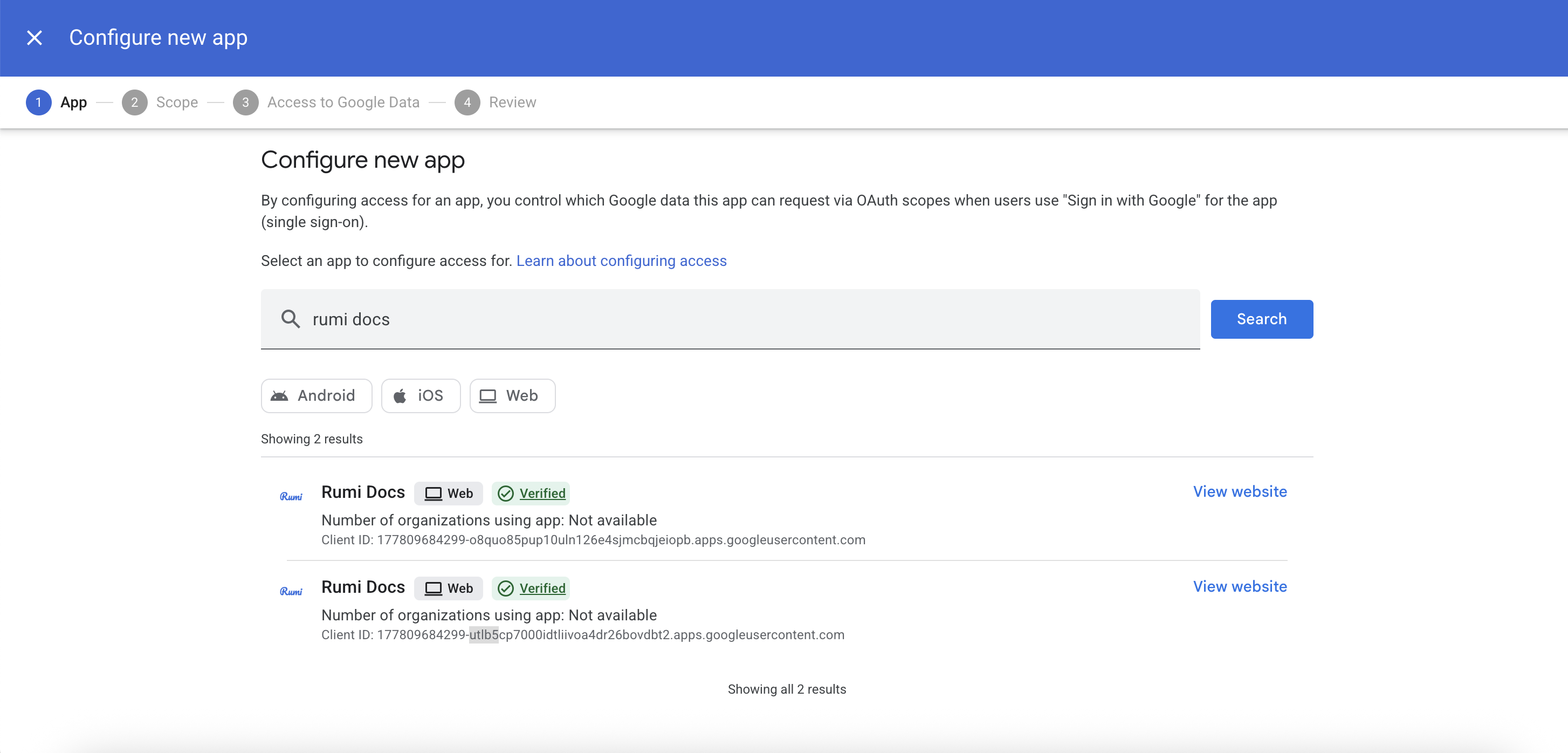
Search for Rumi Docs and select it.
Note: The search shows two Rumi Docs results. Both belong to Rumi: one is the app itself and the other is its Google Workspace Marketplace connection. Set both to Trusted.
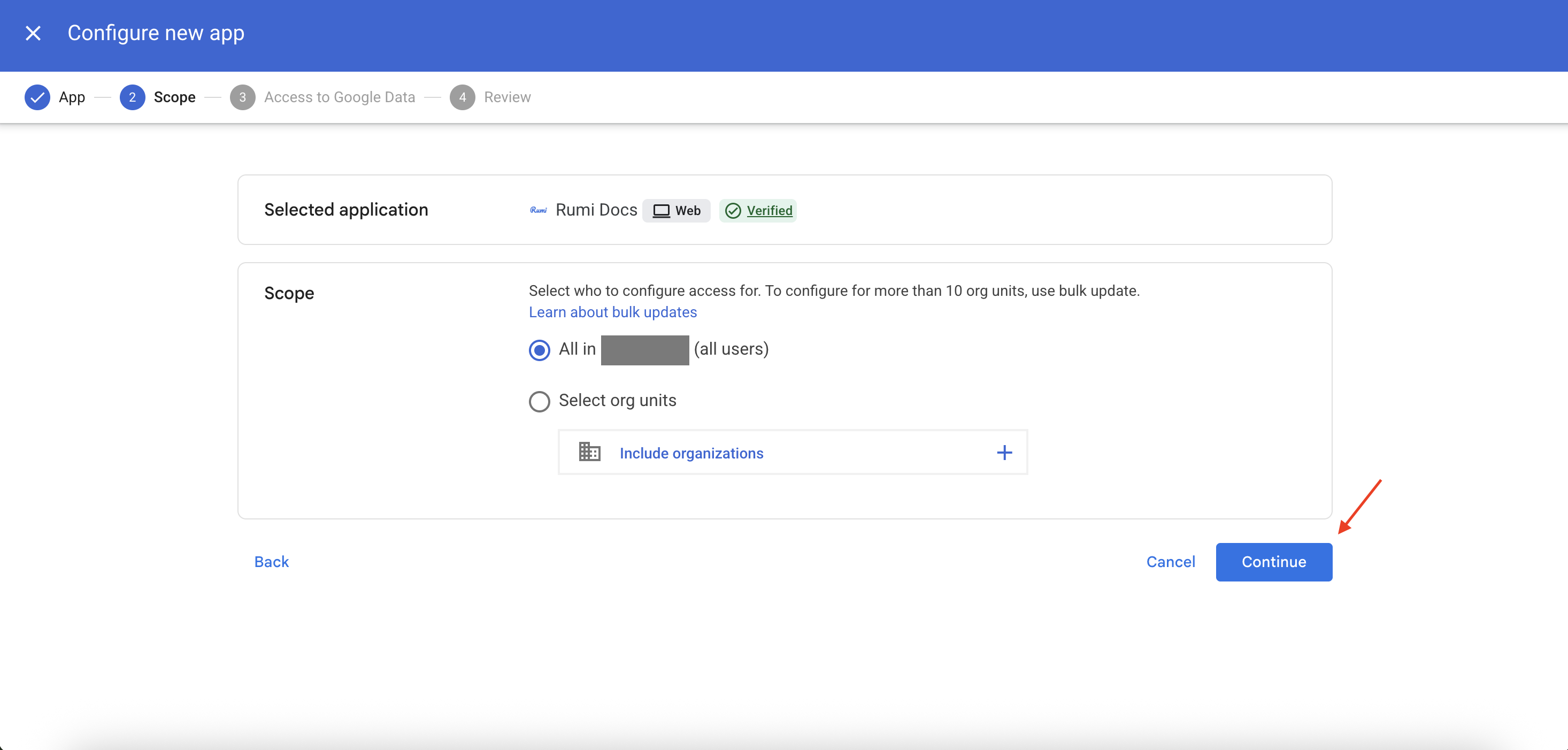
Under Scope, choose the same users as in Step 4 and click Continue.
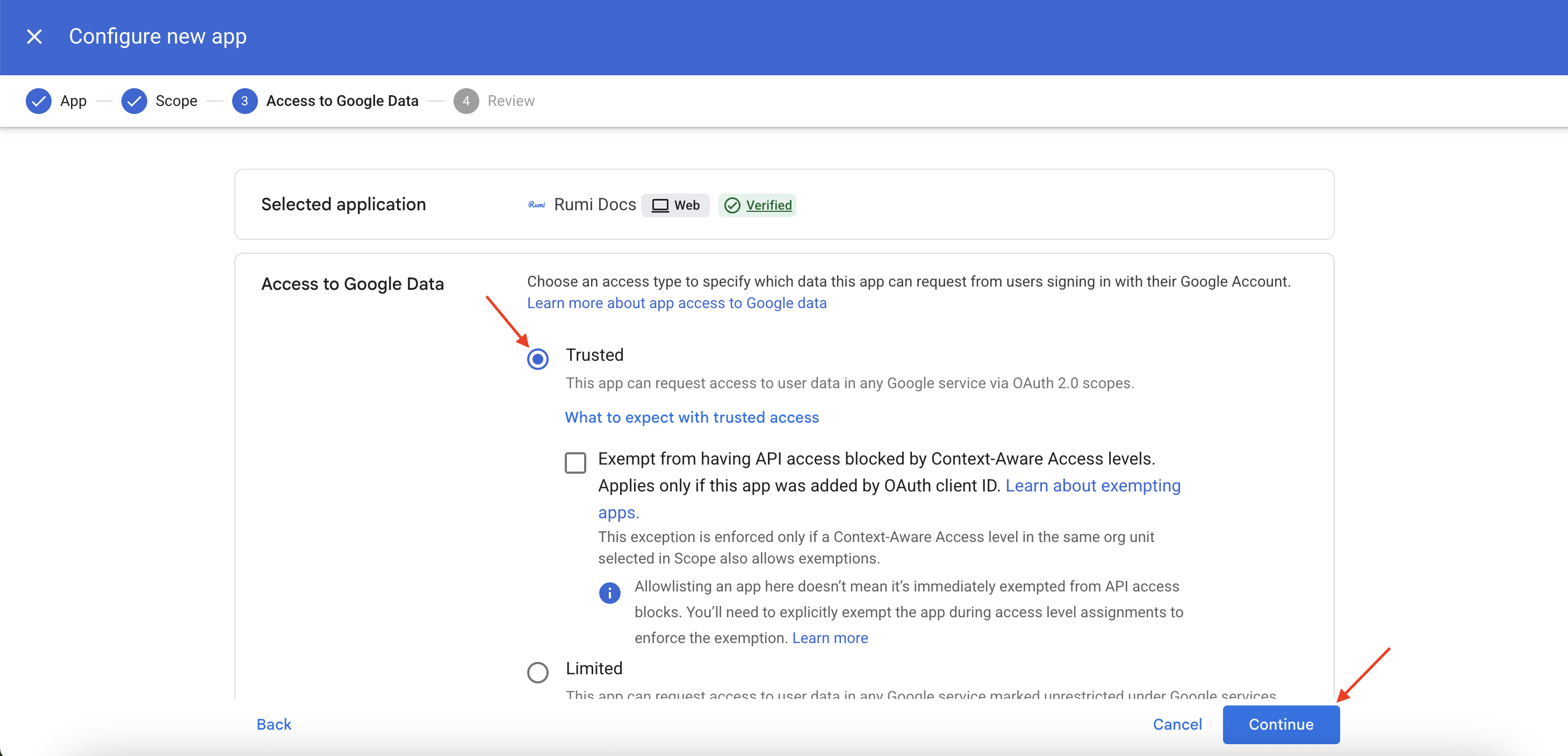
Under Access to Google Data, choose Trusted and click Continue.
Check the summary and click Finish.
Setup is done. To check that it works, sign in as a licensed teacher and add Rumi to an assignment by following the Google Classroom Guide for Instructors.
Troubleshooting
Still stuck? Email support@rumidocs.com with your domain, the user's email address and a screenshot.
Related articles