
Google Classroom Guide for Instructors
Google Classroom Guide for Instructors
Add Rumi to a Google Classroom assignment in a few clicks. You create the assignment in Classroom as you always do, add Rumi Docs as an add-on, and Rumi opens right inside your Classroom page.
Key Points
- Adding Rumi to an assignment takes about 2 minutes.
- Your school's Google Workspace admin must install Rumi Docs first. If you don't see Rumi Docs under Add-ons, ask your admin.
- Create classes and assignments in Google Classroom, not in Rumi.
- You sign in with your Google account. You don't need a separate Rumi account.
- Grades you give in Rumi go to the Google Classroom gradebook.
Add Rumi to an assignment
Step 1: Create an assignment and choose Rumi Docs
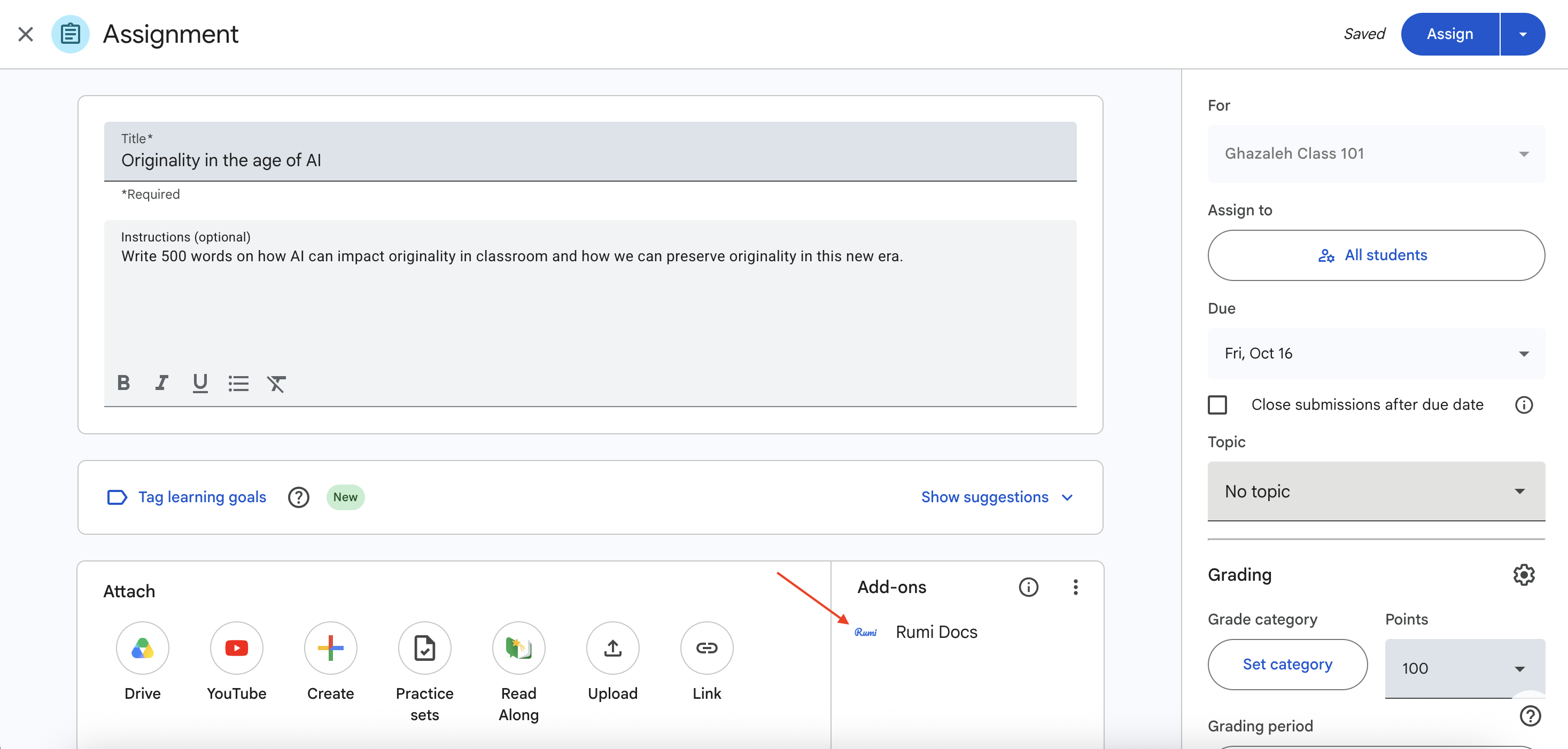
In your class, go to Classwork → Create → Assignment. Fill in the title, instructions, due date and points as you would for any assignment. Then, under Add-ons, click Rumi Docs.
Step 2: Sign in with Google (first time only)
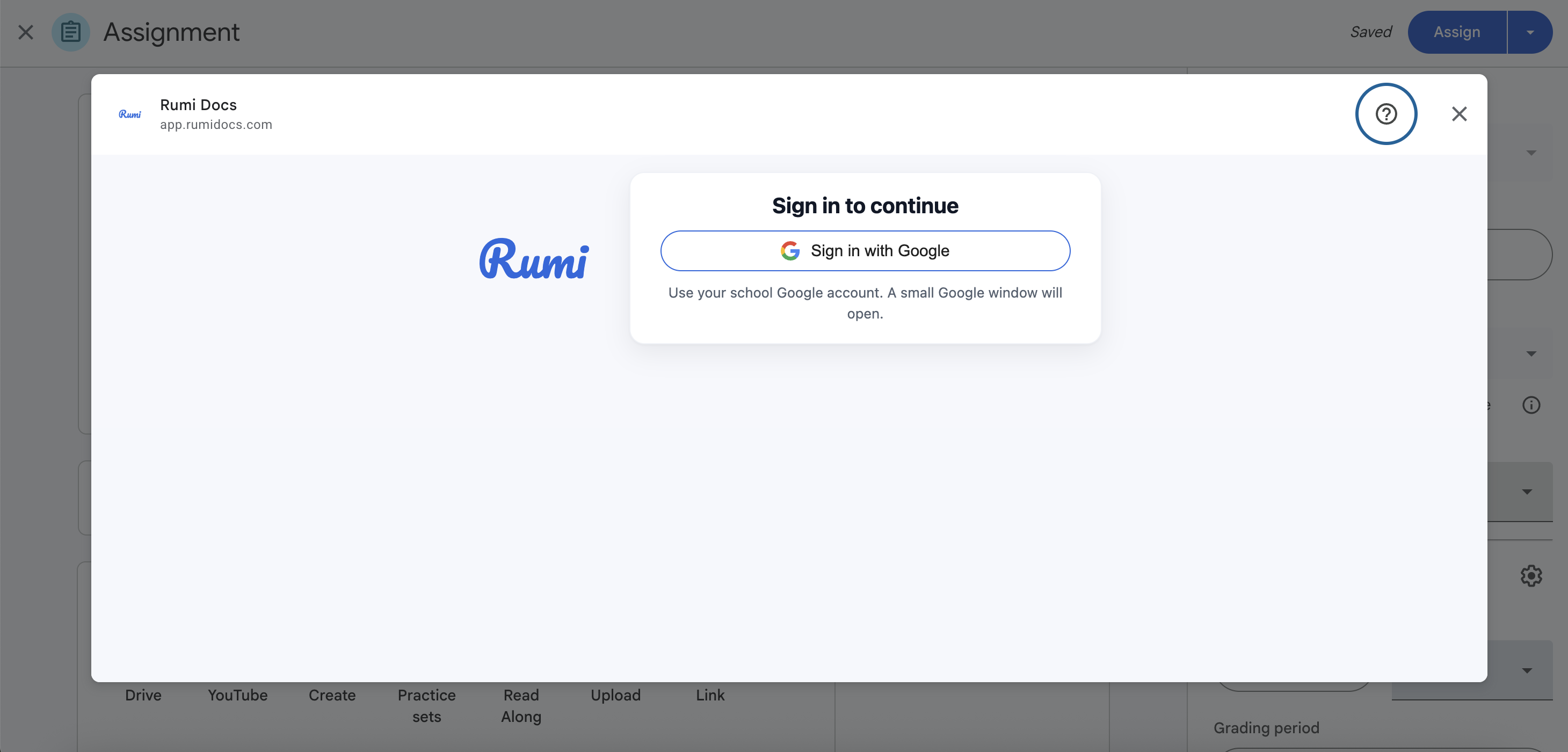
The first time you use Rumi, click Sign in with Google and use your school Google account. A small Google window opens; choose your account and click Allow.
Step 3: Set the title, points and prompt
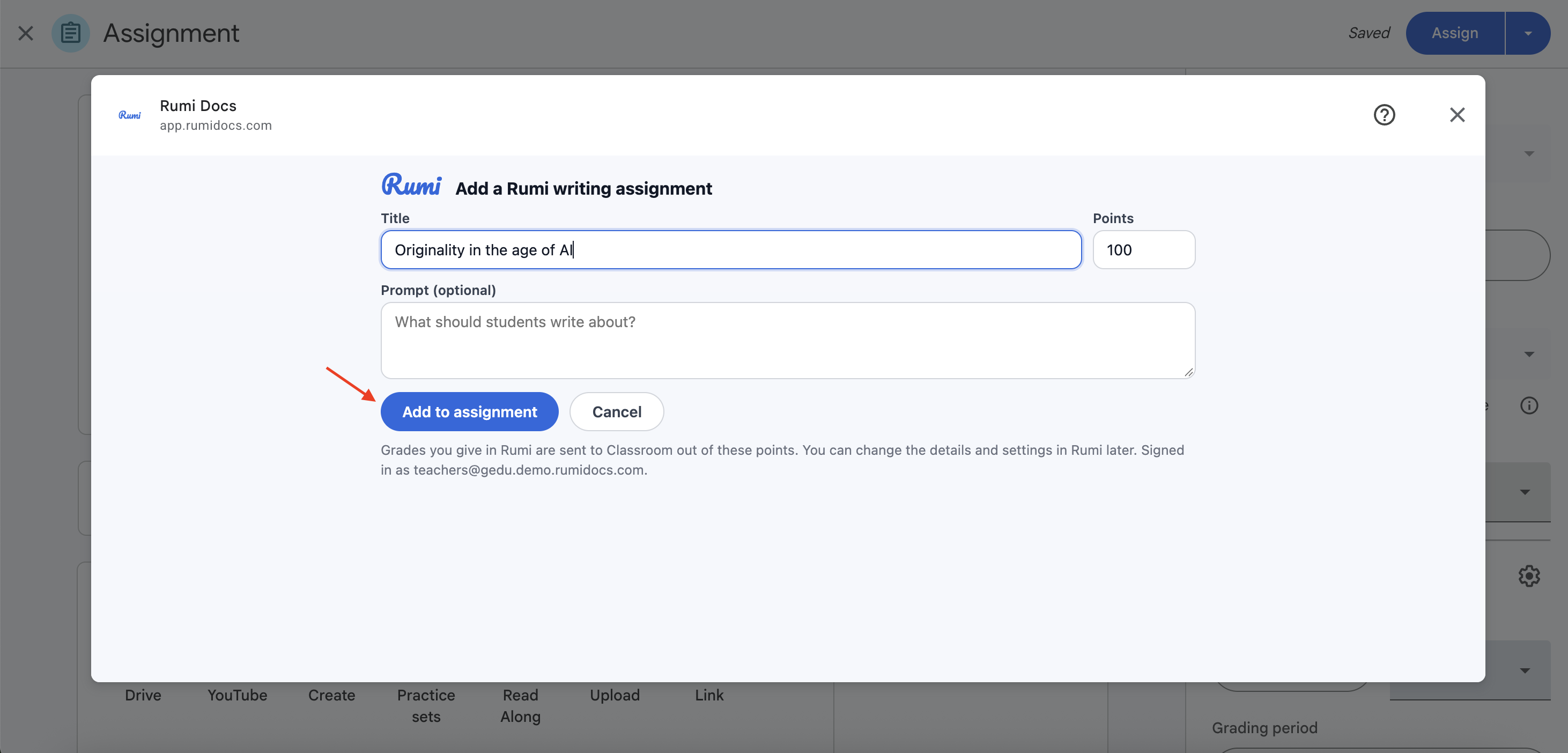
Check the Title and Points, and add a Prompt if you like. Grades you give in Rumi are sent to Classroom out of these points. Click Add to assignment.
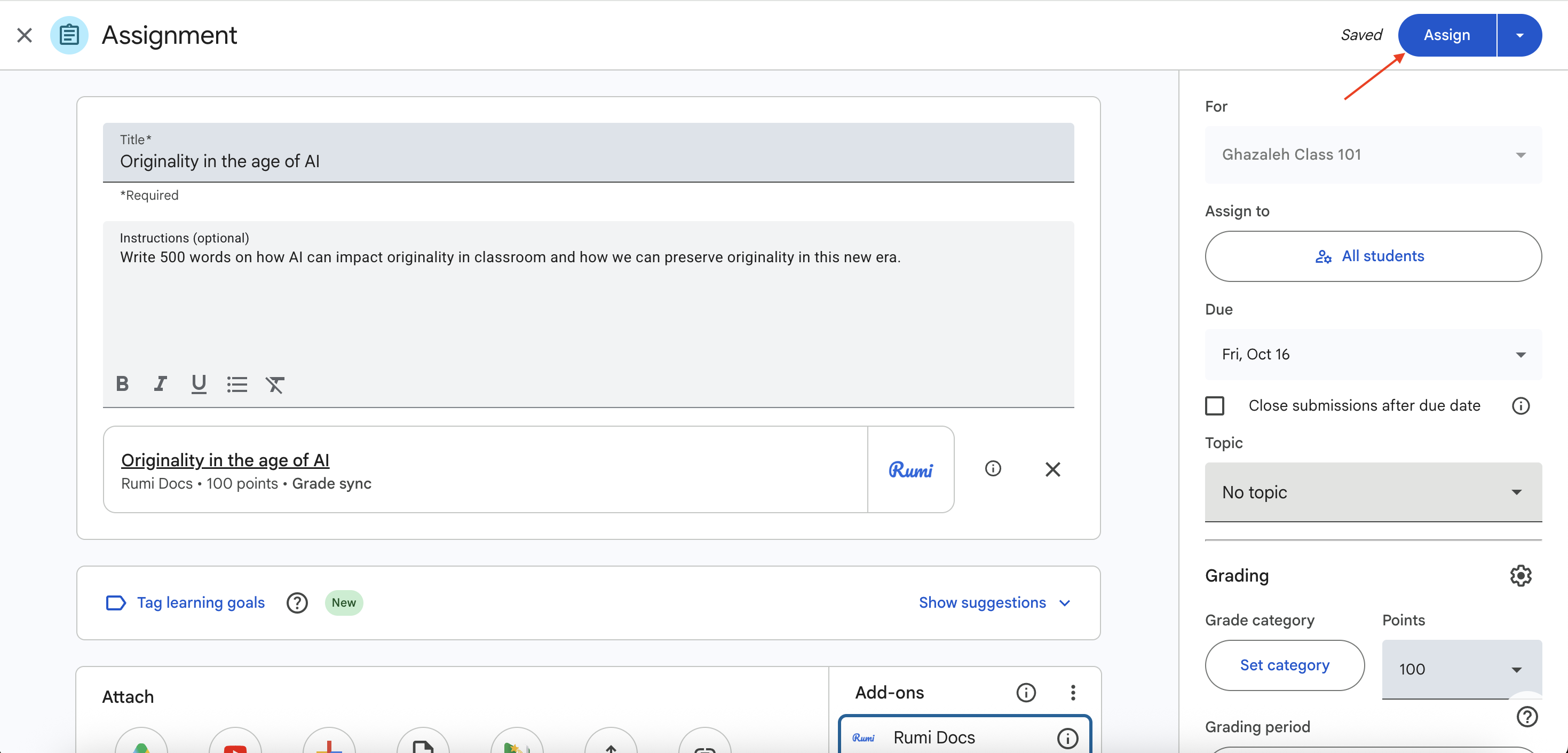
A Rumi card appears on your assignment. Click Assign, or schedule it, as you normally would.
Step 4: Open Rumi from Classroom
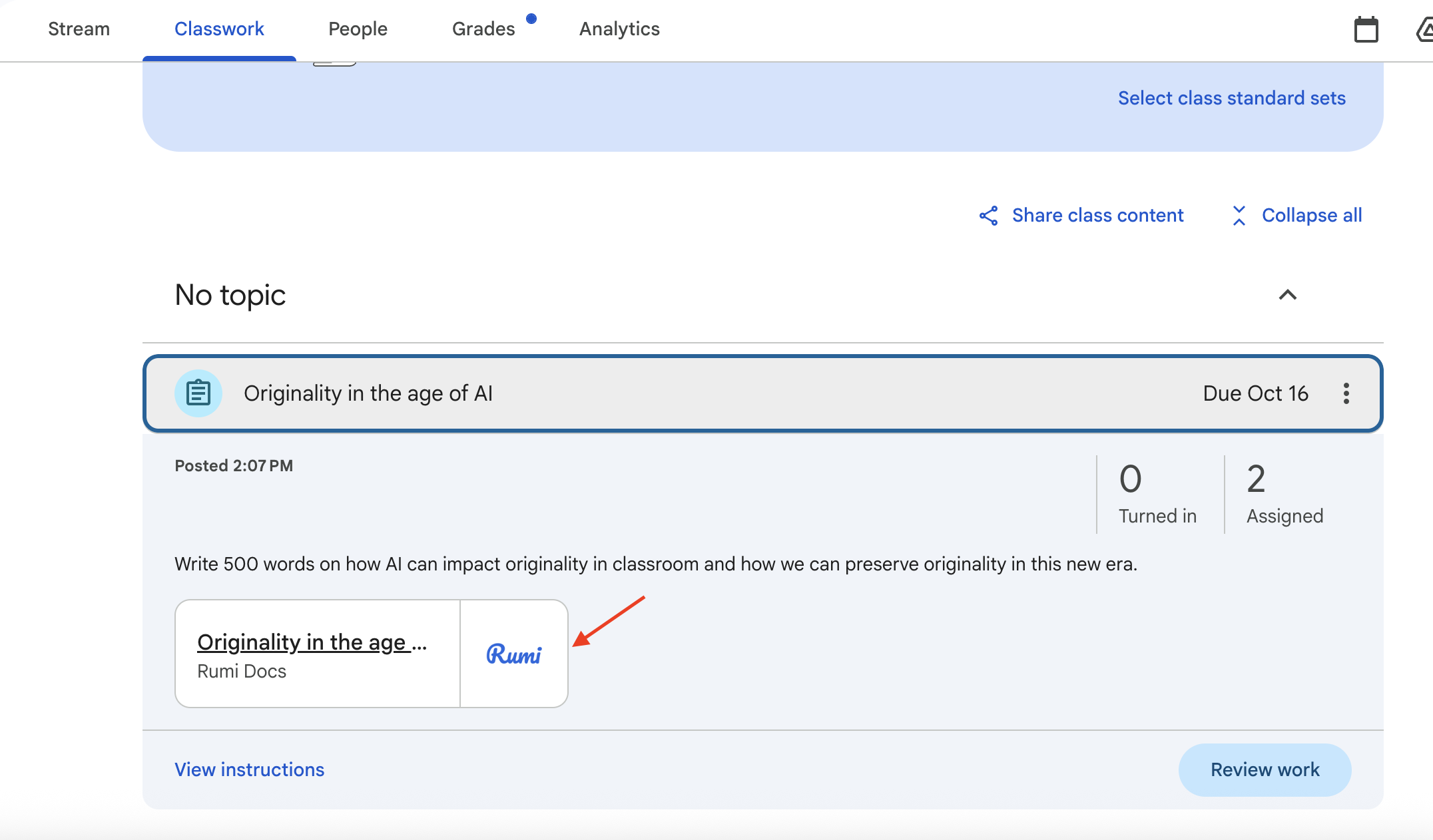
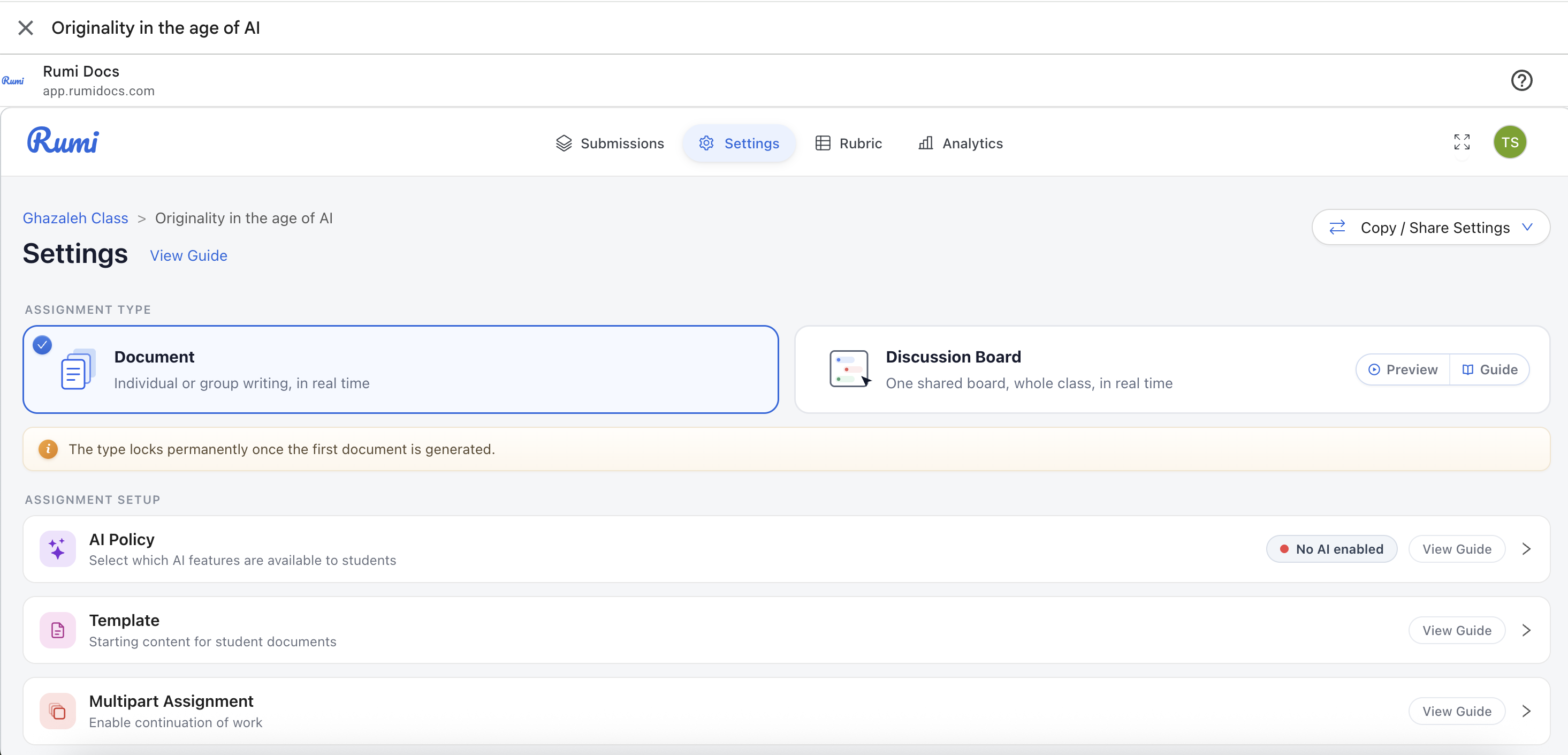
Open the assignment and click the Rumi card. Rumi opens inside your Google Classroom page, so you can set up the assignment and review student work without leaving Classroom.
Grading
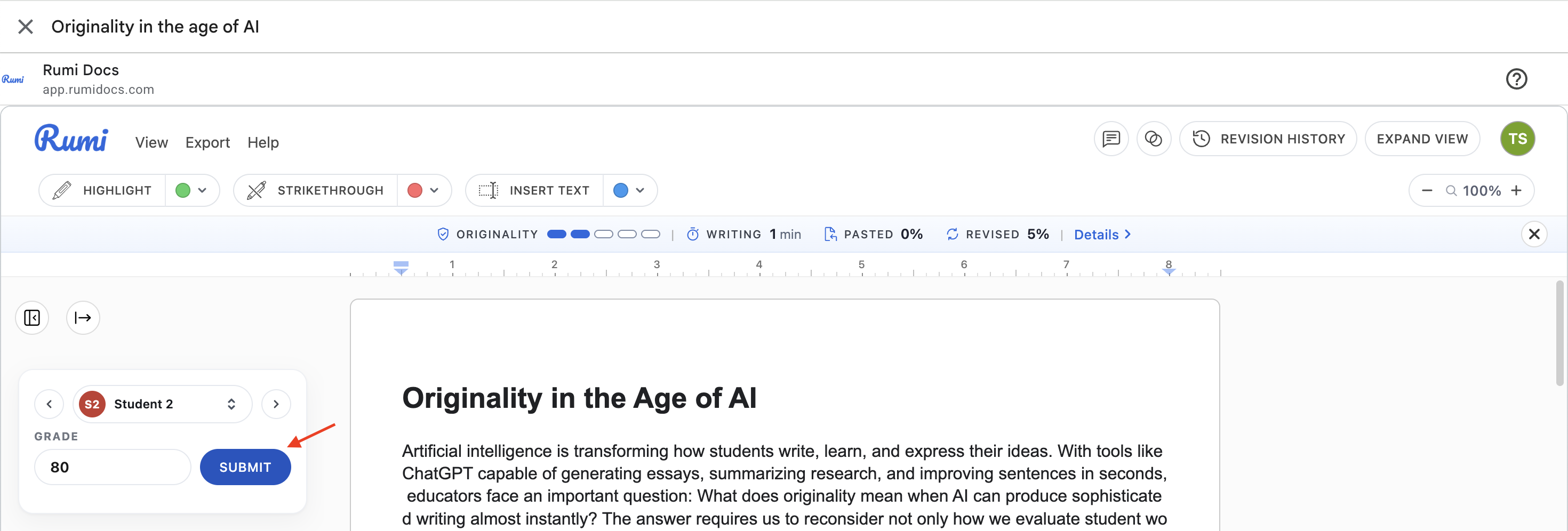
When you grade a student's work in Rumi, the grade goes to the Google Classroom gradebook. Enter the grade in Rumi and click Submit.
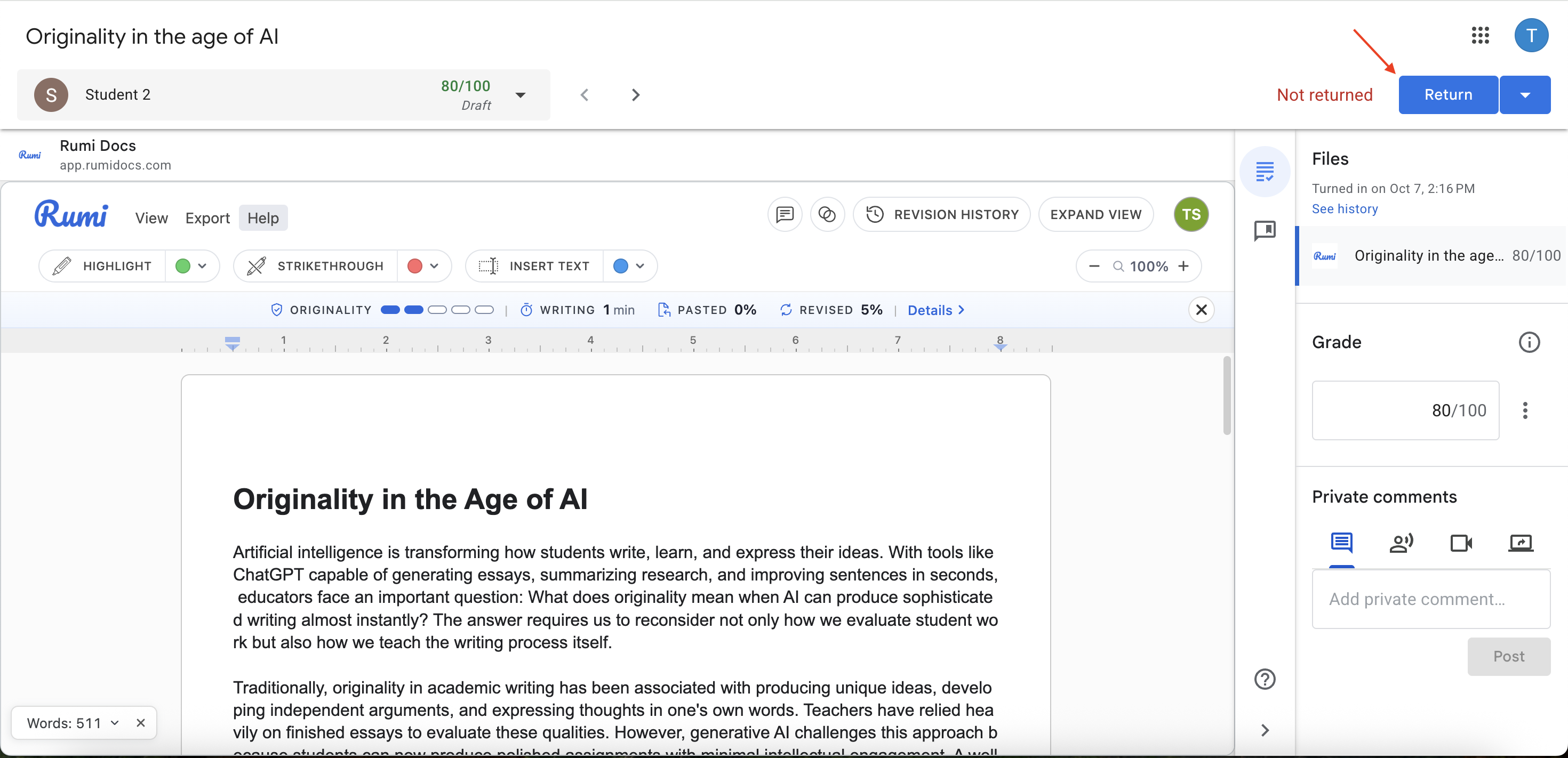
The grade appears in Classroom as a draft. Click Return in Classroom when you're ready, and the student can see it.
Still stuck? Email support@rumidocs.com with your school, your email address and a screenshot.
Related articles