Blackboard Integration Guide for Admins
Key Points
- Approximate setup time is 10 minutes.
- Once Admin integrates Rumi in Blackboard, all Instructors will have access to Rumi.
- To use Rumi in Blackboard, classes and assignments must be created in Blackboard, not Rumi
- This is a single-sign on integration, you should not register new accounts on Rumi.
- Important: Please contact support@rumidocs.com in advance to obtain:
- The Client ID you need to use in Step 3
- The Subdomain you need to use in Step 5. The available subdomains are:
- Schools in the east coast
- us-east-1.rumidocs.com
- us-east-2.rumidocs.com
- Schools in the west coast
- us-west-2.rumidocs.com
- app.rumiessay.com
- Schools in the east coast
Integration Steps
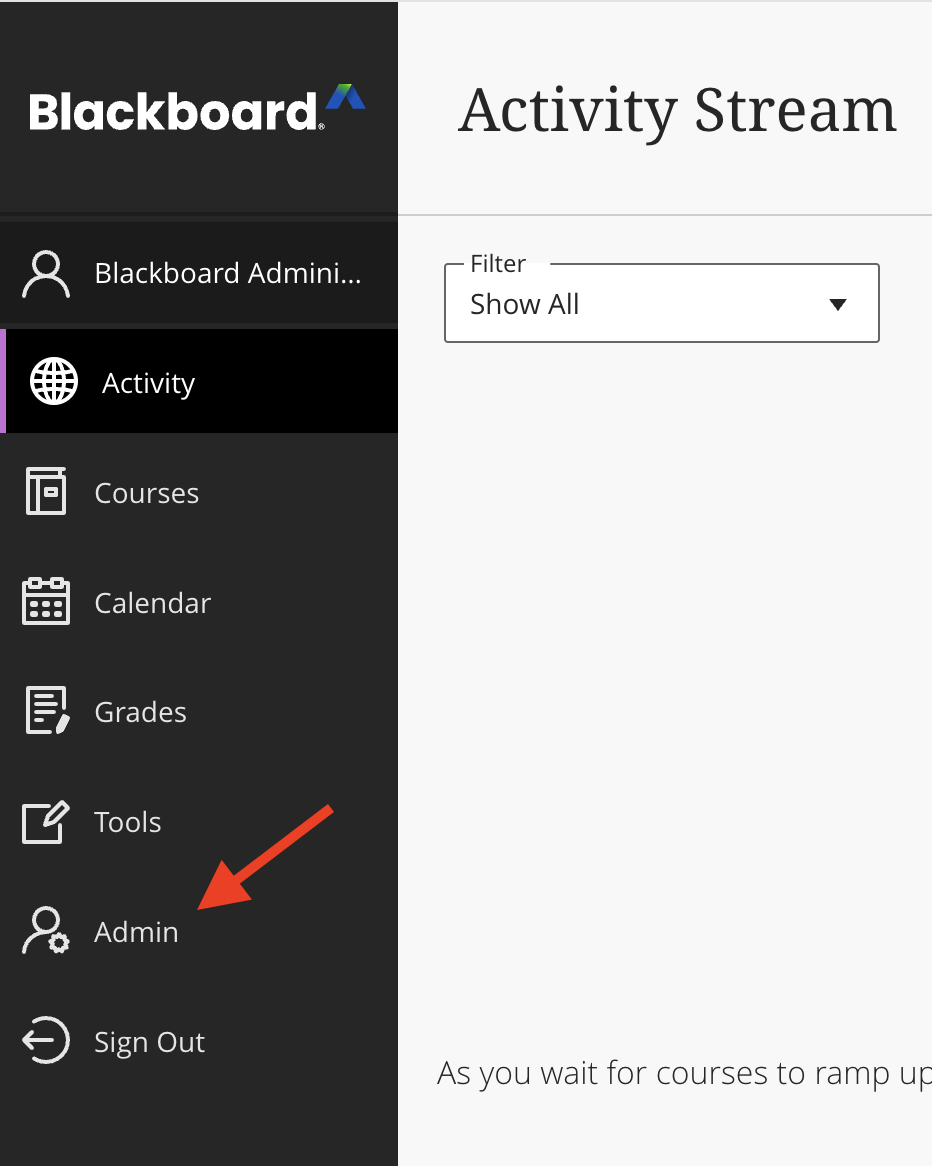
Step 1. Access Administrator Tools
Log in to Blackboard as an Administrator.
Click on the Admin panel.
Step 2. Navigate to Register LTI 1.3
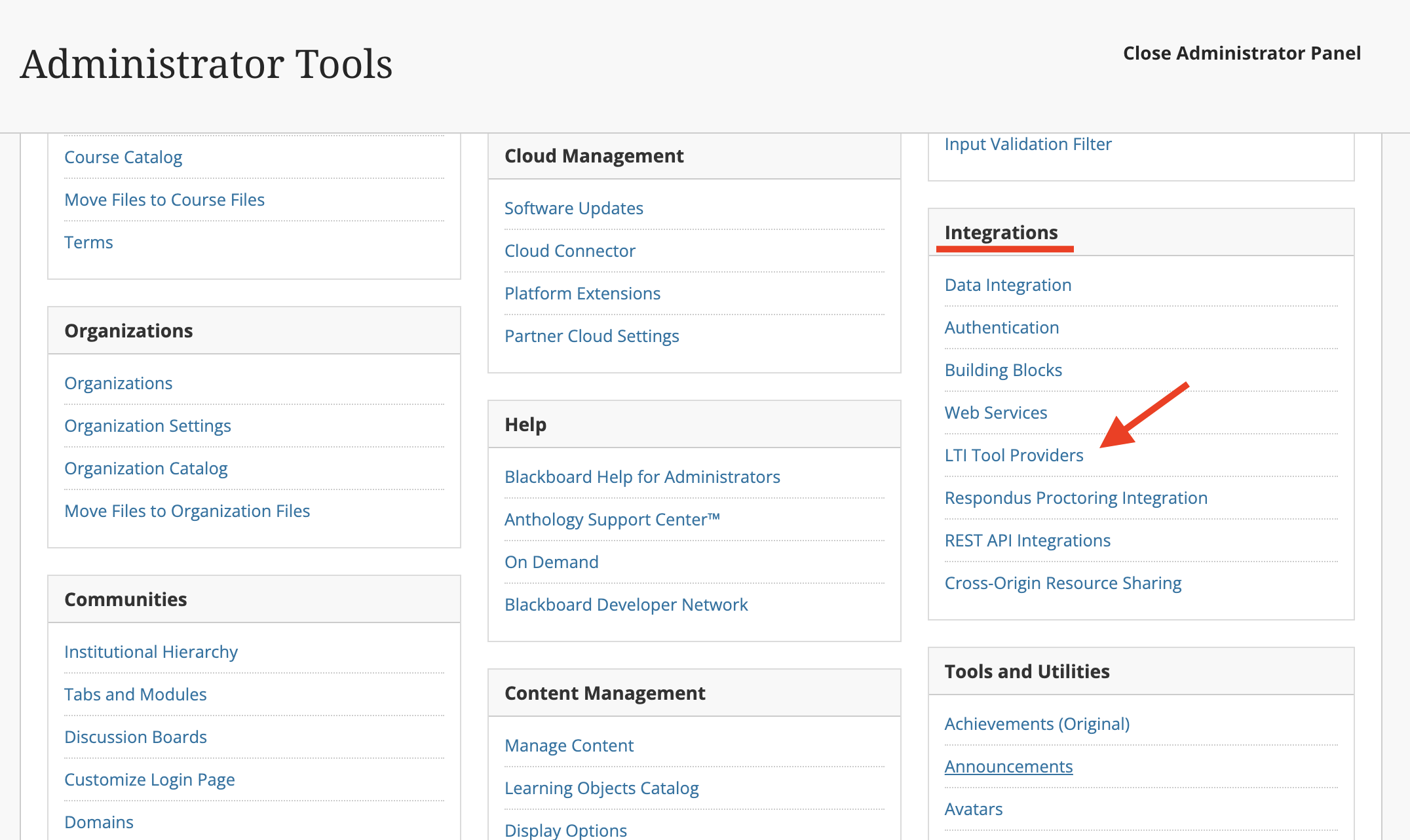
Navigate to Admin Panel → Integrations tab → LTI Tool Providers.
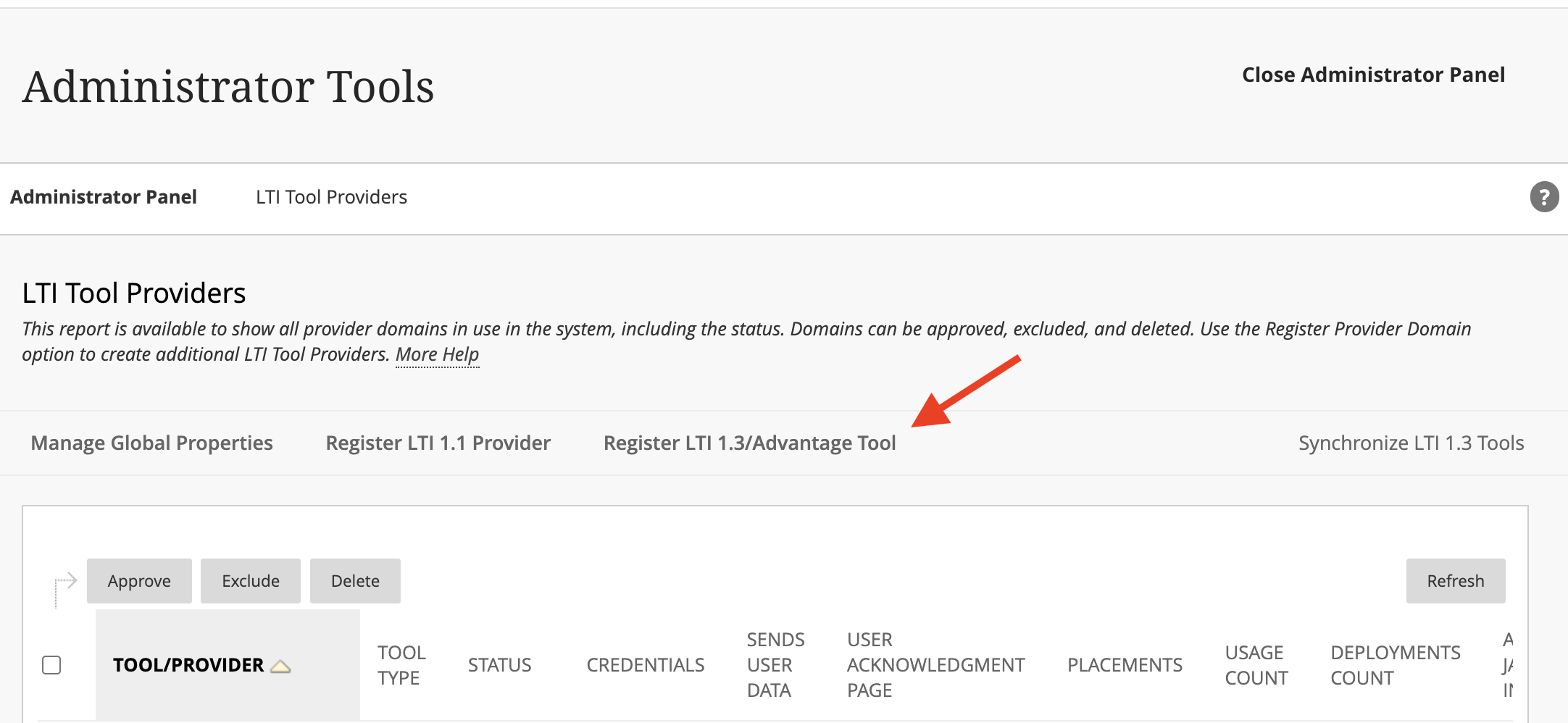
Click on Register LTI 1.3/Advantage Tool.
Step 3. Register the LTI 1.3 Tool
Enter the Client ID provided by Rumi Support.
Click Submit.
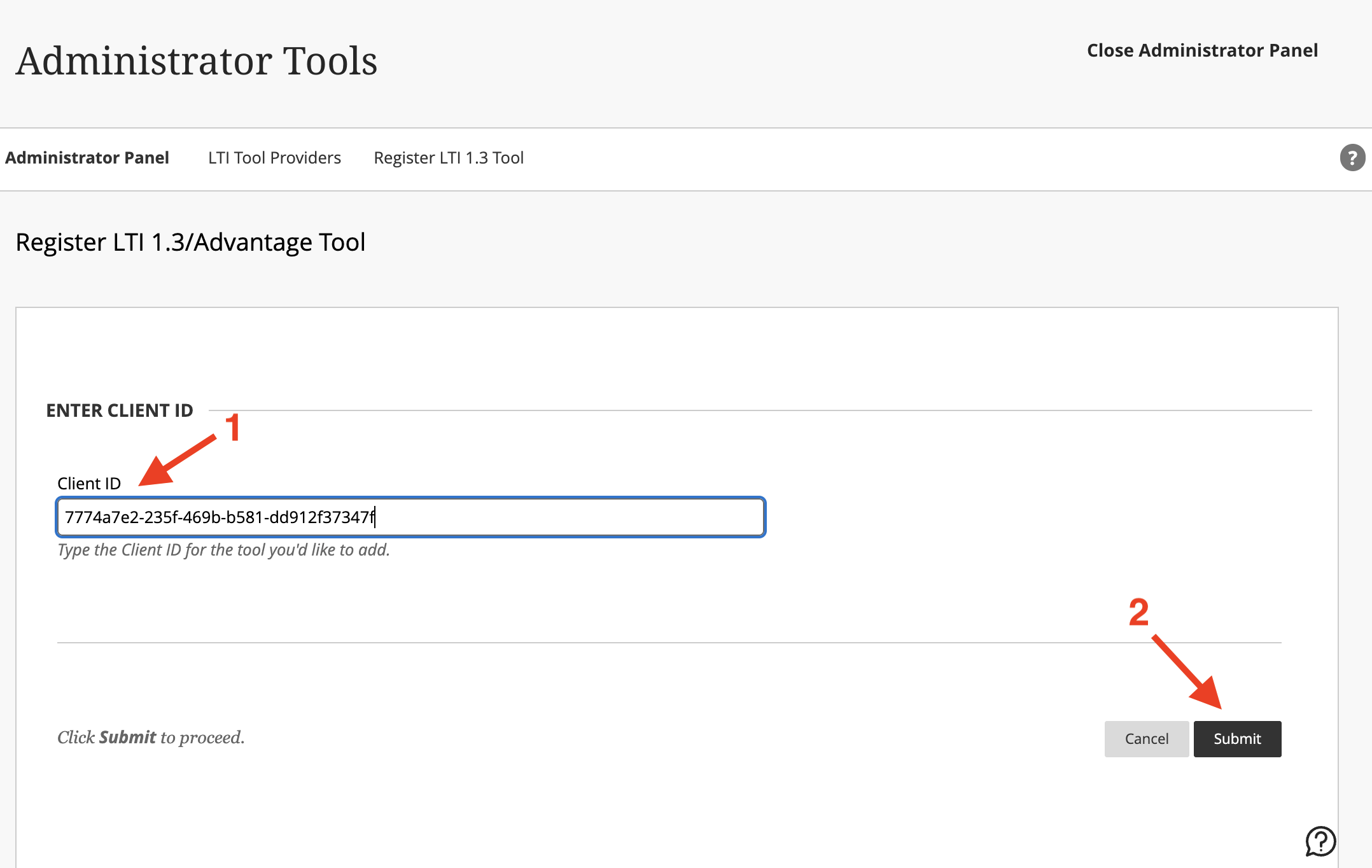
Note: This will automatically populate the Tool Status data.
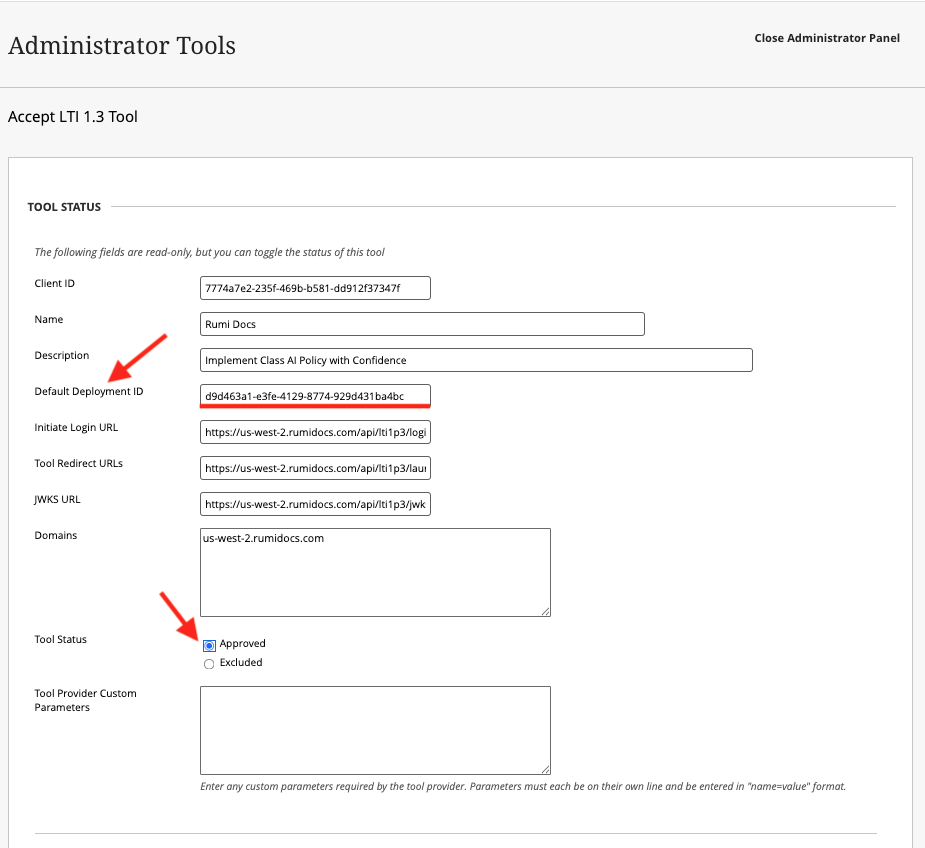
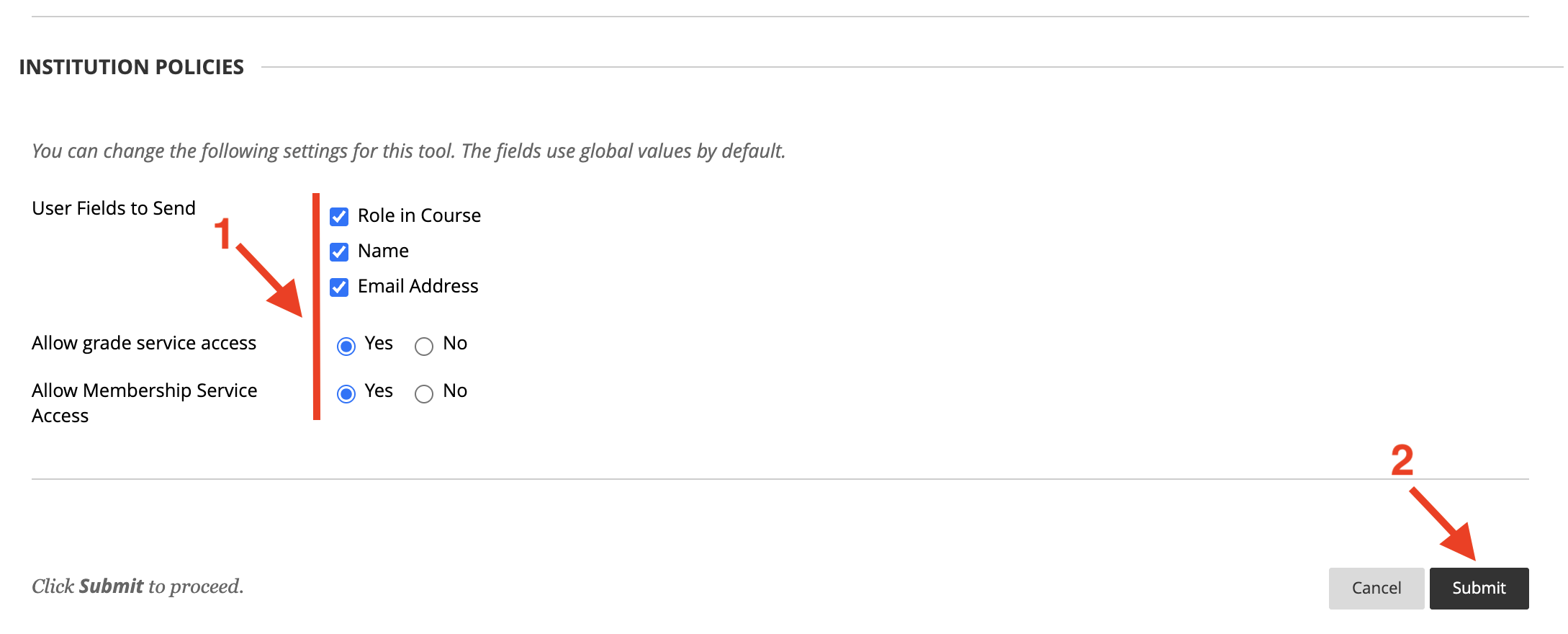
Step 4. Edit Tool Status and Institution Policies
Default Deployment ID: Copy this value immediately and email it to support@rumidocs.com.
Tool Status: Select Approved.
Step 5. Manage Placement
To make the tool visible to instructors and students, you must create a Placement:
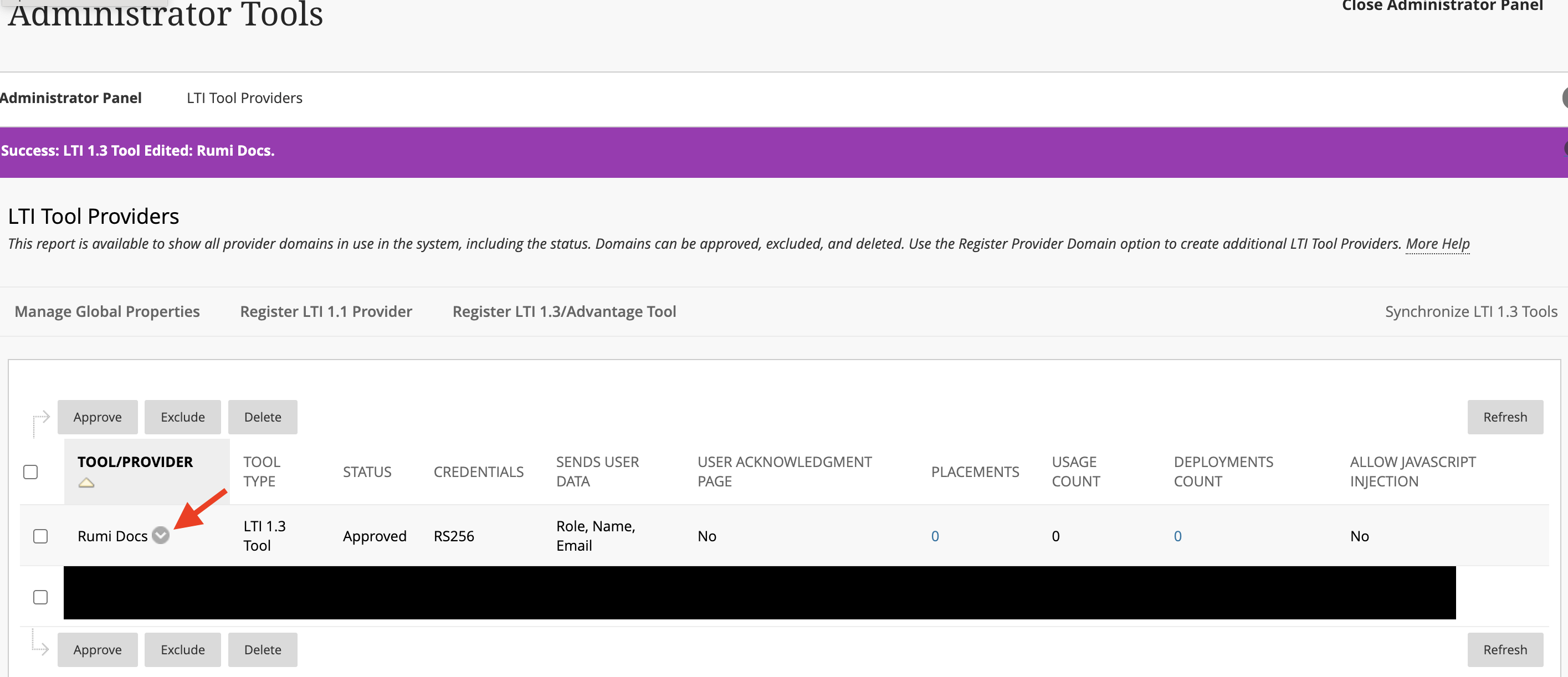
In the LTI Tool Providers list, find the Rumi tool.
Click the arrow (chevron) next to the tool name and select Manage Placements.
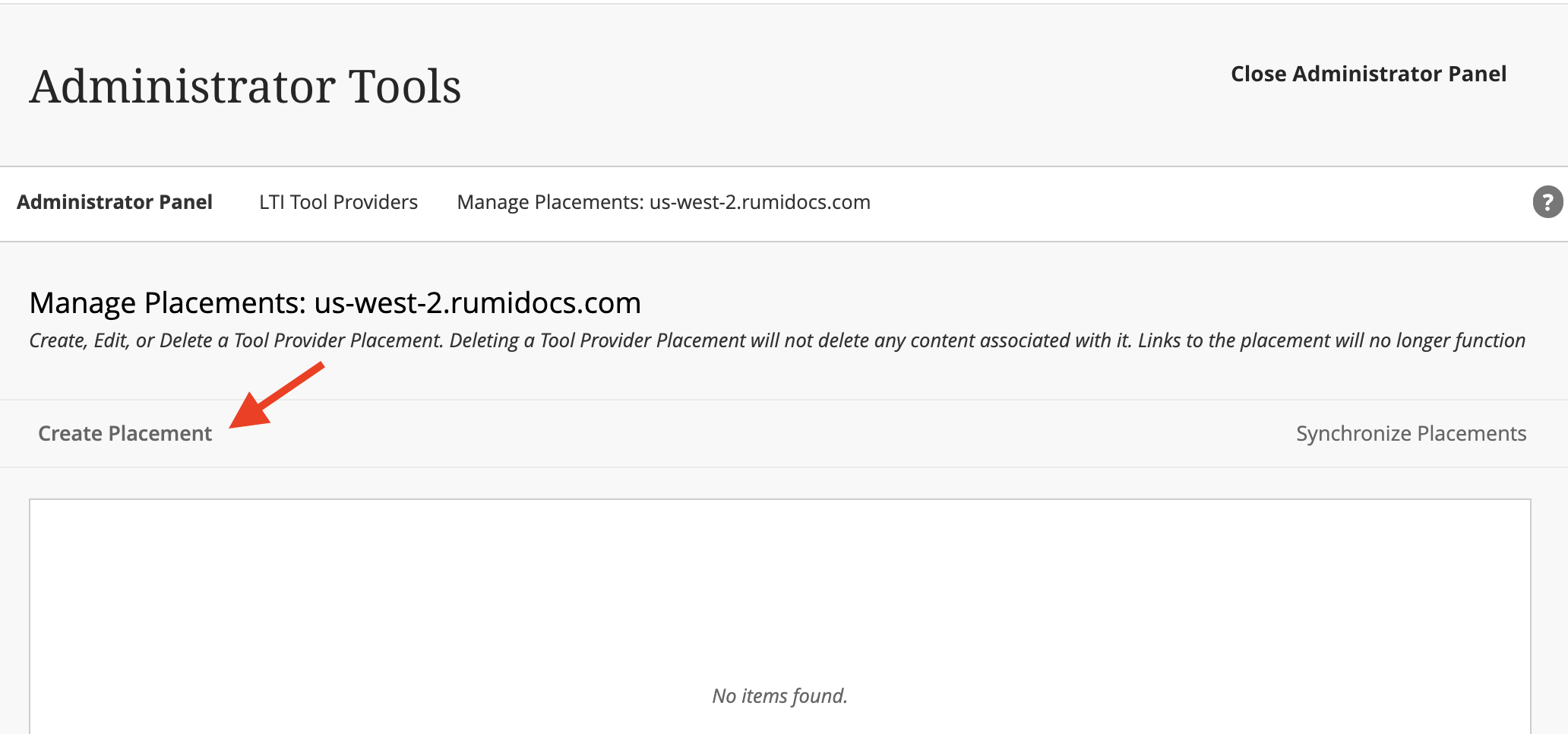
Click Create Placement.
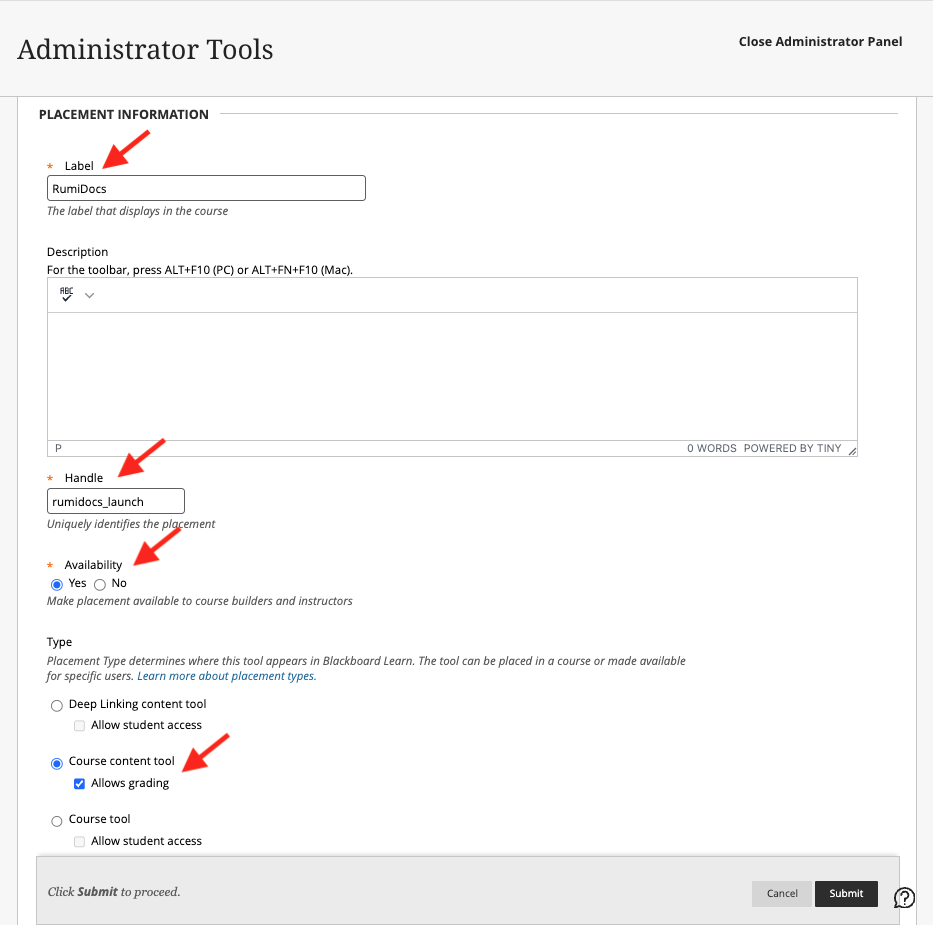
Label: Enter the name you want instructors and students to see (e.g., RumiDocs).
Handle: Enter a unique internal ID (e.g., rumidocs_launch).Note: The Handle must be unique among all Blackboard integrations.
Availability: Set to Yes.
Type: Select Course Content Tool and check the Allows grading box.
Target Link URI:
Click Submit. This completes the integration.

Now follow the Guide for Instructor to add Rumi to an assignment.