Blackboard Integration Guide for Instructors
Key Points:
- Approximate setup time is 3 minutes.
- Your Admin must have already integrated Rumi into Blackboard.
- To user Rumi in Blackboard, classes and assignments must be created in Blackboard, not Rumi.
- This is a single-sign on integration, you should not register new accounts on Rumi.
Integration Steps
Step 1. Open a Course
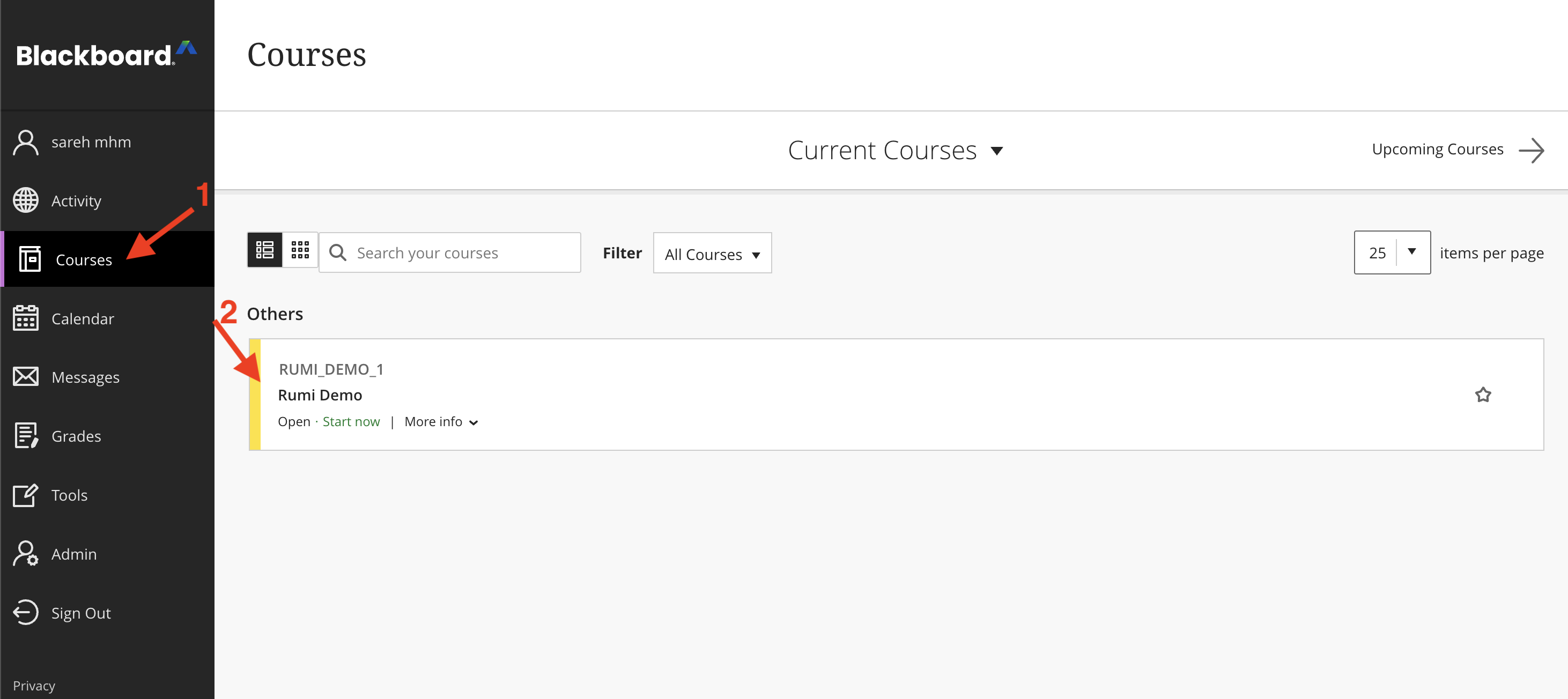
Log in to Blackboard and navigate to the Courses tab.
Select the specific course where you wish to add Rumi.
Step 2. Add the Rumi Assignment
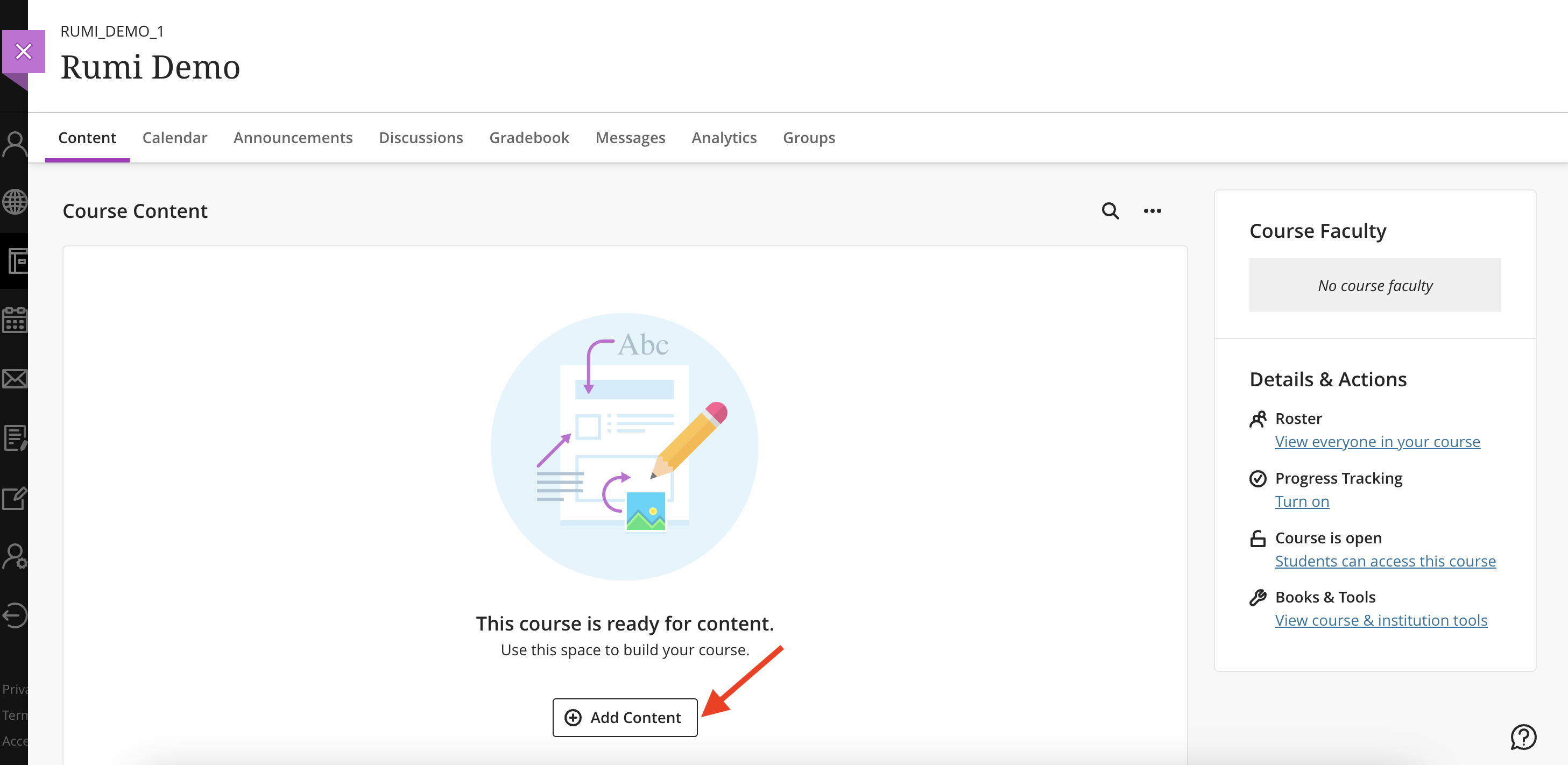
In the Content tab, click the (+) icon or Add Content.
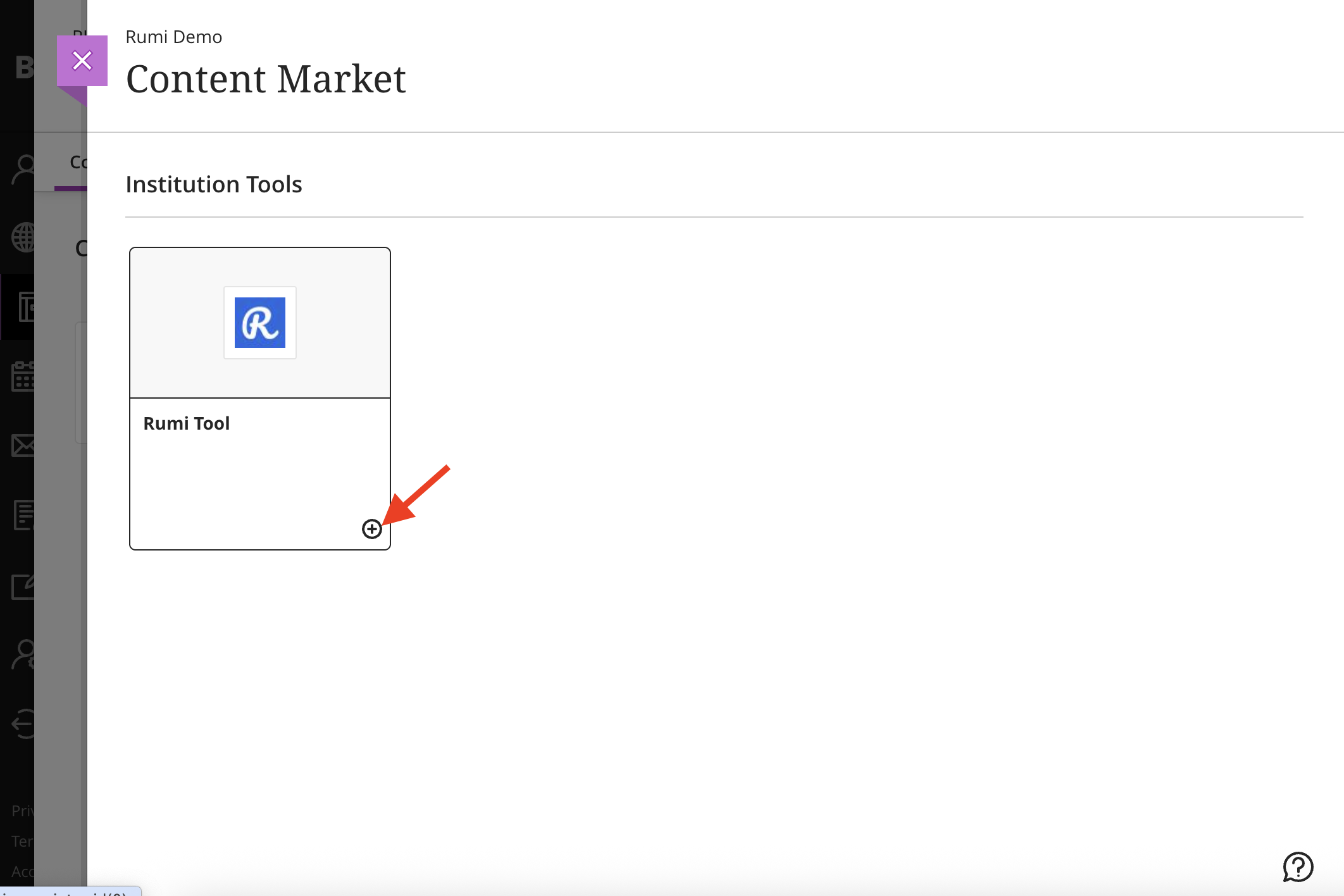
Click on Content Market.

Locate the Rumi LTI Tool and click the (+) icon in the bottom-right corner of the tool tile.
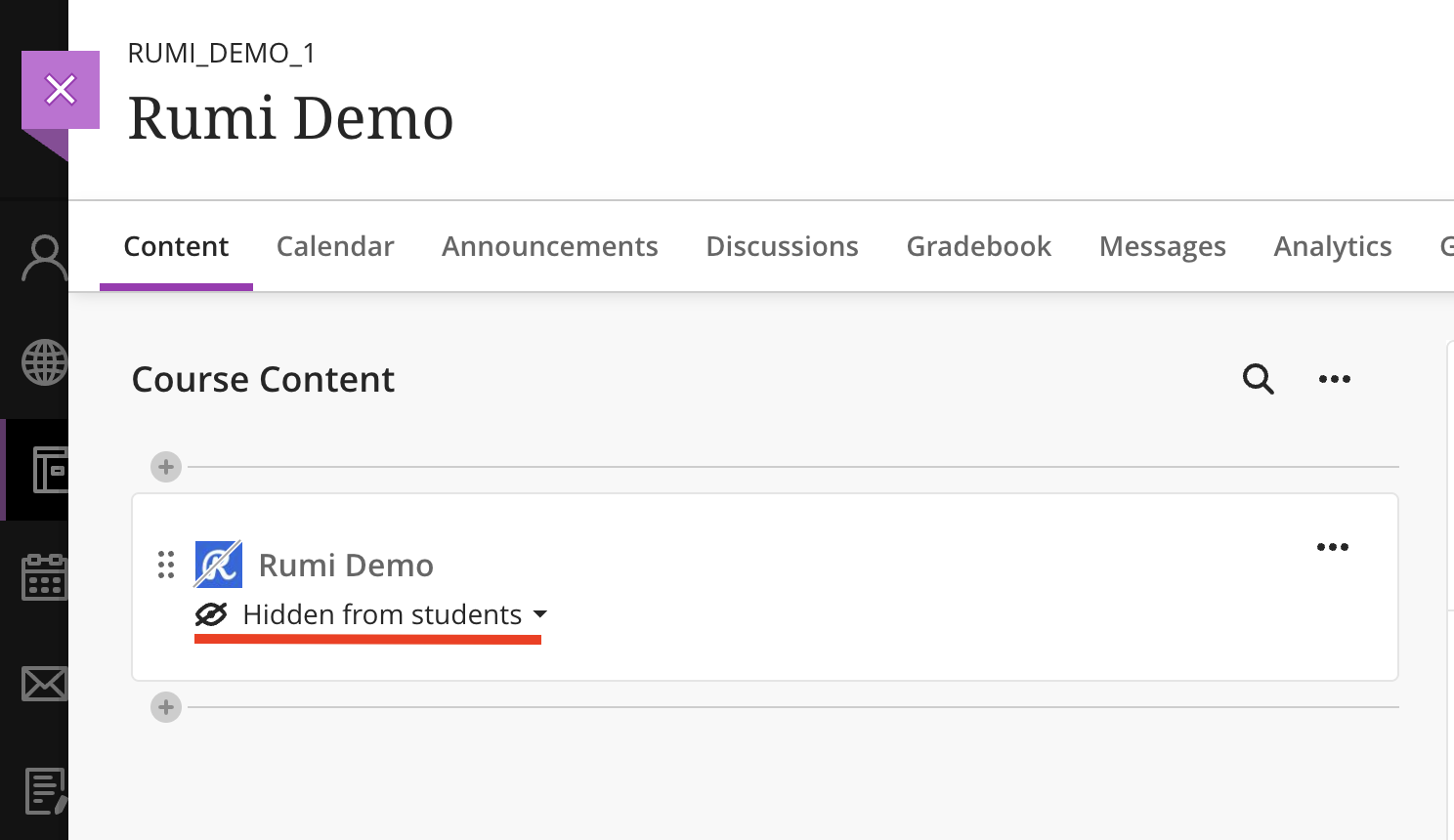
The Rumi link is now added to your course. By default, it is set to Hidden from students.
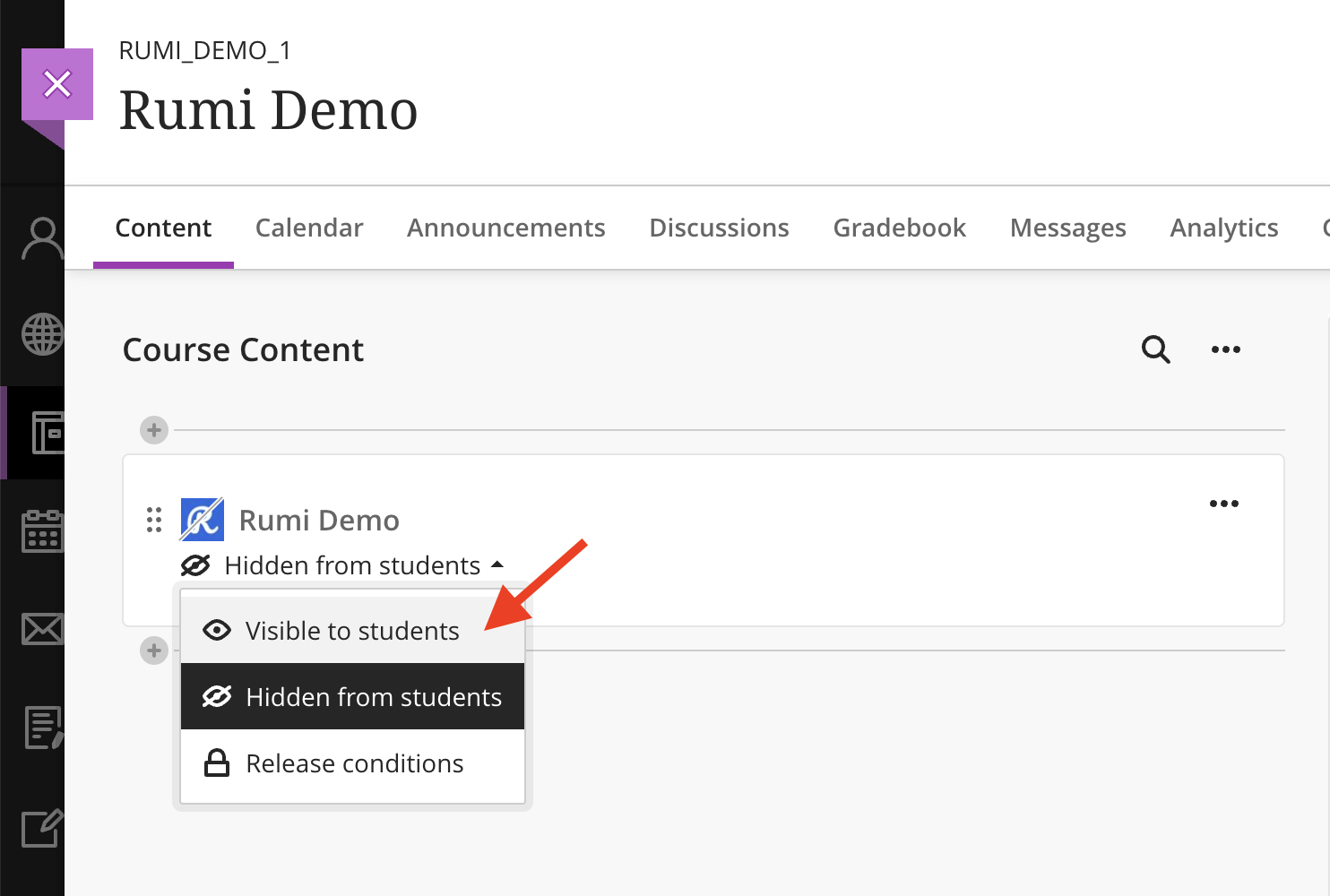
To make it live, click the visibility dropdown and select Visible to students.
Step 3. Student Access
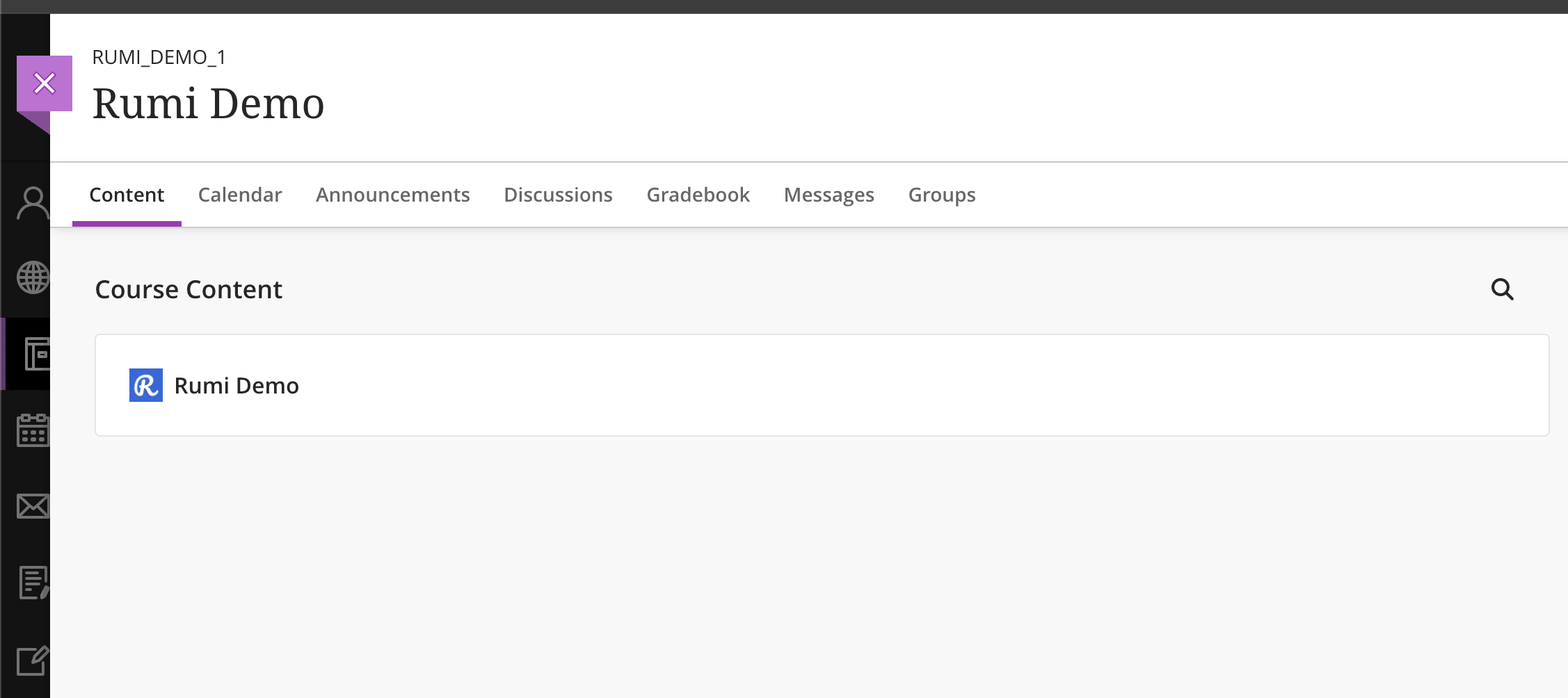
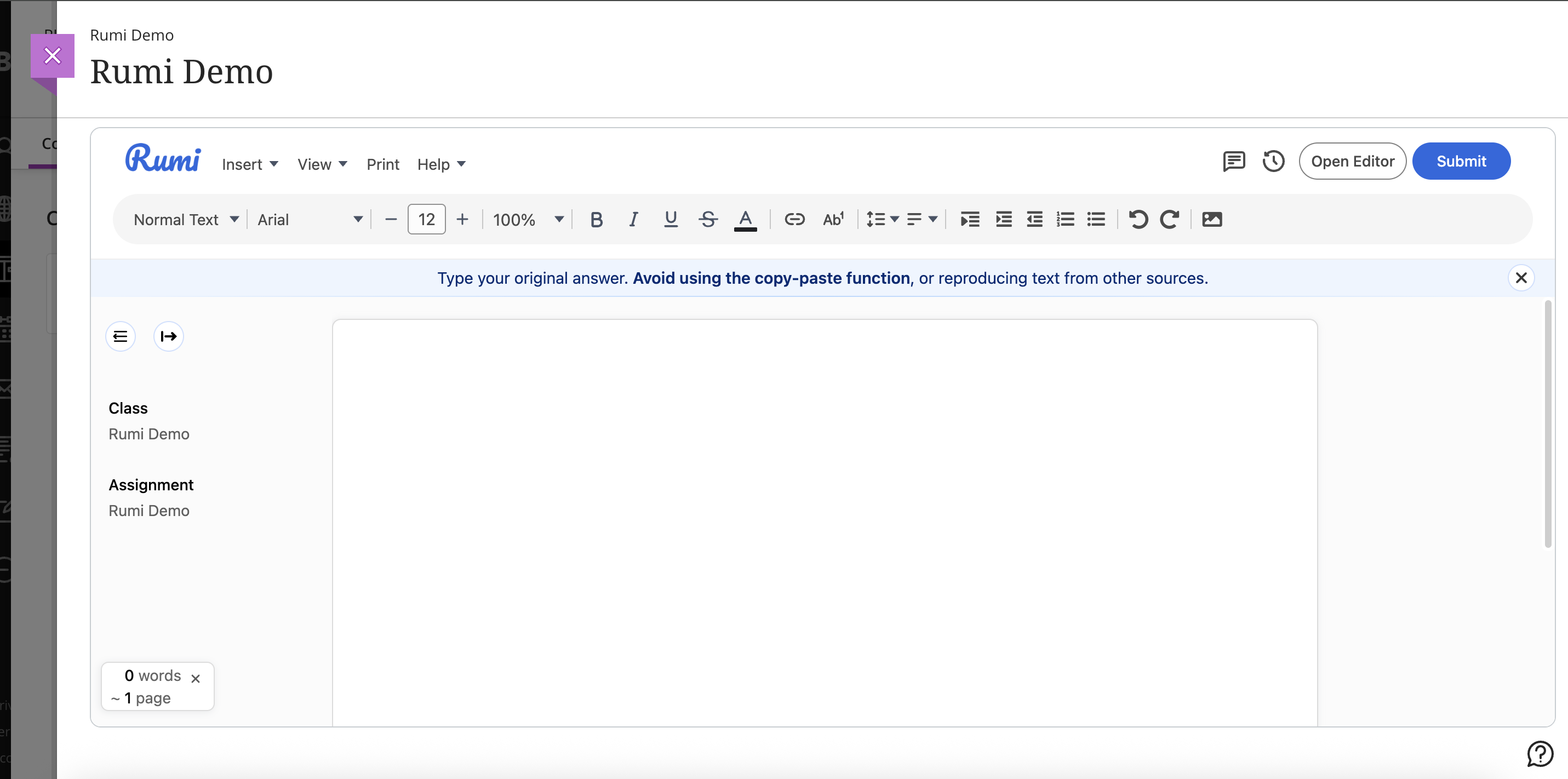
Students can now see the Rumi link within their course content. When they click it, they will be redirected to the Rumi word processor to begin their essay.